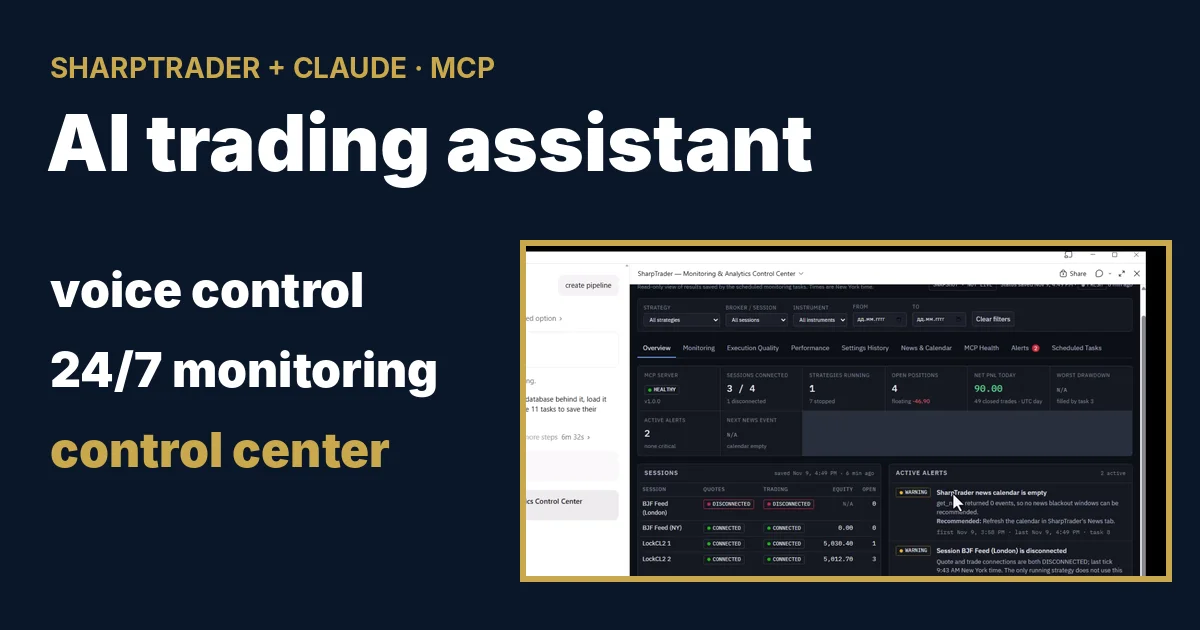
Claude as an AI Trading Assistant: Voice Control, 24/7 Monitoring and a Control Center for SharpTrader Monday November 9th, 2026 – Posted in: Arbitrage Software, Forex trading
BJF TRADING GROUP · SHARPTRADER + CLAUDE
Claude as an AI Trading Assistant: Voice Control, 24/7 Monitoring and a Control Center for SharpTrader
In one day we connected SharpTrader to Claude through its built-in MCP server, controlled a running strategy by voice from a phone, gave Claude one prompt that turned into eleven scheduled monitoring tasks, and let it build a trading control center from live SharpTrader data. This article shows every step on video, explains what the AI agent may and may not do, and gives you the full prompt so you can repeat it.
In this article
- What an AI trading assistant does with SharpTrader
- Step 1: connect SharpTrader to Claude or ChatGPT
- Step 2: manage SharpTrader by voice from your phone
- What the AI agent can and cannot do
- Step 3: one prompt, eleven monitoring tasks
- Step 4: the Monitoring and Analytics Control Center
- The full prompt
- How to repeat it on your own setup
- Limitations you should know
- FAQ
What an AI trading assistant does with SharpTrader
Short answer: SharpTrader has a built-in MCP server (Model Context Protocol). It gives your own AI assistant, Claude or ChatGPT, 29 tools that read SharpTrader and, only if you switch them on, control it. The assistant answers questions about sessions, strategies, orders and logs, starts and stops strategies, changes settings and can run scheduled checks around the clock. No tool can open a new order, and every action that changes something waits for your permission.
In practice this means you no longer need a remote desktop session to the VPS to find out whether everything is running. You ask in plain language, by text or by voice, and the assistant calls the right SharpTrader tool and answers from live data. Below are the four videos we recorded on 9 November 2026, in the order you would set it up yourself.
Step 1: connect SharpTrader to Claude or ChatGPT
In our setup SharpTrader runs on a VPS and the AI assistant runs on a home computer. On the VPS you open Settings › AI agents (MCP), choose the VPS address in Listen on, allow your home IP in the firewall, create a self-signed certificate, copy the .cer file and the access token to the home computer, choose which operations the agent may perform and press Apply changes. On the home computer you install Node.js, then connect the assistant.
- Claude Desktop: download SharpTrader.mcpb, drag it into Settings › Extensions, press Install, then Configure the address, the access token and the certificate file.
- ChatGPT desktop app: add an MCP server with the command
npx, themcp-remotebridge and three environment variables for the token and the certificate. - Node.js from nodejs.org/en/download (Windows Installer) is needed on the computer where the assistant runs.
Every field, every button and a troubleshooting table are in our guide MCP for trading with Claude and ChatGPT. Once the assistant is connected, the test question is simple: “show me my SharpTrader strategies”.
Step 2: manage SharpTrader by voice from your phone
The Claude app on a phone uses the same connection as Claude Desktop. In the second video SharpTrader runs on the VPS and every command is spoken into the phone. Nothing is typed.
| What I said | What Claude did |
|---|---|
| “What strategy is running?” | Listed one running LockCL2 strategy with both sessions connected, two open orders and no errors; the other seven strategies were stopped. |
| “Change the lot size for XAUUSD from 0.1 to 1” | Checked first and did not apply the change, because the strategy window was open in SharpTrader and the edit could be overwritten. It explained what to do instead. |
| “Close open orders” | Asked permission to read the orders, showed exactly which positions it would close and waited. After “yes, confirm” it closed both positions and reported the result for each leg. |
| “Analyze the log file and tell me if anything is wrong” | Read the strategy log and gave a summary: no errors, no rejected orders, no connection problems, execution times of 89 to 96 ms, the weak spots, and what to check before increasing the lot size. |
| “Stop the strategy” / “Run this strategy again” | Stopped the strategy with no open orders, then started it again with the same settings. |
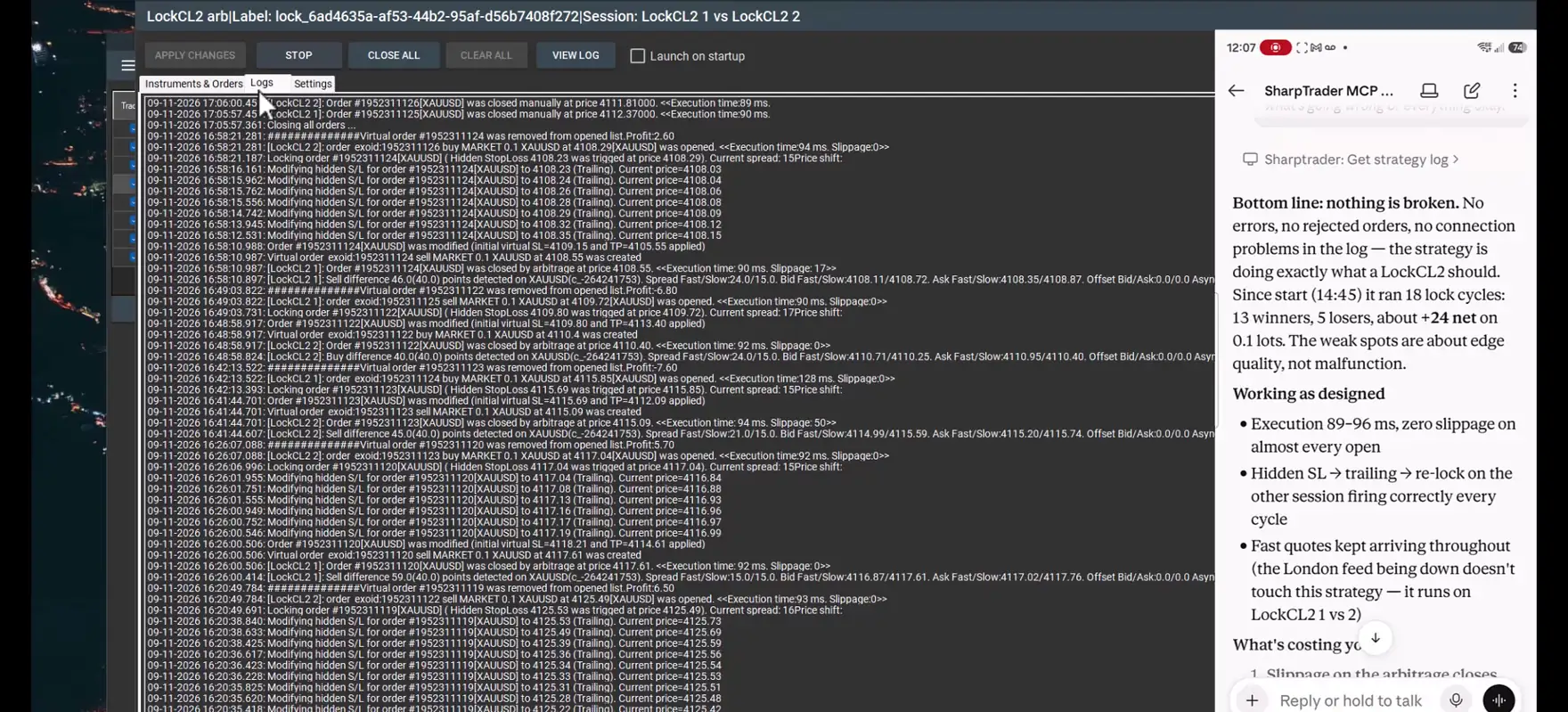
The most useful moment is not the one where the agent does something, it is the one where it refuses. A lot size change while the strategy window is open could be silently overwritten when the window is saved, so the agent follows the same rule as the program and says so.
What the AI agent can and cannot do
The agent works only through the tools that SharpTrader exposes. Only reading is on by default; every other group is a separate switch in SharpTrader that you turn on yourself.
| Permission group | Tools | What the AI may do |
|---|---|---|
| Read | 12 | Sessions, strategies, settings, orders, performance, logs, journal and news. Always on, changes nothing. |
| Control | 9 | Start and stop strategies, trading on/off, connect and disconnect sessions. Off until you tick it. |
| Settings | 7 | Change strategy and instrument settings and the news filter, create and clone strategies. Off until you tick it. |
| Positions | 1 | Close all positions of a strategy. Off until you tick it. |
- No tool sends a new order, deletes or renames a strategy, adds sessions or touches files and network addresses.
- Every request needs the access token; any address other than 127.0.0.1 requires HTTPS.
- Every call is written to a log on the SharpTrader computer, and actions also go to the SharpTrader journal.
- Claude asks your permission before it uses a tool and asks for confirmation before anything irreversible, such as closing positions.
Step 3: one prompt, eleven monitoring tasks
The third video turns Claude into an assistant that keeps working when you are not watching. I wrote one prompt describing the monitoring, risk control and reporting I wanted, with strict rules: install nothing on the VPS, change nothing in SharpTrader, never open or close positions on its own, and use only the SharpTrader MCP tools and Claude’s own scheduled tasks. The full prompt is below.
I attached the prompt file in Claude Desktop and wrote “read and create all schedules”. Claude read it, planned the tasks and asked for approval before creating each one. This is the schedule it registered (New York time):
| # | Task | Requested | Actually scheduled |
|---|---|---|---|
| 1 | Hourly health monitoring | Every hour, Forex market hours | Hourly at :59, Sun–Fri |
| 2 | Orphaned position detection | Every hour, trading hours | Hourly at about :03, Sun–Fri |
| 3 | Drawdown monitoring | Every 15 minutes, trading hours | Hourly at :01, Sun–Fri |
| 4 | Execution quality watchdog | Every 15 minutes, trading hours | Hourly at :01, Sun–Fri |
| 5 | Daily trading digest | Mon–Fri 5:10 PM | Mon–Fri 5:10 PM |
| 6 | Nightly settings snapshot | Daily 11:55 PM | Daily 11:55 PM |
| 7 | Weekly latency report | Mon 8:00 AM | Mon 7:47 AM |
| 8 | Daily news calendar review | Daily 7:00 AM | Daily 6:52 AM |
| 9 | Friday weekend review | Fri 4:45 PM | Fri 4:45 PM |
| 10 | Sunday market reopening review | Sun 5:05 PM | Sun 5:05 PM |
| 11 | MCP server health report | Mon 8:15 AM | Mon 8:15 AM |
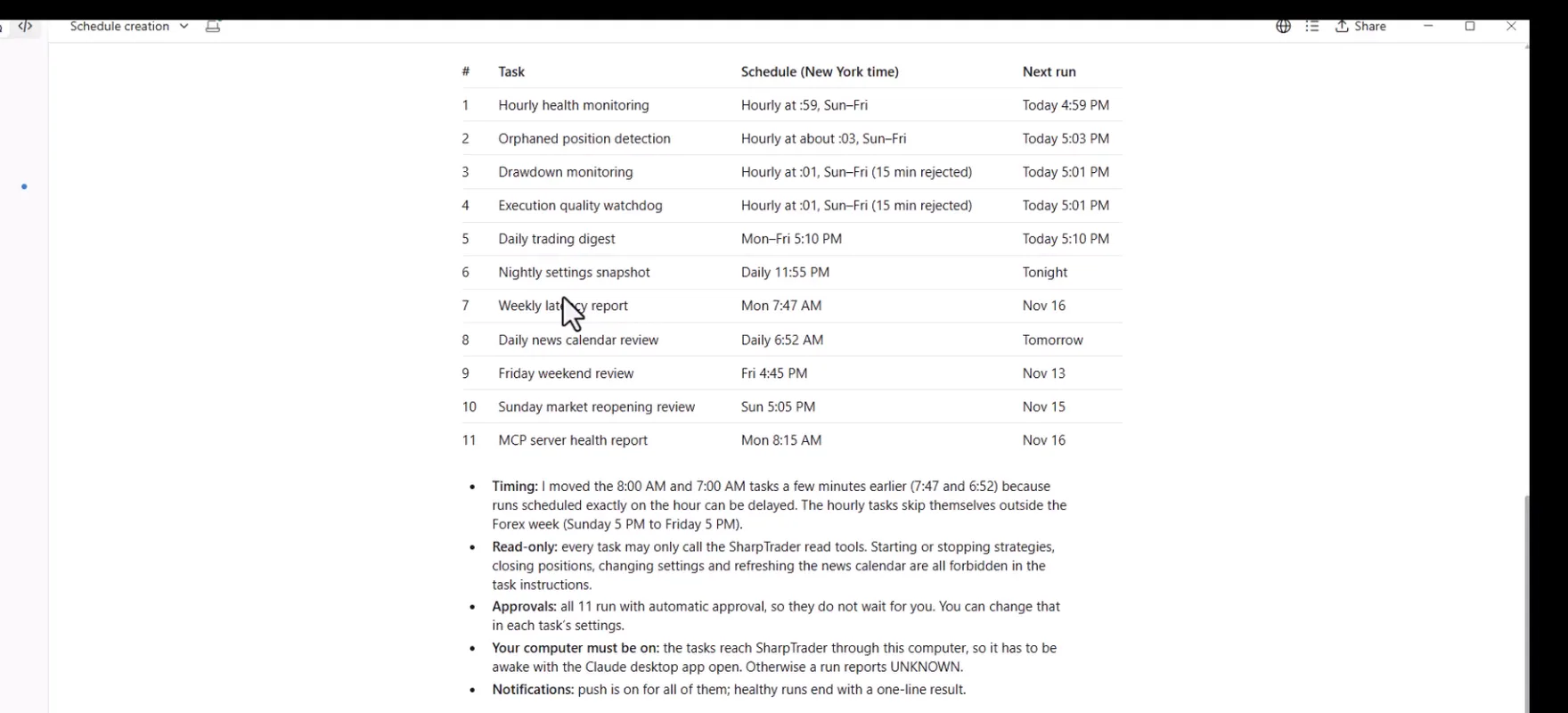
Claude was open about what it changed. The scheduler’s minimum interval is one hour, so the two tasks I asked to run every fifteen minutes run hourly. The 8:00 AM and 7:00 AM reports were moved a few minutes earlier because runs scheduled exactly on the hour can be delayed. Every task is read-only.
Then I asked for a spreadsheet of everything that was created. Claude built it at once with three tabs: the scheduled tasks with requested schedule, actual schedule, status, next run and task ID; notes and limitations; and a status sheet with the sessions and strategies at that moment. Next I wrote “run tests right now”. Claude started all eleven tasks as test runs, each with my approval, and reported back: all eleven succeeded, the shortest in 14 seconds and the longest in about three minutes. It also said honestly that a successful run only proves the run finished, and that it could not read each report from the chat. The results went into a second spreadsheet.
Step 4: the Monitoring and Analytics Control Center
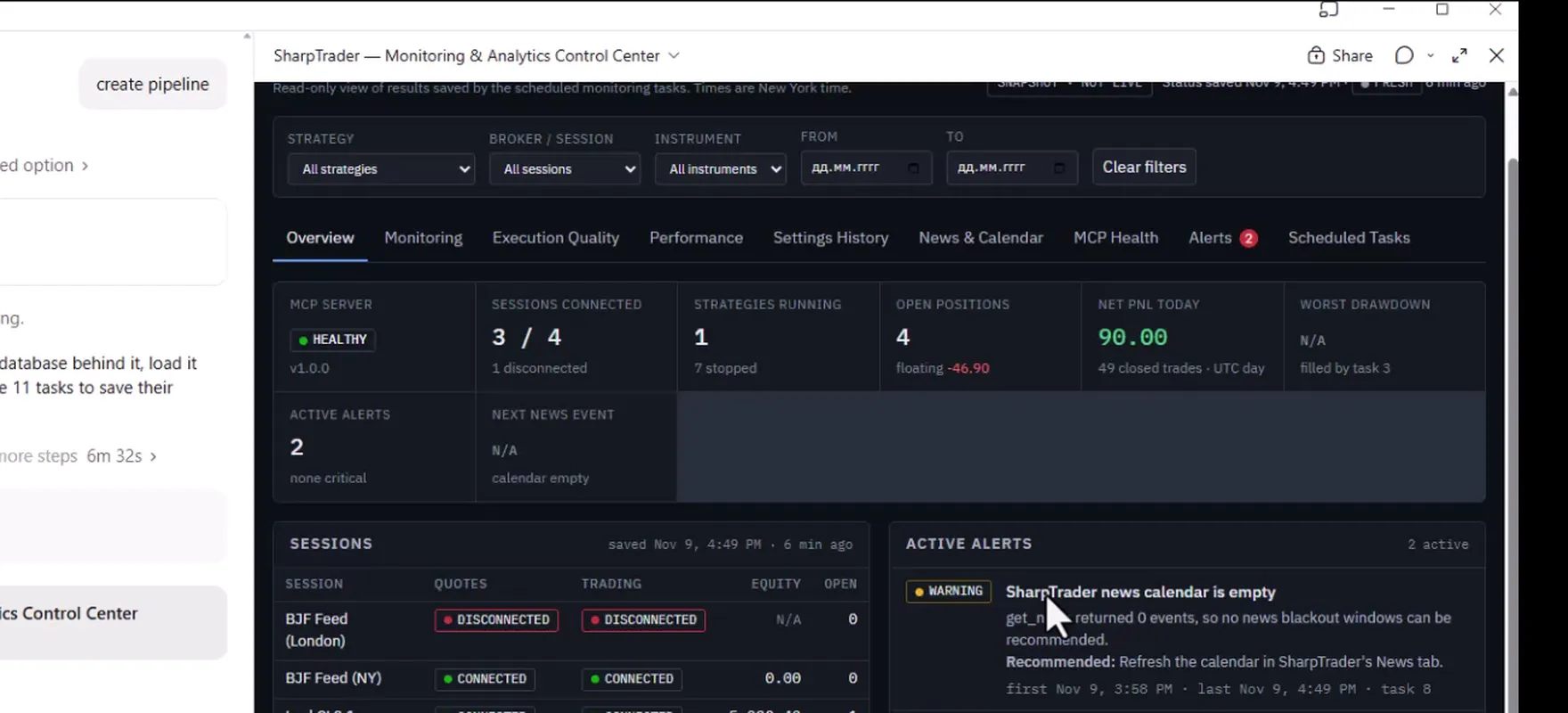
The last step was a single place to look. Claude built an interactive dashboard, SharpTrader — Monitoring & Analytics Control Center, with a small database behind it, loaded it with current SharpTrader data and then updated the eleven tasks so that each run saves its results there.
| Tab | What it shows |
|---|---|
| Overview | MCP server status, connected sessions, running and stopped strategies, open positions, active alerts, next news event. |
| Monitoring | Quote and trade sessions with ping and last tick, health of every strategy, orphaned positions, drawdown. |
| Execution Quality and Performance | Latency, slippage, worst fills, trading cycles and daily results, as the scheduled tasks collect them. |
| Settings History | Nightly snapshots of strategy settings and what changed between them. |
| News & Calendar | Upcoming high-impact events, the Friday and Sunday reviews and the next scheduled reviews. |
| MCP Health, Alerts, Scheduled Tasks | Server health, warnings with recommended actions, and the status of all eleven tasks. |
The dashboard is labelled SNAPSHOT · NOT LIVE with the time of the last save, exactly as the prompt required: it never pretends to update continuously. On the first day it already showed two real warnings, an empty news calendar in SharpTrader and a disconnected feed session, each with a recommended action.
The full prompt
This is the exact prompt from the video. Copy it into Claude as it is, or download it as a file and attach it to the chat. Adjust the schedules and thresholds to your own trading hours and risk limits before you send it.
# SharpTrader MCP — Automated Monitoring & Interactive Reporting Center

You are already connected to my SharpTrader trading platform running on a VPS through the SharpTrader MCP Server.

I want you to create a comprehensive automated monitoring, risk control, execution analysis, and reporting system using **Claude, the existing MCP connection, and Claude Artifacts**.

## IMPORTANT — Implementation Restrictions

For this initial version:

- Do NOT install any software on the VPS.
- Do NOT create Python monitoring services.
- Do NOT deploy a web dashboard to the VPS.
- Do NOT configure cron, systemd, Windows Task Scheduler, or VPS background processes.
- Do NOT modify the SharpTrader MCP Server.
- Do NOT create additional infrastructure.
- Do NOT open or close trading positions automatically.

Use the existing SharpTrader MCP tools and Claude's native scheduling capabilities, if available.

Your responsibility is to create working recurring tasks wherever supported and organize all results into a single interactive Claude Artifact.

If native scheduling is unavailable, do not claim the tasks are active. Instead, implement the monitoring and reporting workflows that can be run on demand and clearly identify the scheduling limitation.

# 1. Discover SharpTrader MCP Capabilities

First, inspect all available SharpTrader MCP tools.

Identify which tools support:

- Listing strategies and their running/stopped status
- Retrieving strategy settings
- Quote and Trade session monitoring
- Reading active positions and pending orders
- Retrieving historical trades and trading cycles
- Reading strategy logs
- Checking execution latency and slippage
- Retrieving account equity and PnL
- Accessing economic news events
- Starting and stopping strategies
- Retrieving MCP server status and error information

Map each required monitoring function to the actual available MCP tool.

Do not invent MCP commands or unsupported features.

# 2. Recurring Monitoring Tasks

Create the following recurring tasks using Claude's available scheduling functionality.

Use the America/New_York timezone and account for daylight saving time.

## Task 1 — Hourly Health Monitoring

**Schedule:** Every hour during Forex market hours.

Check:

1. SharpTrader MCP connectivity.
2. Quote session connectivity.
3. Trade session connectivity.
4. Running and stopped strategies.
5. Error counters and new errors.
6. Unexpected strategy stops.
7. Stale market data, where detectable.
8. Current open positions.

Assign HEALTHY, WARNING, CRITICAL, or UNKNOWN status.

Record the timestamp and results.

## Task 2 — Orphaned Position Detection

**Schedule:** Every hour during trading hours.

Identify positions or pending orders belonging to stopped strategies.

Display:

- Strategy
- Broker/session
- Instrument
- Order ID
- Direction
- Volume
- Floating PnL
- Protective orders
- Strategy status

Immediately flag detected orphaned positions as CRITICAL.

Never automatically close positions.

## Task 3 — Drawdown Monitoring

**Schedule:** Every 15 minutes during trading hours, if supported.

Default thresholds:

- Warning: 3%
- Critical: 5%

Calculate drawdown using reliable strategy-level equity or an explicitly documented alternative.

Use a consistent baseline and clearly state the calculation method.

At the critical threshold:

- Generate a CRITICAL alert.
- Identify the affected strategy.
- Explain the current risk.
- Recommend suspending new entries.

Do not automatically stop a strategy in this initial version.

## Task 4 — Execution Quality Watchdog

**Schedule:** Every 15 minutes during trading hours.

Analyze new execution logs.

Default thresholds:

- Adverse slippage: more than 50 points
- Execution latency: more than 120 milliseconds
- Repeated bad executions: 3 within 60 minutes

Detect abnormal executions.

For each event, record:

- Strategy
- Broker
- Instrument
- Order ID
- Timestamp
- Expected price
- Actual price
- Slippage
- Execution latency
- Entry or exit

Highlight repeated execution problems and identify brokers with deteriorating performance.

Do not automatically stop strategies.

# 3. Daily Performance Reports

## Task 5 — Daily Trading Digest

**Schedule:** Monday–Friday at 5:10 PM New York time.

Generate a report for every strategy containing:

- Strategy name
- Broker and session
- Instruments
- Trading cycles
- Winning and losing cycles
- Win rate
- Average win
- Average loss
- Gross profit and loss
- Net PnL
- Profit factor
- Maximum drawdown
- Average execution latency
- Worst adverse slippage
- Number of execution errors
- Session uptime
- Open positions and floating PnL

Include consolidated results for all strategies.

Calculate metrics from real MCP data.

Clearly distinguish trading cycles from individual trades and fills.

## Task 6 — Nightly Settings Snapshot

**Schedule:** Daily at 11:55 PM New York time.

Retrieve:

- All strategies
- Strategy parameters
- Instrument assignments
- Broker/session mappings
- Risk settings
- Lot sizes
- Execution parameters

Compare the current configuration with previous snapshots.

Highlight added, removed, and modified parameters.

Use the available Claude persistence features, where supported, to preserve history.

Never include passwords, API keys, or private credentials.

# 4. Weekly Execution Analysis

## Task 7 — Weekly Latency Report

**Schedule:** Monday at 8:00 AM New York time.

Generate:

- Average execution latency
- p95 execution latency
- Maximum execution latency
- Average adverse slippage
- Worst adverse slippage
- Broker-by-broker comparison
- Instrument-level analysis
- Strategy-level execution quality
- Weekly trends
- Execution failures
- Session disconnects

Include charts showing performance deterioration.

# 5. News Calendar Monitoring

## Task 8 — Daily News Calendar Review

**Schedule:** Every day at 7:00 AM New York time.

Use available SharpTrader MCP news calendar tools.

Identify:

- Upcoming high-impact events
- Affected currencies
- Relevant trading instruments
- Strategies potentially affected
- Event timestamps

Default protection recommendation:

- 15 minutes before the event
- 15 minutes after the event

Show which strategies should avoid new entries.

For this initial version, **do not automatically stop strategies or change their settings**.

Generate alerts and recommendations only.

# 6. Weekend Trading Monitoring

## Task 9 — Friday Weekend Review

**Schedule:** Friday at 4:45 PM New York time.

Check:

- Active strategies
- Open positions
- Pending orders
- Floating PnL
- Broker connectivity
- Strategies configured for weekend trading

Generate a weekend risk report.

Identify strategies that should potentially be stopped.

Do not automatically stop them.

## Task 10 — Sunday Market Reopening Review

**Schedule:** Sunday at 5:05 PM New York time.

Check:

- MCP connectivity
- Quote session connectivity
- Trade session connectivity
- Market data freshness
- Existing open positions
- Orphaned orders
- Strategy statuses

Identify which strategies are ready for trading.

Do not automatically start strategies.

# 7. MCP Server Weekly Audit

## Task 11 — MCP Server Health Report

**Schedule:** Monday at 8:15 AM New York time.

Use available MCP diagnostic tools to check:

- Server connectivity
- Response time
- Failed MCP calls
- Reported exceptions
- Available error logs
- TLS certificate expiry, if exposed
- Service restart information, if exposed

If infrastructure-level diagnostics are unavailable through MCP, clearly mark them as unavailable.

Do not attempt to access the VPS operating system through unapproved methods.

# 8. Create One Unified Claude Artifact

Create an interactive Claude Artifact named:

**SharpTrader — Monitoring & Analytics Control Center**

The Artifact must contain the following tabs.

## Tab 1 — Overview

Display the current overall state:

- MCP server status
- Connected sessions
- Active strategies
- Stopped strategies
- Open positions
- Net PnL
- Drawdown
- Active alerts
- Upcoming news

Use color-coded indicators.

## Tab 2 — Monitoring

Display:

- Quote and Trade session statuses
- Strategy health
- Error counters
- Orphaned positions
- Drawdown monitoring
- Historical monitoring results

## Tab 3 — Execution Quality

Display:

- Execution latency
- Slippage analysis
- Worst fills
- Bad execution events
- Broker comparisons
- Historical execution trends

Use interactive charts.

## Tab 4 — Performance

Display:

- Daily strategy reports
- Portfolio-level performance
- Win rates
- Trading cycles
- Profit factor
- Daily PnL charts
- Historical performance comparisons

## Tab 5 — Settings History

Display:

- Current strategy settings
- Previous settings snapshots
- Configuration changes
- Instrument changes
- Broker/session changes

Show old versus new parameter values.

## Tab 6 — News & Calendar

Display:

- Upcoming high-impact events
- Affected instruments
- Affected strategies
- Recommended trading blackout periods
- Weekend monitoring results
- Next scheduled reviews

## Tab 7 — MCP Health

Display:

- MCP connection status
- Response time
- Error history
- Available infrastructure diagnostics
- Certificate expiration information when available

## Tab 8 — Alerts

Display:

- Active critical alerts
- Warning alerts
- Historical incidents
- Affected strategies
- Alert timestamps
- Alert descriptions
- Recommended actions

## Tab 9 — Scheduled Tasks

Display a complete automation control panel containing:

- Task name
- Schedule
- Status
- Last execution
- Next scheduled execution
- Last result
- Error information
- Whether the task is actually registered with a scheduler

Clearly distinguish ACTIVE, MANUAL ONLY, FAILED, and UNSUPPORTED tasks.

# 9. Artifact UI Requirements

Create a professional dark-themed trading dashboard.

Requirements:

- Responsive layout
- Interactive navigation tabs
- Sortable tables
- Strategy filters
- Broker filters
- Instrument filters
- Date-range selection
- Interactive charts
- Historical comparisons
- Clear alert severity indicators
- Last updated timestamps
- Data freshness indicators

Use real SharpTrader MCP data only.

Do not generate fictional performance metrics or sample trading results.

If a required metric is unavailable, display N/A and explain why.

The Artifact must never falsely indicate that monitoring is live or continuously updating when it is only displaying the latest available snapshot.

# 10. Scheduling and Persistence

Use Claude's native recurring task functionality if it is available in this environment.

Verify:

1. Whether scheduled tasks can call SharpTrader MCP tools.
2. Whether they can execute when the Claude chat is closed.
3. Whether task execution history persists.
4. Whether monitoring results can be saved between executions.
5. Whether scheduled task outputs can be used to refresh the Artifact.

If any of these capabilities are unavailable, clearly explain the limitation.

Do not substitute temporary chat reminders for actual recurring monitoring.

Do not claim that an Artifact itself performs background monitoring.

# 11. Initial Execution

After discovering the MCP tools:

1. Retrieve all SharpTrader strategies.
2. Retrieve all current trading sessions.
3. Check current connectivity.
4. Retrieve open positions.
5. Analyze available execution logs.
6. Identify current warnings.
7. Generate the first performance summary using available data.
8. Build the interactive Artifact.
9. Create and register recurring tasks wherever supported.
10. Verify actual scheduling status.

# 12. Final Result

At completion, provide:

**A. SharpTrader Monitoring & Analytics Artifact**

A complete interactive dashboard with all nine tabs.

**B. Recurring Tasks Status**

A table showing which tasks are successfully scheduled, which can only run manually, and which are unsupported.

**C. Current SharpTrader Status**

A summary based on actual MCP data.

**D. Limitations**

Explain which functions require capabilities that Claude or the existing SharpTrader MCP connection does not currently provide.

**Important: Do not stop after writing an implementation plan. Perform all supported actions now. Build the Artifact, retrieve real SharpTrader data, and register the available recurring tasks. Do not make any trading changes or deploy anything to the VPS.**
How to repeat it on your own setup
1
2
3
4
5
6
Limitations you should know
- Scheduled tasks reach SharpTrader through the computer where Claude Desktop runs. That computer has to be awake with the app open; otherwise a run reports UNKNOWN instead of a status.
- The shortest interval of Claude’s scheduler is one hour, so a “every 15 minutes” check becomes hourly.
- A task run starts fresh each time; history between runs exists only where it is saved, here in the control center’s database.
- The dashboard shows the last saved snapshot, not a live stream. For live monitoring you still have SharpTrader itself.
- AI assistants can misunderstand a request. Keep the permission switches as narrow as your use case allows and read what Claude is about to do before you approve it.
SharpTrader AI Agents (MCP Server)
The MCP server is a SharpTrader module for SharpTrader Pro and Lite. Claude and ChatGPT accounts are not included.
Free arbitrage scanner + short email course
Get the free scanner link and a few short, practical emails from Boris: what a price gap really means after costs, how to test a strategy before risking real money, and which tools fit your market. No hype.
FAQ
Can Claude open trades in SharpTrader?
No. None of the 29 MCP tools can send a new order. The most an agent can do is close the positions of a strategy, and only if you switch on the Positions group.
Does it work with ChatGPT as well as Claude?
Yes. The ChatGPT desktop app connects to the same MCP server through the mcp-remote bridge, which needs Node.js. The voice and scheduled-task examples in this article were made with Claude.
Do I have to install anything on the VPS?
No. The MCP server is built into SharpTrader. You enable it in Settings, and on a VPS you create a certificate and a firewall rule for your home IP from the same page.
Can I control SharpTrader from my phone?
Yes. The Claude app on the phone uses the connection you set up in Claude Desktop, so you can ask questions and give commands by text or by voice.
Do the scheduled tasks run when my computer is off?
No. In this setup the tasks reach SharpTrader through the computer where Claude Desktop runs, so it must be on with the app open. Otherwise the run reports that the status is unknown.
Can I change the prompt?
Yes, and you should. Adjust the schedules, drawdown and slippage thresholds and the list of reports to your own strategies and trading hours before you send it.
