AI Agents Can Now Trade in SharpTrader: Camouflage Orders, Trailing Stops, Flow Profile and 76 Indicators Friday November 13th, 2026 – Posted in: Arbitrage Software, Forex trading
Your AI agent can now trade inside your limits
The SharpTrader AI agents server (MCP) has its largest update so far. Until now Claude, ChatGPT or another AI client could read SharpTrader and manage your strategies. From today the agent can also book camouflage orders that SharpTrader sends and closes on schedule, protect them with stops and a trailing stop, show how each account’s order flow looks to the broker, and calculate 76 technical indicators on the candles SharpTrader collects. You decide which accounts it may trade and within which limits, and everything starts switched off.
What is new, in short
Eight new agent tools (37 in total) let an AI agent book real orders that make an account’s flow look like ordinary trading, protect them with a stop loss, take profit, broker stop loss and trailing stop, measure how each account looks from the broker’s side, and read 76 indicators such as RSI, MACD and Bollinger Bands. Order tools exist only when you tick Send camouflage orders, the agent trades only on sessions you mark Active, and every order is checked twice against limits the agent can read but never change.
Claude Desktop users get the new tools with extension version 1.3.0. Other AI clients see them after reconnecting to the server. If you are new to the AI agents server, start with our guide MCP for trading: control your trading software with Claude and ChatGPT, and see Claude as a 24/7 trading assistant for monitoring and voice control.
Watch: the AI agents update in 3 minutes
Why order flow matters
A broker does not see your strategy. It sees a stream of orders: how long positions are held, whether they are mostly buys or sells, at what hours you trade, how often you win and on which symbols. Arbitrage flow has a recognisable shape: very short holding times, a high win rate, trades clustered around fast price moves. Risk systems are built to spot that shape, as we explain in the evolution of arbitrage masking in 2026 and in how Phantom Drift and Hybrid Masking appear to broker risk systems.
Strategies such as Phantom Drift and the Hybrid Masking module change the shape of the flow from inside a strategy. The new tools add a second layer: an AI agent that first measures how an account looks, then plans ordinary-looking orders around your arbitrage, and later checks whether the profile has moved.
Camouflage orders
An agent can book real orders that make an account’s flow look like ordinary trading: longer holding times, both directions, other hours of the day. SharpTrader sends each order at the time the agent chose and closes it after its holding time, also when the agent is no longer connected. A whole day’s plan keeps running after you close the chat.
- Order types: market, limit and stop. A limit or stop order rests at a price or at a distance in points from the market, and is cancelled if it has not filled by its expiry time.
- Timing: now, after a delay, or at a set time up to 7 days ahead. An agent can book up to 50 orders in one go and group them under a plan name to list, cancel or close them together.
- Holding time: required for every order. SharpTrader closes the position at market when it is over.
- Through manual trading: the orders go out exactly as from the order window in Charting. Your strategies never see them, and the positions appear in Charting next to your manual orders.
- Never late, never twice: an order that cannot go out at its time (a limit reached, a session disconnected) is retried for 5 minutes and then marked Missed. It is never sent late, and never sent twice, even if SharpTrader stops in the middle of sending it.
- The comment goes to the broker: up to 31 characters. Words that reveal what the order is for (camouflage, MCP, agent) are refused.
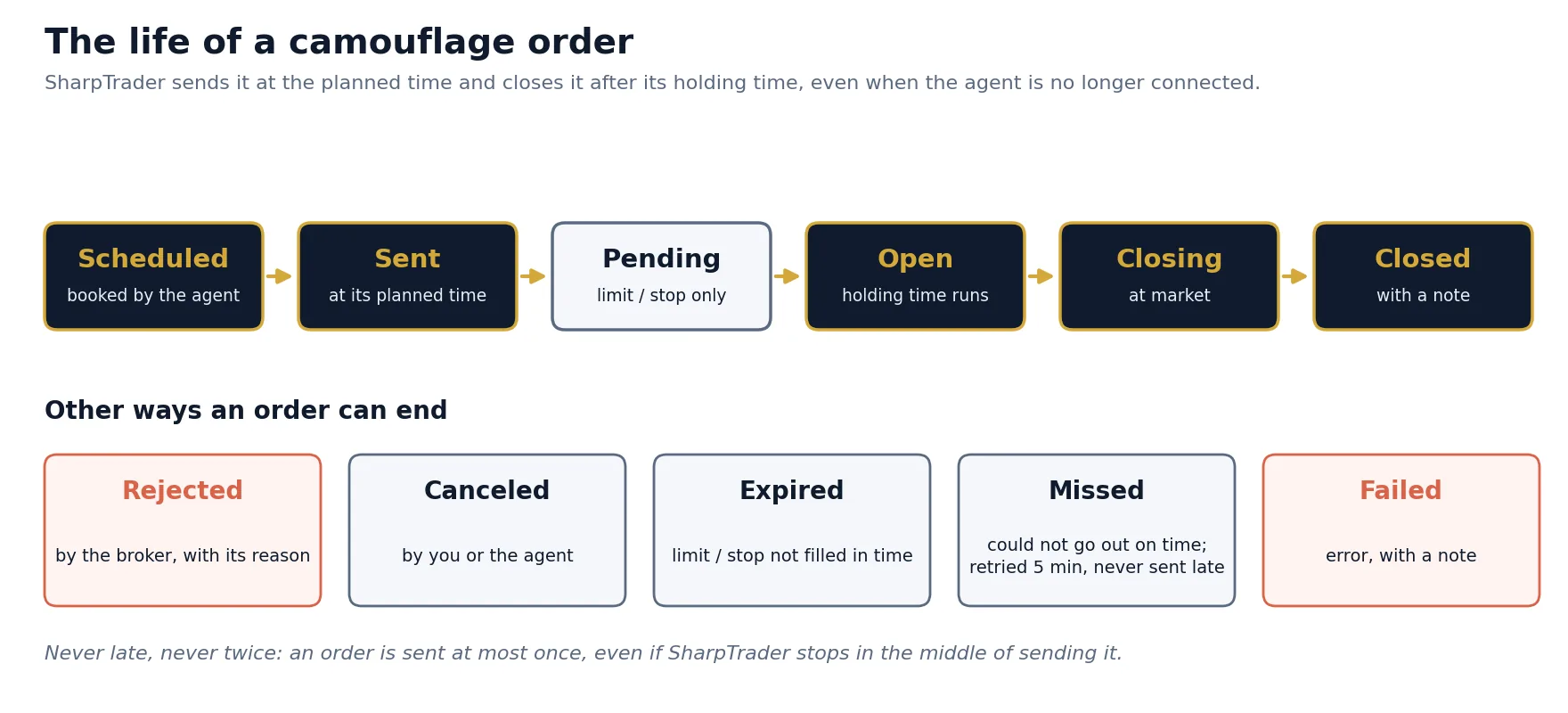
list_camouflage_orders shows where each order is.An order’s life
A booked order is Scheduled, then Sent at its time. Limit and stop orders wait as Pending until they fill. A filled order is Open until its holding time ends, then Closing and Closed. An order can also end as Rejected, Canceled, Expired, Missed or Failed, and each of these comes with the reason, so the agent can tell you what happened instead of guessing.
Your limits, for each account
On Settings › AI agents (MCP), the Camouflage orders group is a grid with one row per session. Agents trade only on the sessions you mark Active, and each order is checked against that session’s limits twice: when the agent books the plan, and again just before it is sent. Agents can read the limits but can never change them.
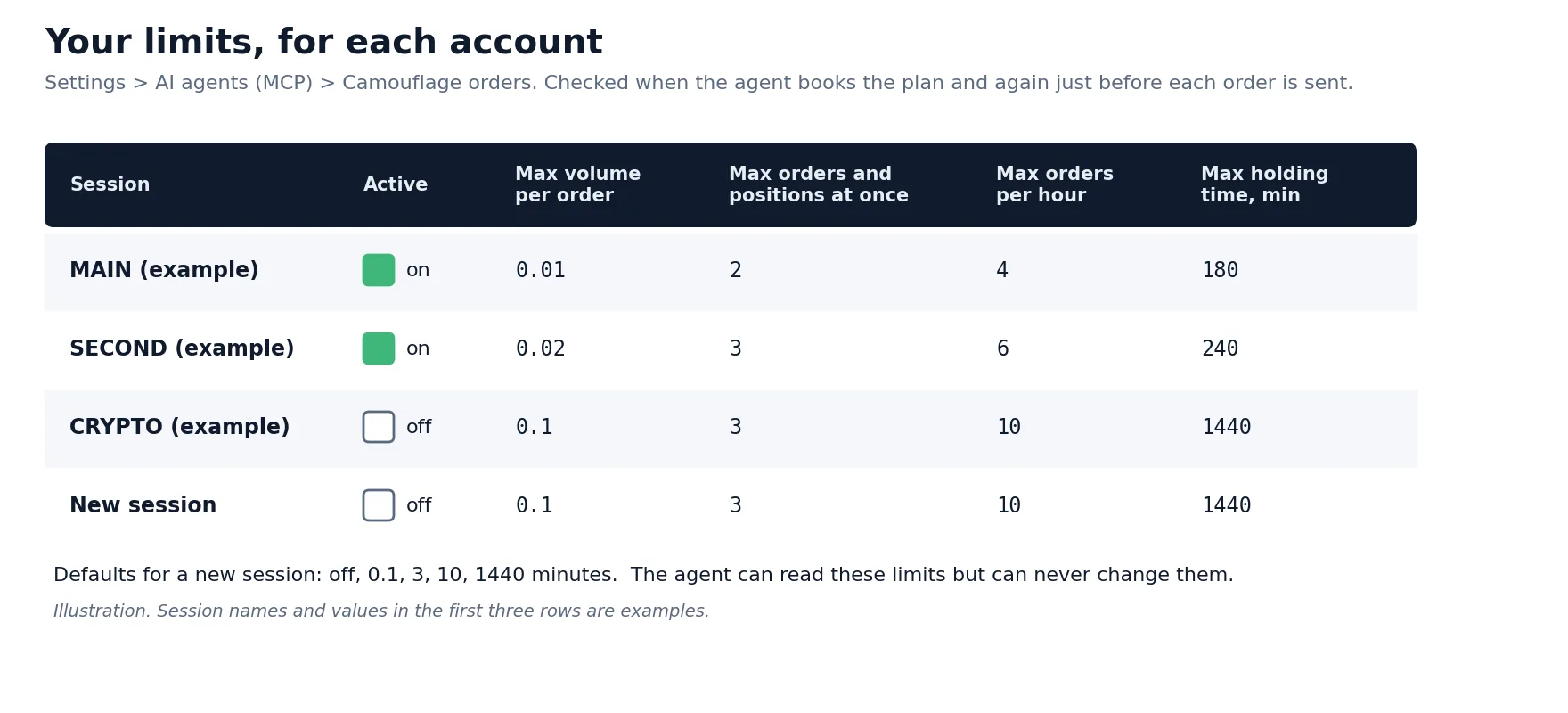
| Column | What it limits | Default | Range |
|---|---|---|---|
| Active | Whether agents may trade on this session. New sessions start inactive. | off | on / off |
| Max volume per order | Volume of one order, in the units of the order window (lots, coins) | 0.1 | 0.0001 – 1,000,000 |
| Max orders and positions at once | Camouflage orders and positions at the broker on this session at the same time | 3 | 1 – 100 |
| Max orders per hour | Orders sent on this session within any hour | 10 | 1 – 1,000 |
| Max holding time, minutes | Longest holding time, and the longest expiry of a limit or stop order | 1440 | 1 – 10,080 |
Activate all and Deactivate all set every row at once. A number outside its range is not accepted: the cell keeps the saved value and shows what to enter.
Stops at SharpTrader and at the broker
Each order can carry three kinds of protection. All distances are in points: the smallest price step of the symbol, so 1 point on a 5-digit EURUSD is 0.00001.
| Field | Measured from | Who watches it |
|---|---|---|
stop_loss_points, take_profit_points |
the fill price | SharpTrader, once a second. The broker does not see them. |
broker_stop_loss_points |
the order’s price (ask for BUY, bid for SELL; the price of a limit or stop order) | The broker. It stays in place when SharpTrader is not running. |
trailing_min_profit_points, trailing_step_points |
the fill price, then the market | SharpTrader, once a second (see Trailing stop) |
- A broker stop loss is available on FIX sessions of type EASYFIX (see SharpTrader EasyFIX API). Other connection types do not pass a stop loss to the broker, so SharpTrader refuses such an order instead of sending it unprotected.
list_camouflage_orderslists the sessions that support it. - When both are set, the broker stop loss must be further away than SharpTrader’s own stop loss: SharpTrader’s closes first, and the broker’s is the safety net.
- SharpTrader reports the stop price it sent. A broker that refuses a stop normally rejects the whole order, and the agent sees the broker’s reason.
Trailing stop
The trailing stop works the way Min profit and Trailing step work in SharpTrader’s strategies. SharpTrader watches it on the bid for a BUY and the ask for a SELL, and closes the position at market when the price reaches it.
- With a trailing step: once the price is beyond the fill price plus the min profit, the stop sits one step behind the price and follows it.
- Min profit only (step 0): once the profit reaches the min profit, the stop is set at the fill price plus that profit, locking it in.
- The stop only ever moves in the position’s favour.
- The agent can change both values later with
modify_camouflage_trailing, on booked orders and on open positions. A change never loosens a stop that is already set. Setting both to 0 switches trailing off and removes its stop.
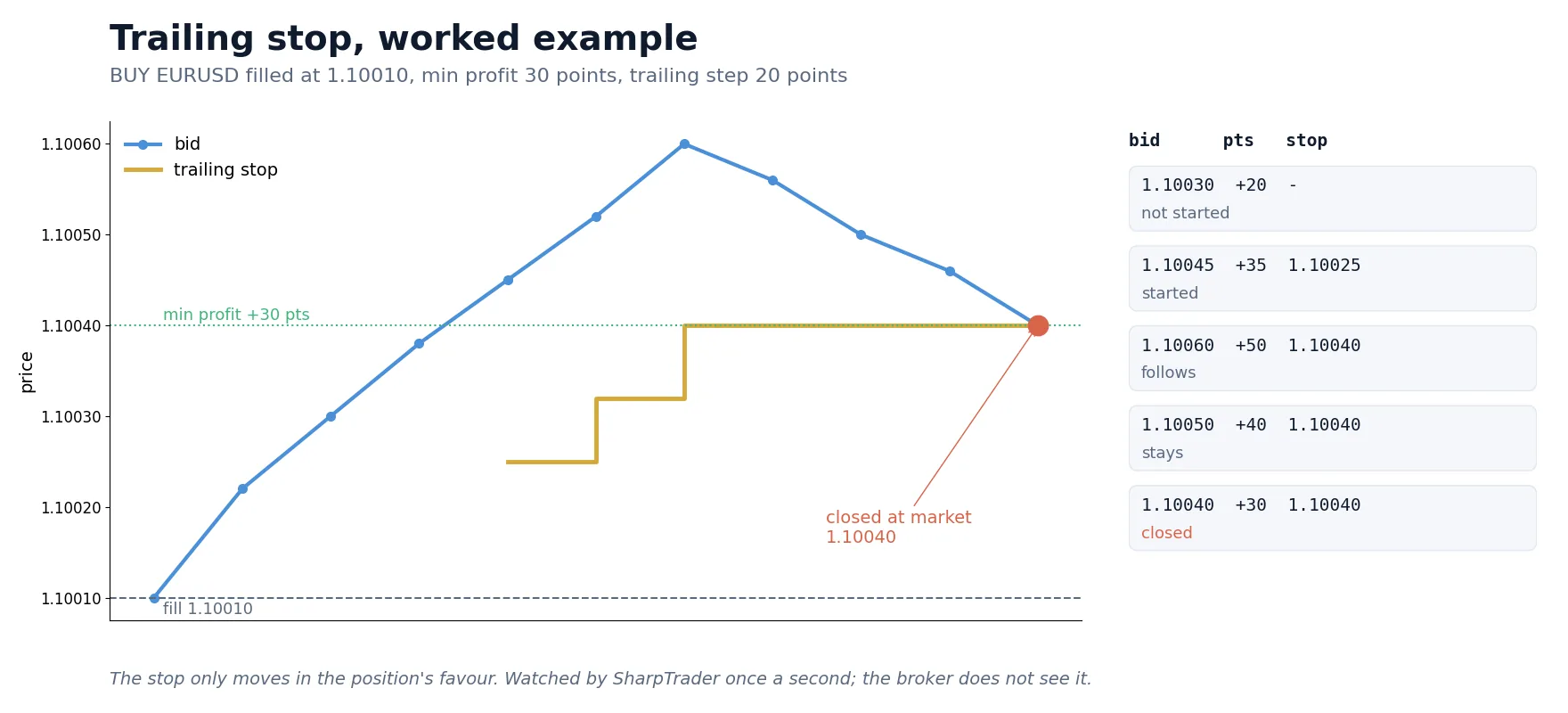
Example: BUY EURUSD filled at 1.10010, min profit 30 points, trailing step 20 points.
| Bid | Profit, points | Trailing stop | What happens |
|---|---|---|---|
| 1.10030 | +20 | – | Not started: the profit has not passed 30 points |
| 1.10045 | +35 | 1.10025 | Started: 20 points below the bid |
| 1.10060 | +50 | 1.10040 | Follows the bid up |
| 1.10050 | +40 | 1.10040 | Stays: the stop never moves back |
| 1.10040 | +30 | 1.10040 | Reached: SharpTrader closes the position at market |
Flow profile
get_flow_profile shows how each account’s order flow looks from the broker’s side, built from your closed orders. By default it covers the last 7 days; a session, a symbol or another period can be chosen.
- Holding times (median and percentiles) and the share of trades closed within 10 seconds, 1 minute, 5 minutes and 1 hour
- Share of buys, win rate, average points, trades per active day
- Opens by hour of the day and the busiest symbols
- All orders together, as the broker sees them, and split into strategy orders, camouflage orders and other manual orders
- What is open on the account right now
Your agent can use it to choose camouflage orders that make the flow look like ordinary trading, and later to check the effect. It is a read tool, so it works even when camouflage orders are switched off: a good first step is simply to ask what stands out in each account.
Technical indicators
get_indicator_values calculates an indicator on a session’s candles, with the same indicator library your custom strategies use. It returns the newest values first, each with its bar’s time and close price. list_indicators shows all 76 indicators with their parameters, defaults and choices.
- Timeframes: M1, M5, M15, M30, H1, H4, D1, W1, MN. Up to 500 values per request (10 by default).
- Parameters are given by name; the ones left out take their defaults. A price left out is the close.
- Warnings tell your agent when the result cannot be trusted: candle collection is switched off for that timeframe, there are no candles or not enough for the chosen period, or the quotes connection is down.
Getting started in six steps
1
2
3
4
5
6
The Claude Desktop extension is available at SharpTrader.mcpb. The AI agents server is a SharpTrader module: see SharpTrader AI Agents (MCP Server).
What to ask your agent
Plain requests work; the agent picks the tools. Replace the session and symbol names with your own.
Tool reference
Read tools are always available while the server runs. Order tools appear only when Send camouflage orders is on.
| Tool | Kind | What it does |
|---|---|---|
get_flow_profile |
Read | How each account’s flow looks to the broker |
list_camouflage_orders |
Read | Camouflage orders and their state; each active session’s limits and how much of them is in use; sessions that support a broker stop loss |
list_indicators |
Read | The 76 indicators with parameters, defaults and choices |
get_indicator_values |
Read | One indicator’s values on a session’s candles, with warnings |
send_camouflage_orders |
Orders | Books up to 50 orders, checked as a whole against your limits |
modify_camouflage_trailing |
Orders | Changes the trailing stop of booked orders and open positions |
cancel_camouflage_orders |
Orders | Cancels booked orders and resting limit or stop orders |
close_camouflage_positions |
Orders | Closes positions now instead of at the end of their holding time |
Fields of a camouflage order
| Field | Required | Meaning |
|---|---|---|
session, symbol |
yes | An active session, and the symbol as that session names it |
side, volume |
yes | BUY or SELL; volume within the session’s limit |
hold_seconds |
yes | Seconds from the fill until SharpTrader closes the position |
type |
MARKET (default), LIMIT or STOP | |
price or offset_points |
LIMIT, STOP | The order price, or points from the market at send time |
expire_seconds |
LIMIT, STOP | Seconds until an unfilled order is cancelled |
send_at or delay_seconds |
When to send (local time unless an offset is given); default now | |
stop_loss_points, take_profit_points |
Watched by SharpTrader, from the fill price | |
broker_stop_loss_points |
A real stop loss at the broker (EASYFIX sessions) | |
trailing_min_profit_points, trailing_step_points |
The trailing stop | |
comment, leverage |
Comment sent to the broker (31 characters); leverage for crypto sessions |
Good to know: limits and risks
- Stops that SharpTrader watches (stop loss, take profit, trailing) work only while SharpTrader is running and connected. They are checked once a second, so a very fast move can pass through a stop before it closes. Use a broker stop loss where you need protection while SharpTrader is off.
- Switching camouflage orders off, or making a session inactive, stops new orders from being sent there. Positions already open are still closed at the end of their holding time.
- Camouflage positions are ordinary manual positions in SharpTrader: you can see and close them in Charting at any time.
- Price gaps, slippage, disconnections and broker rejections can stop an order from being sent, filled, closed or cancelled at the expected time or price.
- You are responsible for making sure your trading complies with your broker’s terms. AI agents can make mistakes, so keep the limits as low as practical and keep your access token secret.
Give your AI agent the new tools
The AI agents server is a module for SharpTrader. Update SharpTrader and the Claude Desktop extension, start with read tools such as the flow profile, and switch on camouflage orders only on the sessions you choose.
SharpTrader AI Agents moduleSet up MCP step by stepBlack Friday: −55% until Dec 31
Free arbitrage scanner + short email course
Get the free scanner link and a few short, practical emails from Boris: what a price gap really means after costs, how to test a strategy before risking real money, and which tools fit your market. No hype.
FAQ
Can the AI agent open orders in SharpTrader now?
Only camouflage orders, and only if you tick Send camouflage orders, accept the risk warning and mark a session as Active. Each order is checked twice against that session’s limits, which the agent can read but never change. Without these settings the order tools do not even appear.
Do camouflage orders interfere with my arbitrage strategies?
No. They go out through manual trading, exactly as from the order window in Charting, so your strategies never see them. They do count toward the session’s limits and appear in Charting next to your manual orders.
What happens if I close the chat or the AI client disconnects?
Booked orders keep running. SharpTrader sends each order at its time and closes it after its holding time without the agent. An order that cannot go out on time is retried for 5 minutes and then marked Missed, never sent late.
Does the broker see my stop loss and trailing stop?
The stop loss, take profit and trailing stop are watched by SharpTrader once a second and are not sent to the broker. Only the broker stop loss, available on EASYFIX sessions, is placed at the broker, and it stays in place when SharpTrader is off.
Which indicators can the agent calculate?
76 indicators, including RSI, MACD and Bollinger Bands, from the same library as SharpTrader’s custom strategies, on timeframes from M1 to MN. Candle collection must be switched on for the timeframe, and the agent gets a warning when the result cannot be trusted.
Are camouflage orders allowed by every broker?
Not necessarily. Some brokers’ terms may not allow orders placed to change how your flow looks. Check your broker’s terms before you switch them on; you are responsible for compliance. Camouflage orders are real trades with real costs and can lose money.
This article describes the SharpTrader AI agents server (MCP) as updated on 12 November 2026, Claude Desktop extension 1.3.0. It is not financial advice. Trading with leverage carries a high risk of loss, AI agents can make mistakes, and software does not guarantee profit. Check your broker’s terms before trading.
