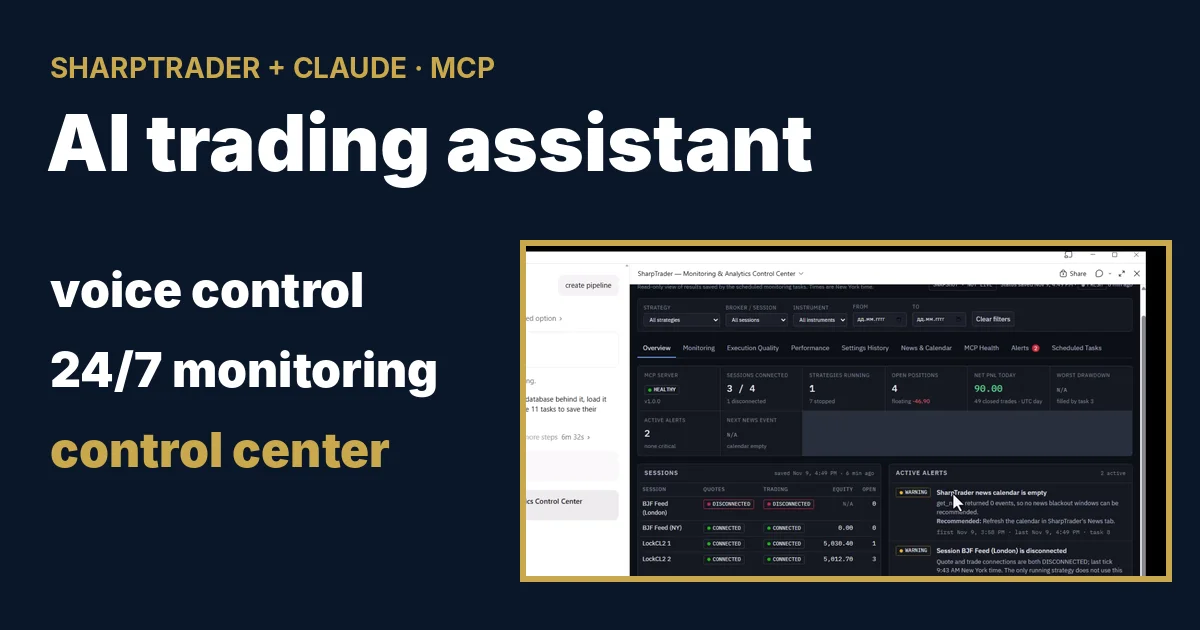
AIトレーディングアシスタントとしてのClaude:SharpTraderの音声操作、24時間365日の監視、コントロールセンター 2026年11月09日 – Posted in: Arbitrage Software, Forex trading
AIトレーディングアシスタントとしてのClaude:SharpTraderの音声操作、24時間365日の監視、コントロールセンター
私たちはわずか1日で、SharpTraderを内蔵MCPサーバー経由でClaudeに接続し、稼働中のストラテジーをスマートフォンから音声で操作し、1つのプロンプトから11件の定期監視タスクを作成させ、さらにSharpTraderのライブデータからトレーディング用コントロールセンターを構築させました。本記事では、すべての手順を動画でお見せし、AIエージェントにできること・できないことを説明し、ご自身で再現できるようにプロンプト全文を公開します。
AIトレーディングアシスタントがSharpTraderでできること
結論:SharpTraderにはMCPサーバー(Model Context Protocol)が内蔵されています。これにより、お使いのAIアシスタント(ClaudeまたはChatGPT)に29個のツールが提供され、SharpTraderの情報を読み取ることができ、さらにお客様が有効にした場合に限り操作も可能になります。アシスタントはセッション、ストラテジー、注文、ログに関する質問に答え、ストラテジーの開始・停止や設定変更を行い、定期チェックを24時間実行できます。新規注文を出せるツールは1つもなく、何かを変更する操作はすべてお客様の許可を待ってから実行されます。
実際には、すべてが正常に動いているかを確認するためにVPSへリモートデスクトップで接続する必要がなくなります。テキストでも音声でも普段の言葉で質問すれば、アシスタントが適切なSharpTraderツールを呼び出し、ライブデータに基づいて回答します。以下は2026年11月9日に収録した4本の動画で、ご自身で設定する際の順番に並べています。
ステップ1:SharpTraderをClaudeまたはChatGPTに接続する
私たちの環境では、SharpTraderはVPS上で、AIアシスタントは自宅のパソコン上で動作しています。VPSでSettings › AI agents (MCP)を開き、Listen onでVPSのアドレスを選択し、ファイアウォールで自宅のIPを許可し、自己署名証明書を作成し、.cerファイルとアクセストークンを自宅のパソコンにコピーし、エージェントに許可する操作を選んでApply changesを押します。自宅のパソコンではNode.jsをインストールしてから、アシスタントを接続します。
- Claude Desktop:SharpTrader.mcpbをダウンロードしてSettings › Extensionsにドラッグし、Installを押してから、Configureでアドレス、アクセストークン、証明書ファイルを設定します。
- ChatGPTデスクトップアプリ:コマンド
npx、mcp-remoteブリッジ、およびトークンと証明書用の3つの環境変数を指定してMCPサーバーを追加します。 - アシスタントを実行するパソコンには、nodejs.org/en/downloadから入手できるNode.js(Windows Installer)が必要です。
すべての項目、すべてのボタン、トラブルシューティング表は、ガイドClaudeとChatGPTによるトレーディング向けMCPに掲載しています。アシスタントが接続できたら、テストの質問は簡単です:「SharpTraderのストラテジーを見せて」。
ステップ2:スマートフォンから音声でSharpTraderを管理する
スマートフォンのClaudeアプリは、Claude Desktopと同じ接続を使用します。2本目の動画では、SharpTraderがVPS上で動作し、すべてのコマンドをスマートフォンに向かって話しています。文字入力は一切ありません。
| 私が話したこと | Claudeが行ったこと |
|---|---|
| 「どのストラテジーが動いている?」 | 稼働中のLockCL2ストラテジーが1つあり、両方のセッションが接続済み、オープン注文が2件、エラーなしと報告しました。他の7つのストラテジーは停止していました。 |
| 「XAUUSDのロットサイズを0.1から1に変更して」 | まず確認を行い、変更は適用しませんでした。SharpTraderでストラテジーのウィンドウが開いていたため、変更が上書きされる可能性があったからです。代わりにどうすべきかを説明しました。 |
| 「オープン注文をクローズして」 | 注文を読み取る許可を求め、クローズするポジションを正確に示してから待機しました。「はい、確認します」と答えると両方のポジションをクローズし、各レッグの結果を報告しました。 |
| 「ログファイルを分析して、問題がないか教えて」 | ストラテジーログを読み取り、要約を示しました:エラーなし、拒否された注文なし、接続の問題なし、執行時間は89〜96 ms、弱点、そしてロットサイズを増やす前に確認すべき点。 |
| 「ストラテジーを停止して」/「このストラテジーをもう一度実行して」 | オープン注文のないストラテジーを停止し、その後同じ設定で再び開始しました。 |
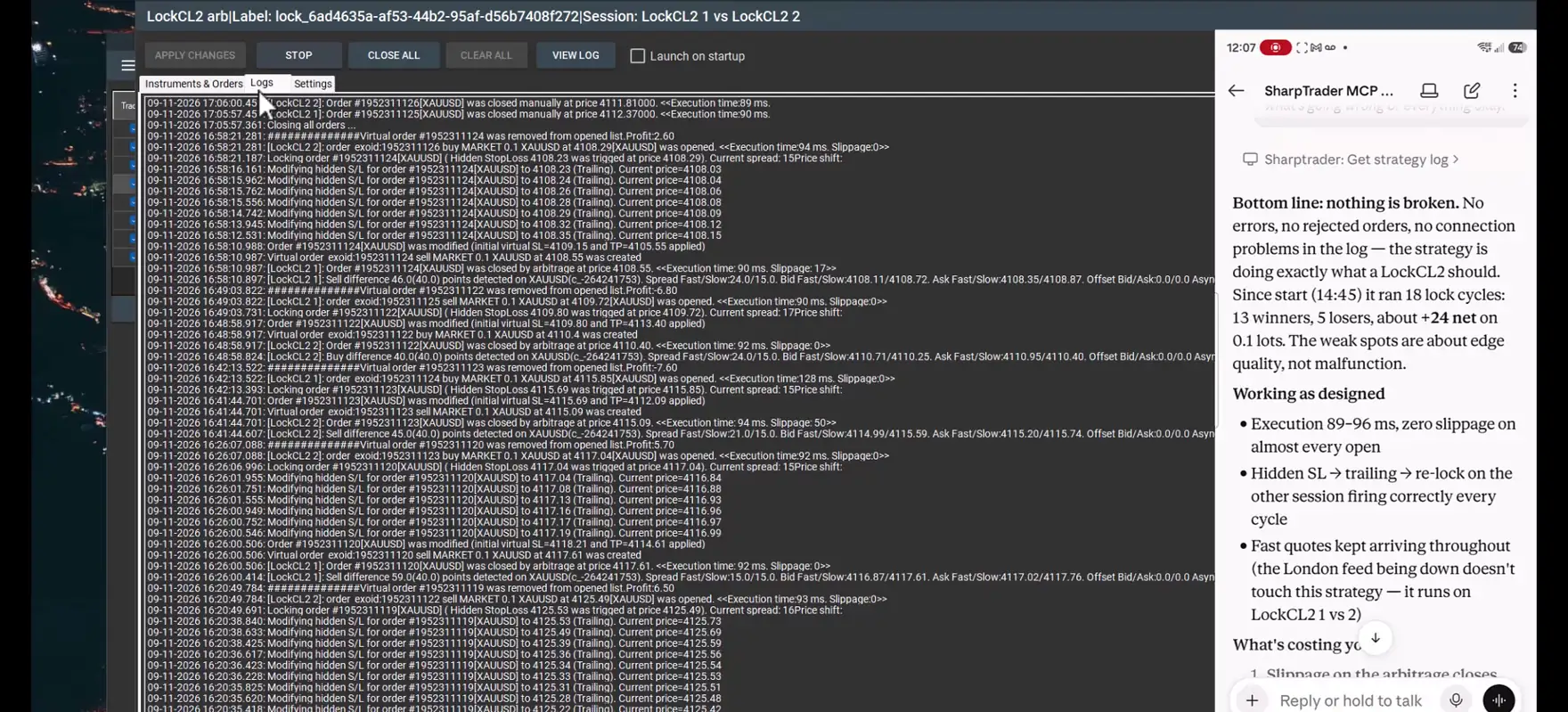
最も役立つ場面は、エージェントが何かを実行する場面ではなく、実行を断る場面です。ストラテジーのウィンドウが開いている間にロットサイズを変更すると、ウィンドウの保存時に気付かないうちに上書きされる可能性があります。そのためエージェントはプログラムと同じルールに従い、その旨を伝えます。
AIエージェントにできること・できないこと
エージェントは、SharpTraderが公開しているツールを通じてのみ動作します。初期状態で有効なのは読み取りだけで、それ以外のグループはすべて、お客様ご自身がSharpTraderでオンにする個別のスイッチです。
| 権限グループ | ツール | AIに許可される操作 |
|---|---|---|
| 読み取り | 12 | セッション、ストラテジー、設定、注文、パフォーマンス、ログ、ジャーナル、ニュース。常に有効で、何も変更しません。 |
| 操作 | 9 | ストラテジーの開始・停止、取引のオン/オフ、セッションの接続・切断。チェックを入れるまで無効です。 |
| 設定 | 7 | ストラテジーと銘柄の設定、ニュースフィルターの変更、ストラテジーの作成と複製。チェックを入れるまで無効です。 |
| ポジション | 1 | ストラテジーの全ポジションのクローズ。チェックを入れるまで無効です。 |
- 新規注文の送信、ストラテジーの削除や名前変更、セッションの追加、ファイルやネットワークアドレスの変更を行えるツールはありません。
- すべてのリクエストにアクセストークンが必要です。127.0.0.1以外のアドレスではHTTPSが必須です。
- すべての呼び出しはSharpTraderのパソコン上のログに記録され、操作はSharpTraderのジャーナルにも記録されます。
- Claudeはツールを使用する前に許可を求め、ポジションのクローズなど取り消せない操作の前には確認を求めます。
ステップ3:1つのプロンプトで11件の監視タスク
3本目の動画では、見ていない間も働き続けるアシスタントにClaudeを変えます。私は、必要な監視、リスク管理、レポートを記述した1つのプロンプトを書き、厳格なルールを設けました:VPSには何もインストールしない、SharpTraderでは何も変更しない、自らの判断でポジションを建てたりクローズしたりしない、SharpTrader MCPツールとClaude自身の定期タスクのみを使用する。プロンプト全文は下記に掲載しています。
Claude Desktopでプロンプトファイルを添付し、「読み込んで、すべてのスケジュールを作成して」と書きました。Claudeはファイルを読み、タスクを計画し、各タスクを作成する前に承認を求めました。登録されたスケジュールは以下のとおりです(ニューヨーク時間):
| # | タスク | 依頼した内容 | 実際のスケジュール |
|---|---|---|---|
| 1 | 1時間ごとのヘルスモニタリング | 1時間ごと、FX市場の取引時間中 | 毎時59分、日〜金 |
| 2 | 孤立ポジションの検出 | 1時間ごと、取引時間中 | 毎時03分頃、日〜金 |
| 3 | ドローダウン監視 | 15分ごと、取引時間中 | 毎時01分、日〜金 |
| 4 | 執行品質の監視 | 15分ごと、取引時間中 | 毎時01分、日〜金 |
| 5 | 日次トレーディングダイジェスト | 月〜金 5:10 PM | 月〜金 5:10 PM |
| 6 | 夜間の設定スナップショット | 毎日 11:55 PM | 毎日 11:55 PM |
| 7 | 週次レイテンシーレポート | 月 8:00 AM | 月 7:47 AM |
| 8 | 日次ニュースカレンダーの確認 | 毎日 7:00 AM | 毎日 6:52 AM |
| 9 | 金曜日の週末前レビュー | 金 4:45 PM | 金 4:45 PM |
| 10 | 日曜日の市場再開レビュー | 日 5:05 PM | 日 5:05 PM |
| 11 | MCPサーバーのヘルスレポート | 月 8:15 AM | 月 8:15 AM |
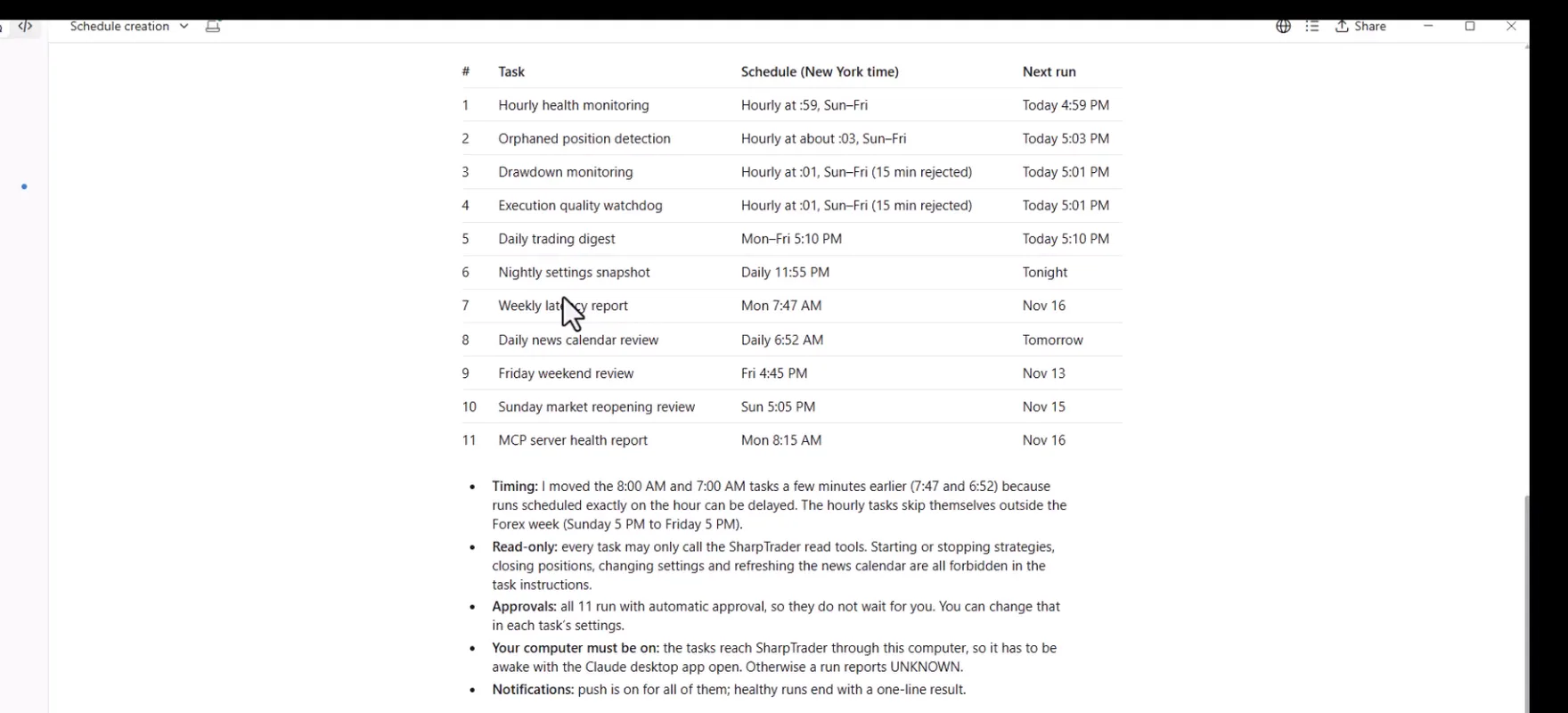
Claudeは変更した点を正直に伝えました。スケジューラーの最小間隔は1時間のため、15分ごとの実行を依頼した2つのタスクは1時間ごとに実行されます。8:00 AMと7:00 AMのレポートは、ちょうど正時に設定された実行は遅れる可能性があるため、数分前倒しされました。すべてのタスクは読み取り専用です。
次に、作成されたものすべてをまとめたスプレッドシートを依頼しました。Claudeはすぐに3つのタブで作成しました:依頼したスケジュール、実際のスケジュール、ステータス、次回実行、タスクIDを含む定期タスク一覧、注意事項と制限事項、そしてその時点のセッションとストラテジーを示すステータスシートです。続いて「今すぐテストを実行して」と書きました。Claudeは11件すべてのタスクを、それぞれ私の承認を得てテスト実行し、結果を報告しました:11件すべて成功、最短は14秒、最長は約3分でした。また、実行の成功は実行が完了したことを示すだけであり、各レポートの内容はチャットから読み取れないことも正直に伝えました。結果は2つ目のスプレッドシートにまとめられました。
ステップ4:監視・分析コントロールセンター
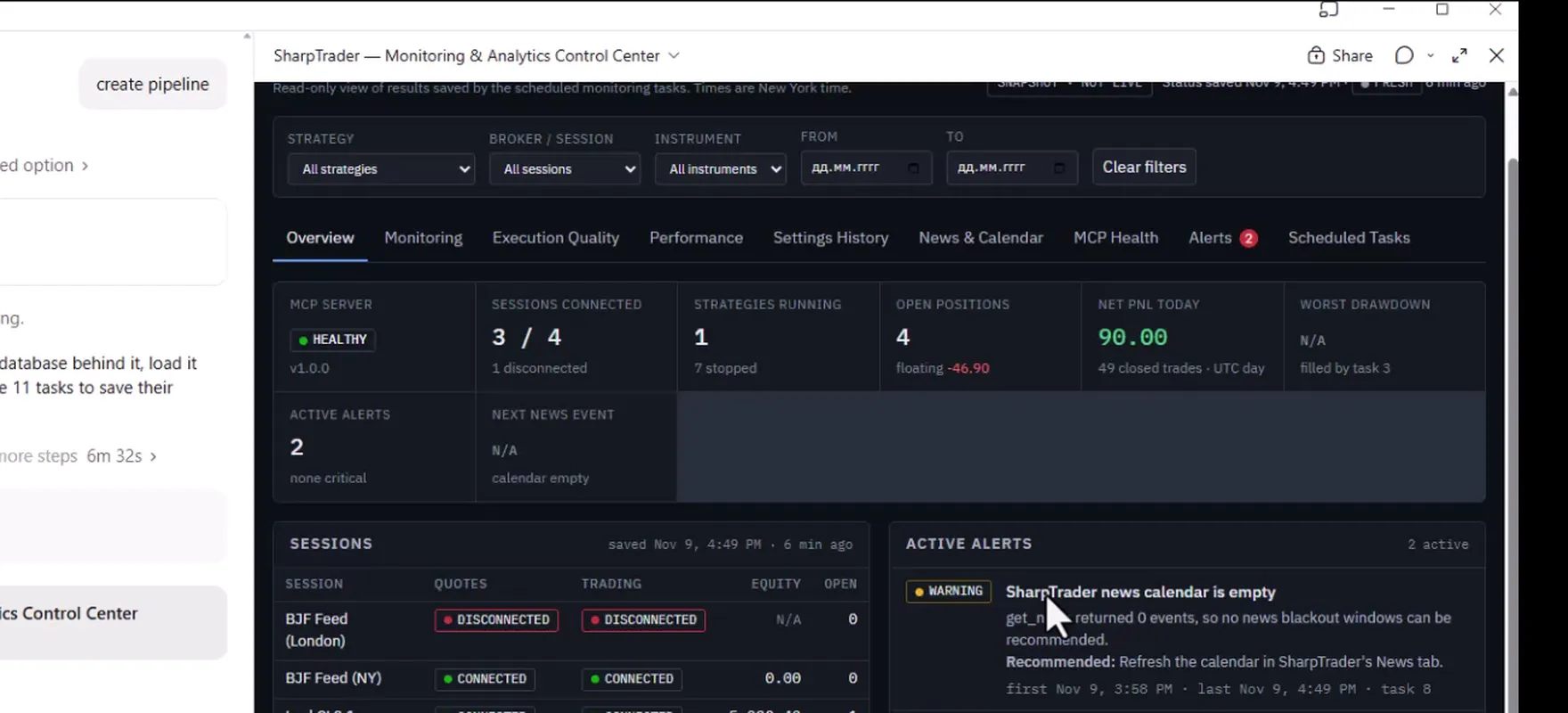
最後のステップは、一か所ですべてを確認できる場所を作ることでした。Claudeは小さなデータベースを備えたインタラクティブなダッシュボードSharpTrader — Monitoring & Analytics Control Centerを構築し、現在のSharpTraderデータを読み込み、さらに11件のタスクを更新して、各実行の結果がそこに保存されるようにしました。
| タブ | 表示内容 |
|---|---|
| 概要 | MCPサーバーのステータス、接続中のセッション、稼働中・停止中のストラテジー、オープンポジション、有効なアラート、次のニュースイベント。 |
| 監視 | Ping値と最終ティックを含むクオート・トレードセッション、各ストラテジーの状態、孤立ポジション、ドローダウン。 |
| 執行品質とパフォーマンス | 定期タスクが収集したレイテンシー、スリッページ、最も不利な約定、取引サイクル、日次結果。 |
| 設定履歴 | ストラテジー設定の夜間スナップショットと、その間の変更点。 |
| ニュース & カレンダー | 今後の重要度の高いイベント、金曜日と日曜日のレビュー、次回予定のレビュー。 |
| MCPヘルス、アラート、定期タスク | サーバーの状態、推奨アクション付きの警告、11件すべてのタスクのステータス。 |
ダッシュボードには、プロンプトで指定したとおり、最終保存時刻とともにSNAPSHOT · NOT LIVEと表示されます。継続的に更新されているように見せかけることはありません。初日からすでに、SharpTraderのニュースカレンダーが空であること、フィードセッションが切断されていることという2つの実際の警告が、それぞれ推奨アクション付きで表示されていました。
プロンプト全文
これは動画で使用したプロンプトそのものです。そのままClaudeにコピーするか、ファイルとしてダウンロードしてチャットに添付してください。送信する前に、スケジュールとしきい値をご自身の取引時間とリスク上限に合わせて調整してください。
# SharpTrader MCP — Automated Monitoring & Interactive Reporting Center

You are already connected to my SharpTrader trading platform running on a VPS through the SharpTrader MCP Server.

I want you to create a comprehensive automated monitoring, risk control, execution analysis, and reporting system using **Claude, the existing MCP connection, and Claude Artifacts**.

## IMPORTANT — Implementation Restrictions

For this initial version:

- Do NOT install any software on the VPS.
- Do NOT create Python monitoring services.
- Do NOT deploy a web dashboard to the VPS.
- Do NOT configure cron, systemd, Windows Task Scheduler, or VPS background processes.
- Do NOT modify the SharpTrader MCP Server.
- Do NOT create additional infrastructure.
- Do NOT open or close trading positions automatically.

Use the existing SharpTrader MCP tools and Claude's native scheduling capabilities, if available.

Your responsibility is to create working recurring tasks wherever supported and organize all results into a single interactive Claude Artifact.

If native scheduling is unavailable, do not claim the tasks are active. Instead, implement the monitoring and reporting workflows that can be run on demand and clearly identify the scheduling limitation.

# 1. Discover SharpTrader MCP Capabilities

First, inspect all available SharpTrader MCP tools.

Identify which tools support:

- Listing strategies and their running/stopped status
- Retrieving strategy settings
- Quote and Trade session monitoring
- Reading active positions and pending orders
- Retrieving historical trades and trading cycles
- Reading strategy logs
- Checking execution latency and slippage
- Retrieving account equity and PnL
- Accessing economic news events
- Starting and stopping strategies
- Retrieving MCP server status and error information

Map each required monitoring function to the actual available MCP tool.

Do not invent MCP commands or unsupported features.

# 2. Recurring Monitoring Tasks

Create the following recurring tasks using Claude's available scheduling functionality.

Use the America/New_York timezone and account for daylight saving time.

## Task 1 — Hourly Health Monitoring

**Schedule:** Every hour during Forex market hours.

Check:

1. SharpTrader MCP connectivity.
2. Quote session connectivity.
3. Trade session connectivity.
4. Running and stopped strategies.
5. Error counters and new errors.
6. Unexpected strategy stops.
7. Stale market data, where detectable.
8. Current open positions.

Assign HEALTHY, WARNING, CRITICAL, or UNKNOWN status.

Record the timestamp and results.

## Task 2 — Orphaned Position Detection

**Schedule:** Every hour during trading hours.

Identify positions or pending orders belonging to stopped strategies.

Display:

- Strategy
- Broker/session
- Instrument
- Order ID
- Direction
- Volume
- Floating PnL
- Protective orders
- Strategy status

Immediately flag detected orphaned positions as CRITICAL.

Never automatically close positions.

## Task 3 — Drawdown Monitoring

**Schedule:** Every 15 minutes during trading hours, if supported.

Default thresholds:

- Warning: 3%
- Critical: 5%

Calculate drawdown using reliable strategy-level equity or an explicitly documented alternative.

Use a consistent baseline and clearly state the calculation method.

At the critical threshold:

- Generate a CRITICAL alert.
- Identify the affected strategy.
- Explain the current risk.
- Recommend suspending new entries.

Do not automatically stop a strategy in this initial version.

## Task 4 — Execution Quality Watchdog

**Schedule:** Every 15 minutes during trading hours.

Analyze new execution logs.

Default thresholds:

- Adverse slippage: more than 50 points
- Execution latency: more than 120 milliseconds
- Repeated bad executions: 3 within 60 minutes

Detect abnormal executions.

For each event, record:

- Strategy
- Broker
- Instrument
- Order ID
- Timestamp
- Expected price
- Actual price
- Slippage
- Execution latency
- Entry or exit

Highlight repeated execution problems and identify brokers with deteriorating performance.

Do not automatically stop strategies.

# 3. Daily Performance Reports

## Task 5 — Daily Trading Digest

**Schedule:** Monday–Friday at 5:10 PM New York time.

Generate a report for every strategy containing:

- Strategy name
- Broker and session
- Instruments
- Trading cycles
- Winning and losing cycles
- Win rate
- Average win
- Average loss
- Gross profit and loss
- Net PnL
- Profit factor
- Maximum drawdown
- Average execution latency
- Worst adverse slippage
- Number of execution errors
- Session uptime
- Open positions and floating PnL

Include consolidated results for all strategies.

Calculate metrics from real MCP data.

Clearly distinguish trading cycles from individual trades and fills.

## Task 6 — Nightly Settings Snapshot

**Schedule:** Daily at 11:55 PM New York time.

Retrieve:

- All strategies
- Strategy parameters
- Instrument assignments
- Broker/session mappings
- Risk settings
- Lot sizes
- Execution parameters

Compare the current configuration with previous snapshots.

Highlight added, removed, and modified parameters.

Use the available Claude persistence features, where supported, to preserve history.

Never include passwords, API keys, or private credentials.

# 4. Weekly Execution Analysis

## Task 7 — Weekly Latency Report

**Schedule:** Monday at 8:00 AM New York time.

Generate:

- Average execution latency
- p95 execution latency
- Maximum execution latency
- Average adverse slippage
- Worst adverse slippage
- Broker-by-broker comparison
- Instrument-level analysis
- Strategy-level execution quality
- Weekly trends
- Execution failures
- Session disconnects

Include charts showing performance deterioration.

# 5. News Calendar Monitoring

## Task 8 — Daily News Calendar Review

**Schedule:** Every day at 7:00 AM New York time.

Use available SharpTrader MCP news calendar tools.

Identify:

- Upcoming high-impact events
- Affected currencies
- Relevant trading instruments
- Strategies potentially affected
- Event timestamps

Default protection recommendation:

- 15 minutes before the event
- 15 minutes after the event

Show which strategies should avoid new entries.

For this initial version, **do not automatically stop strategies or change their settings**.

Generate alerts and recommendations only.

# 6. Weekend Trading Monitoring

## Task 9 — Friday Weekend Review

**Schedule:** Friday at 4:45 PM New York time.

Check:

- Active strategies
- Open positions
- Pending orders
- Floating PnL
- Broker connectivity
- Strategies configured for weekend trading

Generate a weekend risk report.

Identify strategies that should potentially be stopped.

Do not automatically stop them.

## Task 10 — Sunday Market Reopening Review

**Schedule:** Sunday at 5:05 PM New York time.

Check:

- MCP connectivity
- Quote session connectivity
- Trade session connectivity
- Market data freshness
- Existing open positions
- Orphaned orders
- Strategy statuses

Identify which strategies are ready for trading.

Do not automatically start strategies.

# 7. MCP Server Weekly Audit

## Task 11 — MCP Server Health Report

**Schedule:** Monday at 8:15 AM New York time.

Use available MCP diagnostic tools to check:

- Server connectivity
- Response time
- Failed MCP calls
- Reported exceptions
- Available error logs
- TLS certificate expiry, if exposed
- Service restart information, if exposed

If infrastructure-level diagnostics are unavailable through MCP, clearly mark them as unavailable.

Do not attempt to access the VPS operating system through unapproved methods.

# 8. Create One Unified Claude Artifact

Create an interactive Claude Artifact named:

**SharpTrader — Monitoring & Analytics Control Center**

The Artifact must contain the following tabs.

## Tab 1 — Overview

Display the current overall state:

- MCP server status
- Connected sessions
- Active strategies
- Stopped strategies
- Open positions
- Net PnL
- Drawdown
- Active alerts
- Upcoming news

Use color-coded indicators.

## Tab 2 — Monitoring

Display:

- Quote and Trade session statuses
- Strategy health
- Error counters
- Orphaned positions
- Drawdown monitoring
- Historical monitoring results

## Tab 3 — Execution Quality

Display:

- Execution latency
- Slippage analysis
- Worst fills
- Bad execution events
- Broker comparisons
- Historical execution trends

Use interactive charts.

## Tab 4 — Performance

Display:

- Daily strategy reports
- Portfolio-level performance
- Win rates
- Trading cycles
- Profit factor
- Daily PnL charts
- Historical performance comparisons

## Tab 5 — Settings History

Display:

- Current strategy settings
- Previous settings snapshots
- Configuration changes
- Instrument changes
- Broker/session changes

Show old versus new parameter values.

## Tab 6 — News & Calendar

Display:

- Upcoming high-impact events
- Affected instruments
- Affected strategies
- Recommended trading blackout periods
- Weekend monitoring results
- Next scheduled reviews

## Tab 7 — MCP Health

Display:

- MCP connection status
- Response time
- Error history
- Available infrastructure diagnostics
- Certificate expiration information when available

## Tab 8 — Alerts

Display:

- Active critical alerts
- Warning alerts
- Historical incidents
- Affected strategies
- Alert timestamps
- Alert descriptions
- Recommended actions

## Tab 9 — Scheduled Tasks

Display a complete automation control panel containing:

- Task name
- Schedule
- Status
- Last execution
- Next scheduled execution
- Last result
- Error information
- Whether the task is actually registered with a scheduler

Clearly distinguish ACTIVE, MANUAL ONLY, FAILED, and UNSUPPORTED tasks.

# 9. Artifact UI Requirements

Create a professional dark-themed trading dashboard.

Requirements:

- Responsive layout
- Interactive navigation tabs
- Sortable tables
- Strategy filters
- Broker filters
- Instrument filters
- Date-range selection
- Interactive charts
- Historical comparisons
- Clear alert severity indicators
- Last updated timestamps
- Data freshness indicators

Use real SharpTrader MCP data only.

Do not generate fictional performance metrics or sample trading results.

If a required metric is unavailable, display N/A and explain why.

The Artifact must never falsely indicate that monitoring is live or continuously updating when it is only displaying the latest available snapshot.

# 10. Scheduling and Persistence

Use Claude's native recurring task functionality if it is available in this environment.

Verify:

1. Whether scheduled tasks can call SharpTrader MCP tools.
2. Whether they can execute when the Claude chat is closed.
3. Whether task execution history persists.
4. Whether monitoring results can be saved between executions.
5. Whether scheduled task outputs can be used to refresh the Artifact.

If any of these capabilities are unavailable, clearly explain the limitation.

Do not substitute temporary chat reminders for actual recurring monitoring.

Do not claim that an Artifact itself performs background monitoring.

# 11. Initial Execution

After discovering the MCP tools:

1. Retrieve all SharpTrader strategies.
2. Retrieve all current trading sessions.
3. Check current connectivity.
4. Retrieve open positions.
5. Analyze available execution logs.
6. Identify current warnings.
7. Generate the first performance summary using available data.
8. Build the interactive Artifact.
9. Create and register recurring tasks wherever supported.
10. Verify actual scheduling status.

# 12. Final Result

At completion, provide:

**A. SharpTrader Monitoring & Analytics Artifact**

A complete interactive dashboard with all nine tabs.

**B. Recurring Tasks Status**

A table showing which tasks are successfully scheduled, which can only run manually, and which are unsupported.

**C. Current SharpTrader Status**

A summary based on actual MCP data.

**D. Limitations**

Explain which functions require capabilities that Claude or the existing SharpTrader MCP connection does not currently provide.

**Important: Do not stop after writing an implementation plan. Perform all supported actions now. Build the Artifact, retrieve real SharpTrader data, and register the available recurring tasks. Do not make any trading changes or deploy anything to the VPS.**
ご自身の環境で再現する方法
知っておくべき制限事項
- 定期タスクは、Claude Desktopが動作しているパソコンを経由してSharpTraderにアクセスします。そのパソコンはスリープせず、アプリを開いた状態にしておく必要があります。そうでない場合、実行結果はステータスではなくUNKNOWNとなります。
- Claudeのスケジューラーの最短間隔は1時間のため、「15分ごと」のチェックは1時間ごとになります。
- タスクの実行は毎回新しく開始されます。実行間の履歴は保存された場所、この例ではコントロールセンターのデータベースにのみ残ります。
- ダッシュボードに表示されるのは最後に保存されたスナップショットで、ライブ配信ではありません。リアルタイムの監視には、引き続きSharpTrader本体をご利用ください。
- AIアシスタントはリクエストを誤解することがあります。権限スイッチは用途に必要な最小限にとどめ、承認する前にClaudeが実行しようとしている内容を必ずお読みください。
MCPサーバーは、SharpTrader ProおよびLite向けのSharpTraderモジュールです。ClaudeおよびChatGPTのアカウントは含まれません。
無料アービトラージスキャナー+短いメール講座
無料スキャナーのリンクと、Boris からの短く実践的なメールをお届けします。コスト差し引き後の価格差が本当に意味すること、実際の資金を投じる前に戦略をテストする方法、あなたの市場に合うツールについて。誇張はありません。 メールは英語で配信されます。
よくある質問
ClaudeはSharpTraderで取引を開始できますか?
いいえ。29個のMCPツールのいずれも新規注文を送信できません。エージェントにできる最大の操作はストラテジーのポジションをクローズすることで、それもポジショングループをオンにした場合に限られます。
ClaudeだけでなくChatGPTでも使えますか?
はい。ChatGPTデスクトップアプリは、Node.jsが必要なmcp-remoteブリッジを介して同じMCPサーバーに接続します。本記事の音声操作と定期タスクの例はClaudeで作成しました。
VPSに何かをインストールする必要がありますか?
いいえ。MCPサーバーはSharpTraderに内蔵されています。Settingsで有効にし、VPSの場合は同じページから証明書と自宅IP用のファイアウォールルールを作成します。
スマートフォンからSharpTraderを操作できますか?
はい。スマートフォンのClaudeアプリはClaude Desktopで設定した接続を使用するため、テキストでも音声でも質問やコマンドを送ることができます。
パソコンの電源が切れていても定期タスクは実行されますか?
いいえ。この構成では、タスクはClaude Desktopが動作しているパソコンを経由してSharpTraderにアクセスするため、そのパソコンの電源を入れ、アプリを開いておく必要があります。そうでない場合、実行結果はステータス不明として報告されます。
プロンプトは変更できますか?
はい、ぜひ変更してください。送信する前に、スケジュール、ドローダウンとスリッページのしきい値、レポートの一覧を、ご自身のストラテジーと取引時間に合わせて調整してください。
