SHARPTRADER MODULE · AI AGENTS (MCP)
SharpTrader AI Agents: manage SharpTrader from Claude or ChatGPT
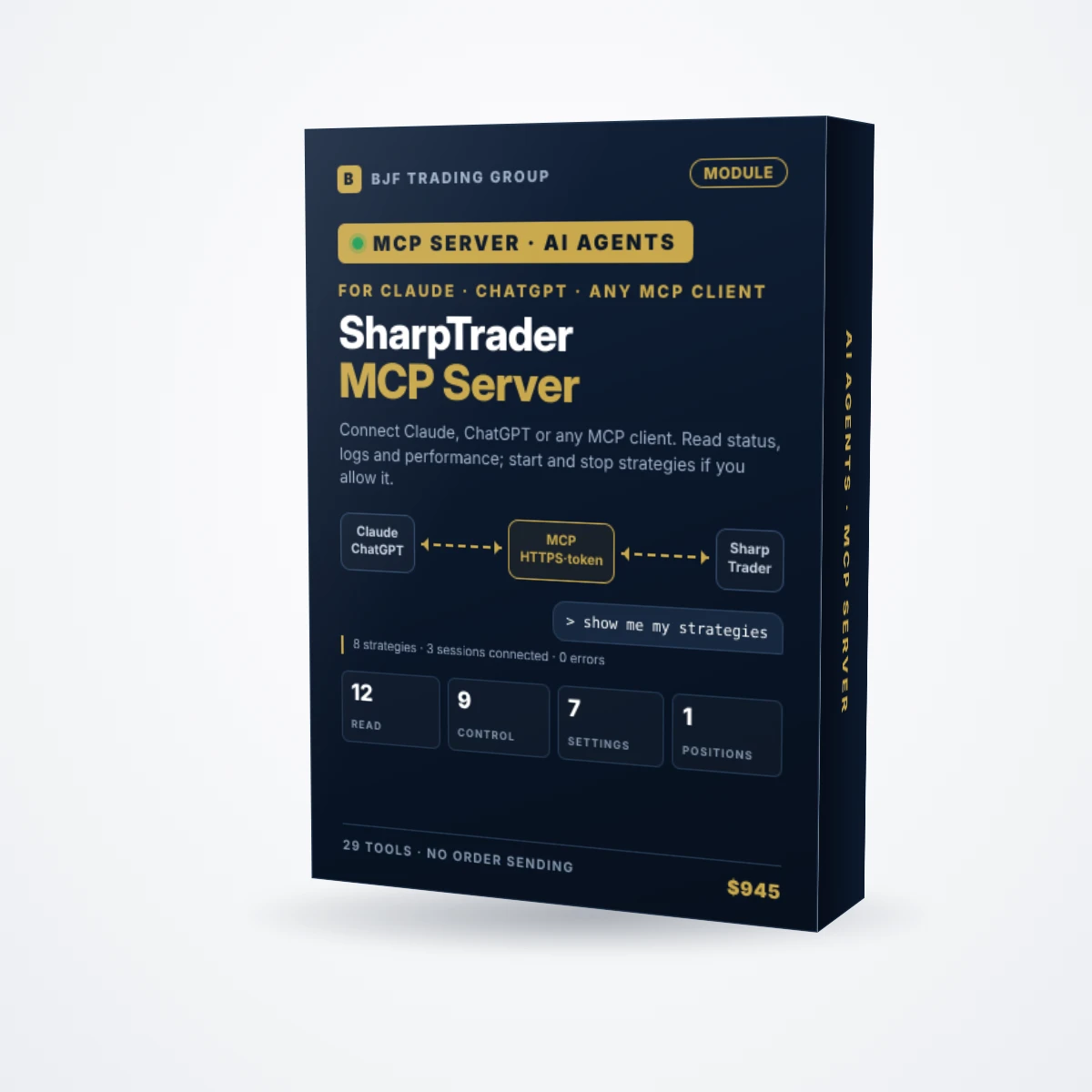
A built-in MCP server lets your own AI assistant read SharpTrader and, only if you allow it, control it. Ask in plain language which strategies are running, what the logs say or how a strategy performed this week, and start or stop strategies from your computer or your phone, by text or by voice. The AI never places a new order.
On this page
What the module does
Short answer: SharpTrader gets a small server inside it that speaks the Model Context Protocol (MCP), the open standard AI assistants use to connect to other programs. Your assistant (Claude, ChatGPT and others) connects to it with an access token and then works with SharpTrader the way you do in its windows: it reads the same data and presses the same buttons, within the permissions you set.
You no longer need to open a remote desktop to your VPS just to check whether everything is running. Ask “which sessions are disconnected?”, “show me the log of strategy 21”, “what was the net profit and the average slippage of my LockCL2 strategy this week?” or “stop all strategies before the news”, and the assistant calls the right SharpTrader tool and answers in a few seconds. With Claude or ChatGPT on your phone you can do the same by voice.
What it looks like in a chat
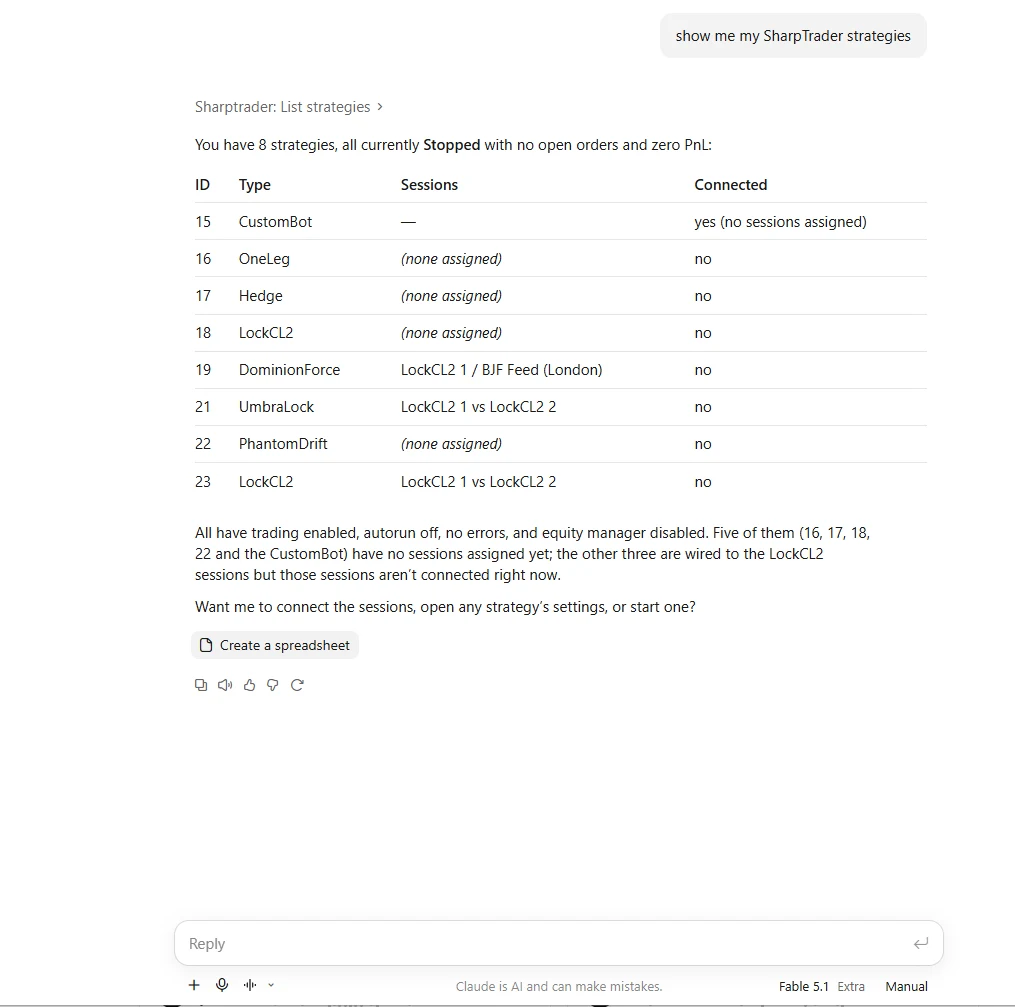
Here SharpTrader runs on a VPS and Claude runs on a home computer. One question returns every strategy with its ID, type, sessions and connection state, and the assistant suggests the next step.
What an agent can and cannot do
| Can (when allowed) | Cannot |
|---|---|
| Read sessions, strategies, open and closed orders, performance, logs and the journal | Send a new order: no tool places trades |
| Start and stop strategies, switch their trading on and off | Delete or rename existing strategies |
| Connect and disconnect sessions | Add or remove instruments, assign sessions or symbol mapping |
| Read and change strategy settings and instrument settings | Change session properties |
| Create new strategies and clone existing ones | Run backtests or optimisation, open charts |
| Manage the News tab: refresh the calendar, change its options, turn events on or off | Change paths, files, DLLs, network addresses or which bot code runs |
| Close a strategy’s positions (its Close All button) | Change anything while that strategy’s window is open in SharpTrader |
Settings follow the same rules as the strategy windows: general settings and custom bot parameters change only while a strategy is stopped, equity manager values and instrument numbers can change while it runs, and one wrong value means nothing is changed and every problem is listed.
Permission groups
Every tool belongs to one of four groups. The switches on the settings page decide which groups an agent may use, and every call is checked again on the server.
| Group | Tools | What it allows | Default |
|---|---|---|---|
| Read | 12 | Look at everything: sessions, strategies, settings, orders, performance, logs, news | Always on while the server runs |
| Control | 9 | Start and stop strategies, trading on and off, connect and disconnect sessions | Off until you tick it |
| Settings | 7 | Change strategy and instrument settings and the news filter, create and clone strategies | Off until you tick it |
| Positions | 1 | Close all positions of a running strategy at market | Off until you tick it |
Setup in SharpTrader
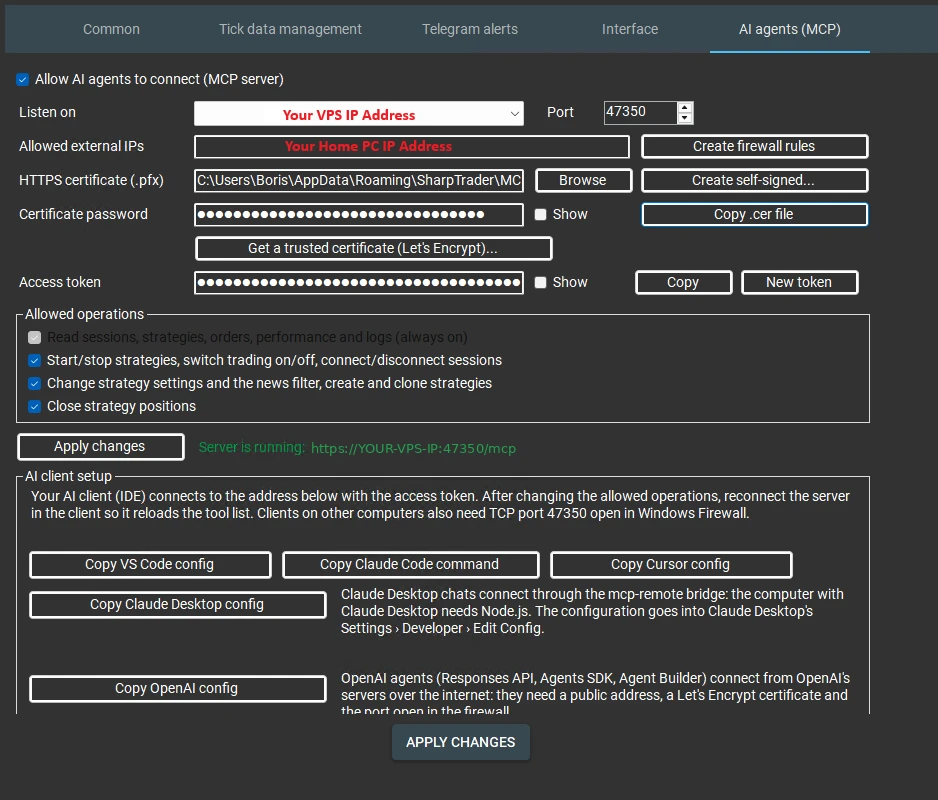
Everything is on one page: Settings › AI agents (MCP). If your assistant runs on the same computer as SharpTrader, tick “Allow AI agents to connect”, keep “This computer only” and press Apply changes. If SharpTrader runs on a VPS and the assistant on your own computer:
1
2
3
4
The full walkthrough for Claude and ChatGPT, with every field explained, is in our guide MCP for trading: control your trading software with Claude and ChatGPT.
Supported AI clients
| Client | How it connects |
|---|---|
| Claude Desktop (and Claude on your phone) | The SharpTrader extension file (.mcpb): drag it into Settings › Extensions, enter the address and token, choose the .cer file. Nothing else to install. |
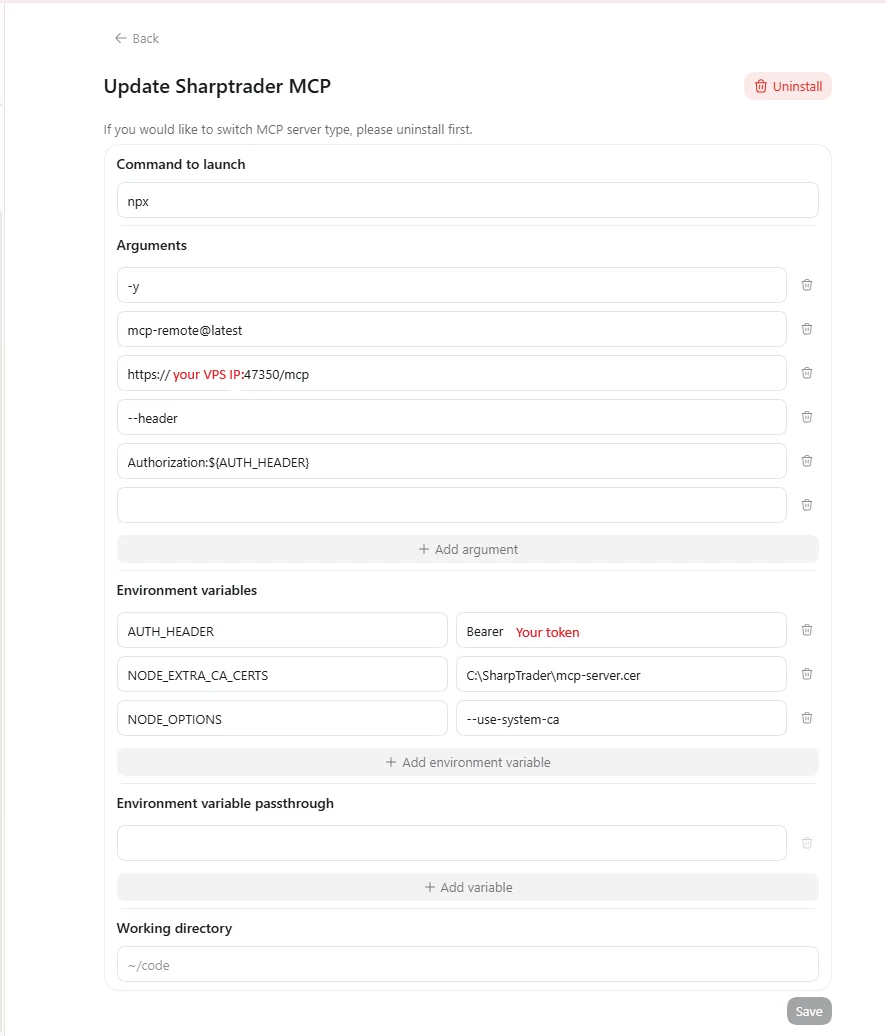
| ChatGPT desktop app | Settings › Plugins › MCP server, launched with npx mcp-remote; needs Node.js on your computer. |
| Claude Code, VS Code (Copilot agent mode), Cursor | One button in SharpTrader copies the ready configuration or command. |
| OpenAI agents (Responses API, Agents SDK, Agent Builder) | Connect from OpenAI’s servers; need a public address, a Let’s Encrypt certificate (one button in SharpTrader) and the port open. |
Security
| Protection | How it works |
|---|---|
| Access token | Required on every request (32 random bytes). A wrong or missing token gets “401 Unauthorized”. New token cuts off every client set up with the old one. |
| Permission groups | Only Read is on by default. Tools of groups that are off are not even listed, and every call is checked again. |
| No new orders | No tool sends a new order. The most an agent can do is close a strategy’s positions, with the Positions switch on. |
| HTTPS off this computer | Any address other than 127.0.0.1 requires a certificate, so the token never crosses the network in plain text. |
| Wrong-token block | 10 wrong tokens from one address within 10 minutes block that address for 15 minutes. |
| Browser pages blocked | Requests from web pages are refused, so a website open in your browser cannot reach the server. |
| Firewall rules | One button limits the MCP port to the addresses you list. |
| Records | Every call goes to a daily log (address, tool, arguments, outcome, time); actions and failures also go to the SharpTrader journal. |
| Trading never waits | Reads copy the lists without locking them, so quotes and orders never wait for an agent. |
Requirements and pricing
- Module price: $945, one-time payment.
- Works with: SharpTrader Pro and SharpTrader Lite. The module is enabled on your existing SharpTrader license.
- Your AI assistant: your own Claude or ChatGPT account (or another MCP client). The assistant’s subscription is not included.
- Windows: SharpTrader on your computer or a Windows VPS; for remote access, the MCP port open at the VPS provider.
- Support: free technical support from BJF Trading Group, including help with the first connection.
Ask SharpTrader instead of logging in to your VPS
Status, logs, performance and start/stop from Claude or ChatGPT, on your computer or your phone, within the permissions you set.
FAQ
Can the AI open trades on my account?
No. None of the 29 tools sends a new order. An agent can start or stop strategies that you configured, and close a strategy’s positions only if you turn on the Positions switch.
Which AI assistants work with it?
Claude Desktop (with a ready extension file), the ChatGPT desktop app, Claude Code, VS Code in Copilot agent mode, Cursor, and OpenAI’s hosted agents. Any client that supports MCP over HTTPS with a header token can connect.
Can I use it from my phone?
Yes. Once the assistant is connected on your computer, you can ask the same questions in its mobile app, by text or by voice.
Does SharpTrader have to run on the same computer as the assistant?
No. SharpTrader can run on a VPS. You choose the VPS address in “Listen on”, allow your home IP and use the certificate SharpTrader creates for you.
Is my access token safe?
The token is stored encrypted for your Windows user, sent only over HTTPS when the connection leaves the computer, and repeated wrong tokens are blocked. Treat it like a password and press New token if you think it was exposed.
Does the AI see my settings files or passwords?
No. Paths, files, DLLs, network addresses, session properties and passwords are not available to agents. Settings your license hides in the windows are hidden from agents too.
Trading involves risk. AI assistants can misunderstand a request; always check what you allow the AI to do and review its actions in the SharpTrader journal. Not financial advice.