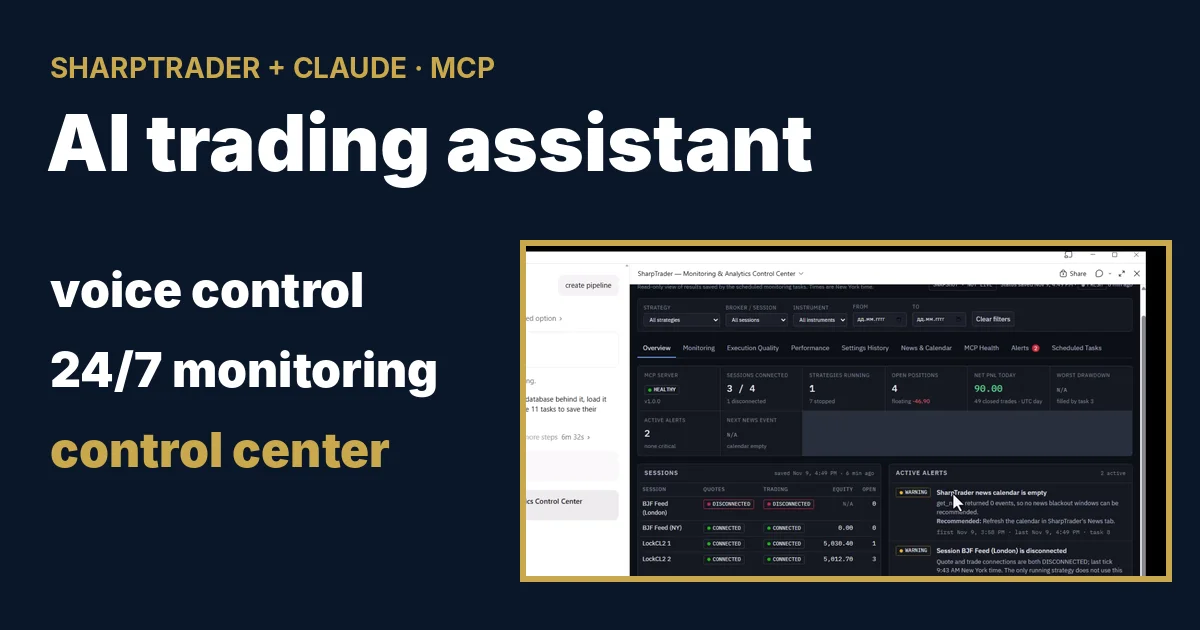
AI 트레이딩 어시스턴트로서의 Claude: SharpTrader를 위한 음성 제어, 24시간 모니터링, 컨트롤 센터 11월 9, 2026 – Posted in: Arbitrage Software, Forex trading
AI 트레이딩 어시스턴트로서의 Claude: SharpTrader를 위한 음성 제어, 24시간 모니터링, 컨트롤 센터
저희는 하루 만에 SharpTrader의 내장 MCP 서버를 통해 SharpTrader를 Claude에 연결하고, 휴대폰에서 음성으로 실행 중인 전략을 제어했으며, 하나의 프롬프트로 11개의 예약 모니터링 작업을 만들고, 실시간 SharpTrader 데이터로 트레이딩 컨트롤 센터를 구축하도록 했습니다. 이 글에서는 모든 단계를 영상으로 보여 드리고, AI 에이전트가 할 수 있는 일과 할 수 없는 일을 설명하며, 직접 따라 하실 수 있도록 전체 프롬프트를 제공합니다.
AI 트레이딩 어시스턴트가 SharpTrader로 하는 일
간단히 말하면: SharpTrader에는 MCP(Model Context Protocol) 서버가 내장되어 있습니다. 이 서버는 사용자의 AI 어시스턴트인 Claude 또는 ChatGPT에 29개의 도구를 제공하며, 이 도구들은 SharpTrader의 정보를 읽고, 사용자가 켠 경우에만 SharpTrader를 제어합니다. 어시스턴트는 세션, 전략, 주문, 로그에 관한 질문에 답하고, 전략을 시작하거나 중지하며, 설정을 변경하고, 예약된 점검을 24시간 실행할 수 있습니다. 어떤 도구도 신규 주문을 낼 수 없으며, 무언가를 변경하는 모든 작업은 사용자의 허가를 기다립니다.
실제로는 모든 것이 정상적으로 실행 중인지 확인하기 위해 더 이상 VPS에 원격 데스크톱으로 접속할 필요가 없다는 뜻입니다. 텍스트나 음성으로 평소 말하듯 질문하면, 어시스턴트가 알맞은 SharpTrader 도구를 호출하고 실시간 데이터를 바탕으로 답합니다. 아래는 2026년 11월 9일에 녹화한 영상 4편으로, 직접 설정할 때의 순서대로 정리했습니다.
1단계: SharpTrader를 Claude 또는 ChatGPT에 연결하기
저희 환경에서는 SharpTrader가 VPS에서, AI 어시스턴트가 집에 있는 컴퓨터에서 실행됩니다. VPS에서 Settings › AI agents (MCP)를 열고, Listen on에서 VPS 주소를 선택한 다음, 방화벽에서 집의 IP를 허용하고, 자체 서명 인증서를 만들고, .cer 파일과 액세스 토큰을 집 컴퓨터로 복사하고, 에이전트가 수행할 수 있는 작업을 선택한 후 Apply changes를 누릅니다. 집 컴퓨터에서는 Node.js를 설치한 다음 어시스턴트를 연결합니다.
- Claude Desktop: SharpTrader.mcpb를 다운로드하여 Settings › Extensions로 끌어다 놓고 Install을 누른 다음, Configure에서 주소, 액세스 토큰, 인증서 파일을 설정합니다.
- ChatGPT 데스크톱 앱:
npx명령,mcp-remote브리지, 그리고 토큰과 인증서를 위한 환경 변수 3개로 MCP 서버를 추가합니다. - 어시스턴트가 실행되는 컴퓨터에는 nodejs.org/en/download에서 받은 Node.js(Windows Installer)가 필요합니다.
모든 입력 항목과 버튼, 문제 해결 표는 저희 가이드 Claude와 ChatGPT를 활용한 트레이딩용 MCP에 정리되어 있습니다. 어시스턴트가 연결되면 테스트 질문은 간단합니다: “내 SharpTrader 전략을 보여 줘”.
2단계: 휴대폰에서 음성으로 SharpTrader 관리하기
휴대폰의 Claude 앱은 Claude Desktop과 동일한 연결을 사용합니다. 두 번째 영상에서는 SharpTrader가 VPS에서 실행되고, 모든 명령을 휴대폰에 말로 전달합니다. 아무것도 타이핑하지 않습니다.
| 제가 한 말 | Claude가 한 일 |
|---|---|
| “어떤 전략이 실행 중이야?” | 실행 중인 LockCL2 전략 1개를 보여 주었습니다. 두 세션 모두 연결되어 있고, 열린 주문 2건, 오류는 없었으며, 나머지 7개 전략은 중지된 상태였습니다. |
| “XAUUSD의 랏 크기를 0.1에서 1로 바꿔 줘” | 먼저 확인한 뒤 변경을 적용하지 않았습니다. SharpTrader에서 전략 창이 열려 있어 수정 내용이 덮어쓰일 수 있었기 때문입니다. 대신 어떻게 해야 하는지 설명했습니다. |
| “열린 주문을 청산해 줘” | 주문을 읽을 수 있도록 허가를 요청하고, 청산할 포지션을 정확히 보여 준 뒤 기다렸습니다. “응, 확인”이라고 답하자 두 포지션을 청산하고 각 레그의 결과를 보고했습니다. |
| “로그 파일을 분석해서 문제가 있는지 알려 줘” | 전략 로그를 읽고 요약을 제공했습니다. 오류 없음, 거부된 주문 없음, 연결 문제 없음, 체결 시간 89~96 ms, 취약한 부분, 그리고 랏 크기를 늘리기 전에 확인해야 할 사항이었습니다. |
| “전략을 중지해 줘” / “이 전략을 다시 실행해 줘” | 열린 주문이 없는 상태에서 전략을 중지한 뒤, 같은 설정으로 다시 시작했습니다. |
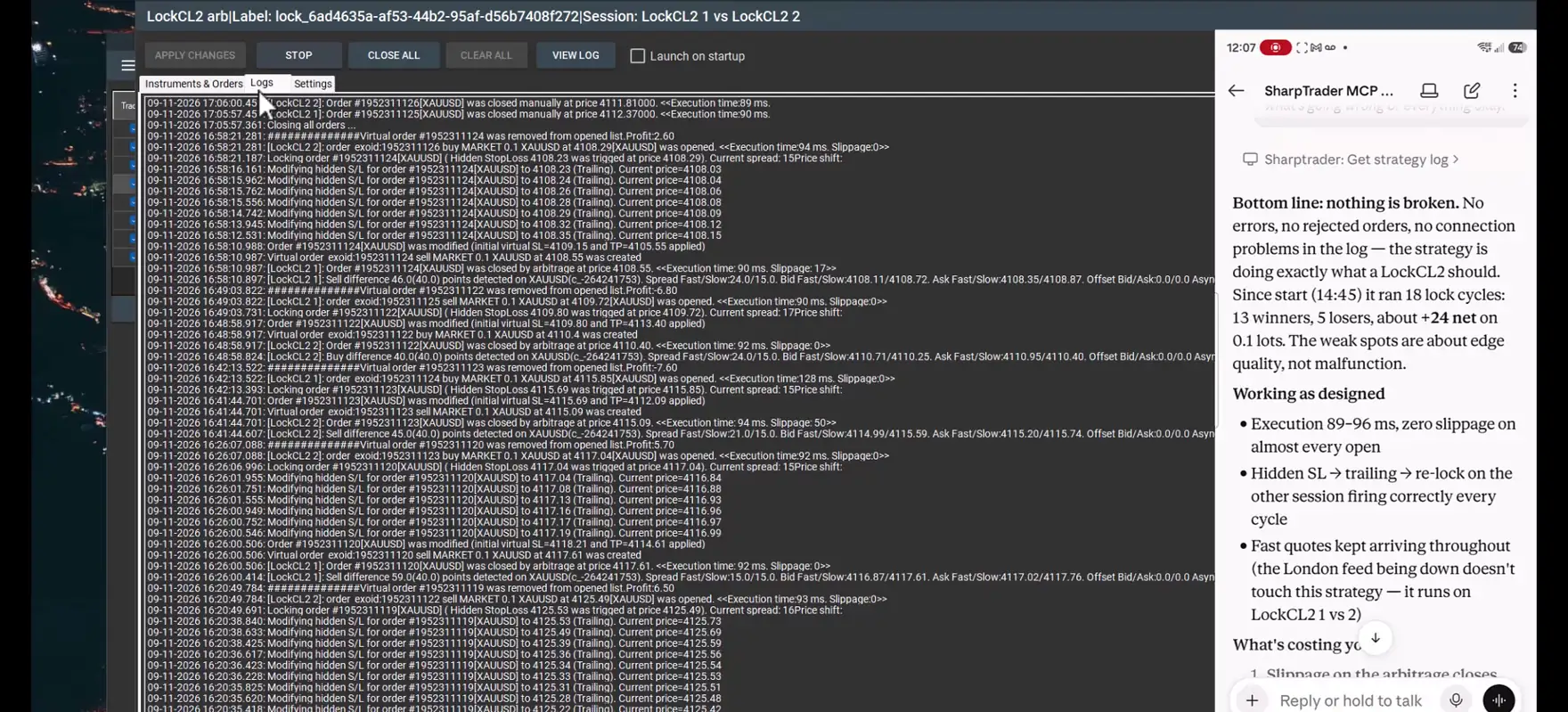
가장 유용한 순간은 에이전트가 무언가를 실행할 때가 아니라 거절할 때입니다. 전략 창이 열려 있는 동안 랏 크기를 변경하면 창을 저장할 때 아무 알림 없이 덮어쓰일 수 있으므로, 에이전트는 프로그램과 같은 규칙을 따르고 그 이유를 설명합니다.
AI 에이전트가 할 수 있는 일과 할 수 없는 일
에이전트는 SharpTrader가 공개하는 도구를 통해서만 작동합니다. 기본적으로는 읽기만 켜져 있으며, 다른 모든 그룹은 SharpTrader에서 사용자가 직접 켜는 별도의 스위치입니다.
| 권한 그룹 | 도구 | AI가 할 수 있는 일 |
|---|---|---|
| 읽기 | 12 | 세션, 전략, 설정, 주문, 성과, 로그, 저널, 뉴스. 항상 켜져 있으며 아무것도 변경하지 않습니다. |
| 제어 | 9 | 전략 시작 및 중지, 트레이딩 켜기/끄기, 세션 연결 및 연결 해제. 체크하기 전까지는 꺼져 있습니다. |
| 설정 | 7 | 전략 및 종목 설정과 뉴스 필터 변경, 전략 생성 및 복제. 체크하기 전까지는 꺼져 있습니다. |
| 포지션 | 1 | 전략의 모든 포지션 청산. 체크하기 전까지는 꺼져 있습니다. |
- 어떤 도구도 신규 주문을 보내거나, 전략을 삭제하거나 이름을 바꾸거나, 세션을 추가하거나, 파일과 네트워크 주소를 건드리지 않습니다.
- 모든 요청에는 액세스 토큰이 필요하며, 127.0.0.1 이외의 주소는 HTTPS가 필요합니다.
- 모든 호출은 SharpTrader 컴퓨터의 로그에 기록되며, 실행된 작업은 SharpTrader 저널에도 기록됩니다.
- Claude는 도구를 사용하기 전에 허가를 요청하고, 포지션 청산처럼 되돌릴 수 없는 작업 전에는 확인을 요청합니다.
3단계: 하나의 프롬프트, 11개의 모니터링 작업
세 번째 영상에서는 Claude를 사용자가 지켜보지 않을 때도 계속 일하는 어시스턴트로 만듭니다. 저는 원하는 모니터링, 리스크 관리, 보고 내용을 설명하는 프롬프트 하나를 작성하고 엄격한 규칙을 정했습니다. VPS에 아무것도 설치하지 않을 것, SharpTrader에서 아무것도 변경하지 않을 것, 스스로 포지션을 열거나 청산하지 않을 것, 그리고 SharpTrader MCP 도구와 Claude 자체의 예약 작업만 사용할 것. 전체 프롬프트는 아래에 있습니다.
Claude Desktop에 프롬프트 파일을 첨부하고 “읽고 모든 일정을 만들어 줘”라고 썼습니다. Claude는 파일을 읽고 작업을 계획한 뒤, 각 작업을 만들기 전에 승인을 요청했습니다. 다음은 Claude가 등록한 일정입니다(뉴욕 시간 기준):
| # | 작업 | 요청한 일정 | 실제 예약된 일정 |
|---|---|---|---|
| 1 | 매시간 상태 모니터링 | 매시간, 외환 시장 운영 시간 | 매시간 :59, 일–금 |
| 2 | 고아 포지션 감지 | 매시간, 거래 시간 | 매시간 약 :03, 일–금 |
| 3 | 드로다운 모니터링 | 15분마다, 거래 시간 | 매시간 :01, 일–금 |
| 4 | 체결 품질 감시 | 15분마다, 거래 시간 | 매시간 :01, 일–금 |
| 5 | 일일 트레이딩 요약 | 월–금 오후 5:10 | 월–금 오후 5:10 |
| 6 | 야간 설정 스냅샷 | 매일 오후 11:55 | 매일 오후 11:55 |
| 7 | 주간 지연 시간 보고서 | 월 오전 8:00 | 월 오전 7:47 |
| 8 | 일일 뉴스 캘린더 검토 | 매일 오전 7:00 | 매일 오전 6:52 |
| 9 | 금요일 주말 대비 검토 | 금 오후 4:45 | 금 오후 4:45 |
| 10 | 일요일 시장 재개 검토 | 일 오후 5:05 | 일 오후 5:05 |
| 11 | MCP 서버 상태 보고서 | 월 오전 8:15 | 월 오전 8:15 |
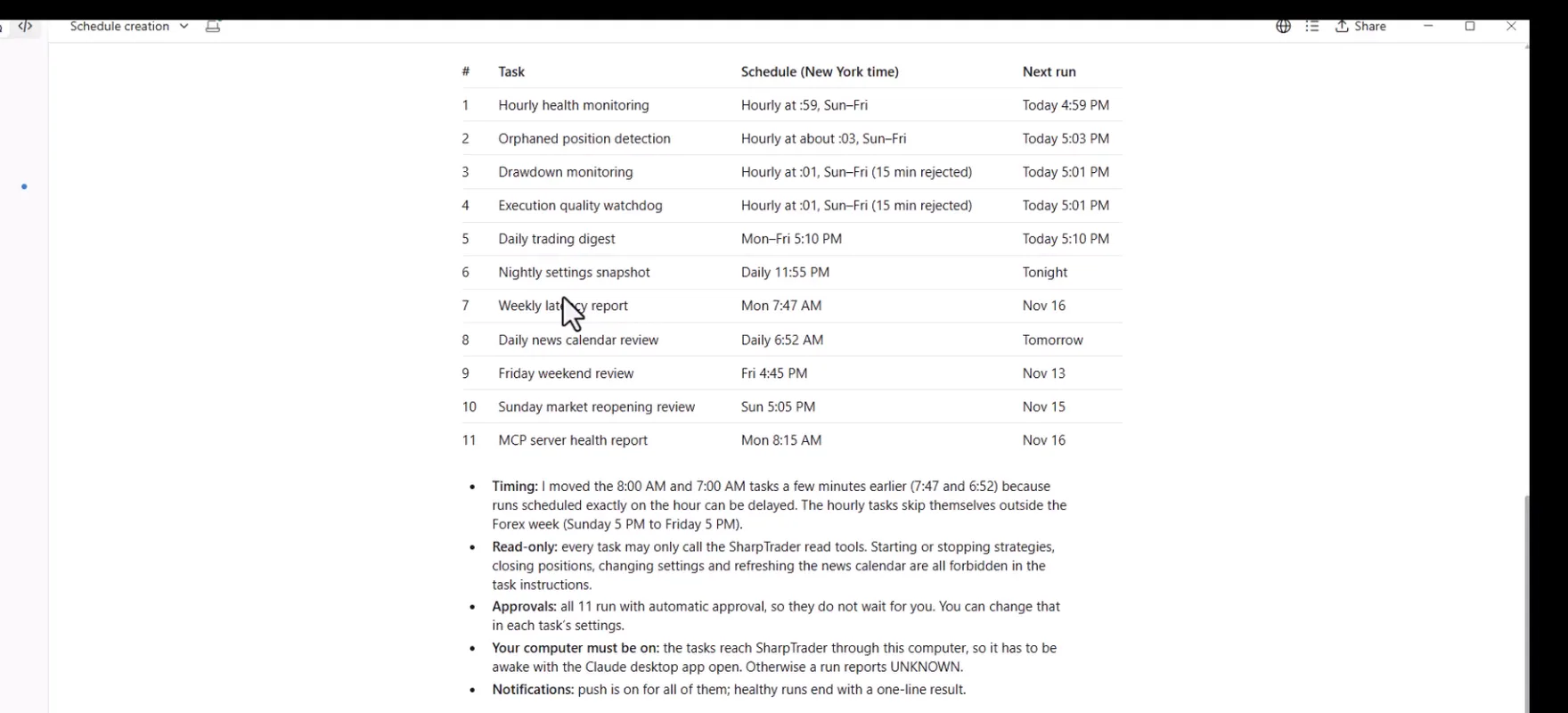
Claude는 무엇을 변경했는지 투명하게 밝혔습니다. 스케줄러의 최소 간격이 1시간이므로, 15분마다 실행하도록 요청한 두 작업은 매시간 실행됩니다. 정각에 정확히 예약된 실행은 지연될 수 있기 때문에 오전 8:00과 오전 7:00 보고서는 몇 분 앞당겨졌습니다. 모든 작업은 읽기 전용입니다.
이어서 생성된 모든 항목을 스프레드시트로 정리해 달라고 요청했습니다. Claude는 즉시 3개의 탭으로 구성된 스프레드시트를 만들었습니다. 요청한 일정, 실제 일정, 상태, 다음 실행 시각, 작업 ID가 포함된 예약 작업 탭, 메모 및 제한 사항 탭, 그리고 그 시점의 세션과 전략을 보여 주는 상태 탭입니다. 다음으로 “지금 바로 테스트를 실행해 줘”라고 썼습니다. Claude는 11개 작업을 모두 테스트로 실행했으며, 각각 제 승인을 받았고, 결과를 보고했습니다. 11개 모두 성공했으며, 가장 짧은 작업은 14초, 가장 긴 작업은 약 3분이 걸렸습니다. 또한 실행이 성공했다는 것은 실행이 끝났다는 사실만 증명할 뿐이며, 채팅에서 각 보고서를 읽을 수는 없었다고 솔직하게 밝혔습니다. 결과는 두 번째 스프레드시트에 정리되었습니다.
4단계: 모니터링 및 분석 컨트롤 센터
마지막 단계는 한곳에서 모든 것을 볼 수 있게 하는 것이었습니다. Claude는 작은 데이터베이스를 기반으로 한 대화형 대시보드 SharpTrader — Monitoring & Analytics Control Center를 만들고, 현재 SharpTrader 데이터를 불러온 다음, 11개 작업이 실행될 때마다 결과를 이곳에 저장하도록 업데이트했습니다.
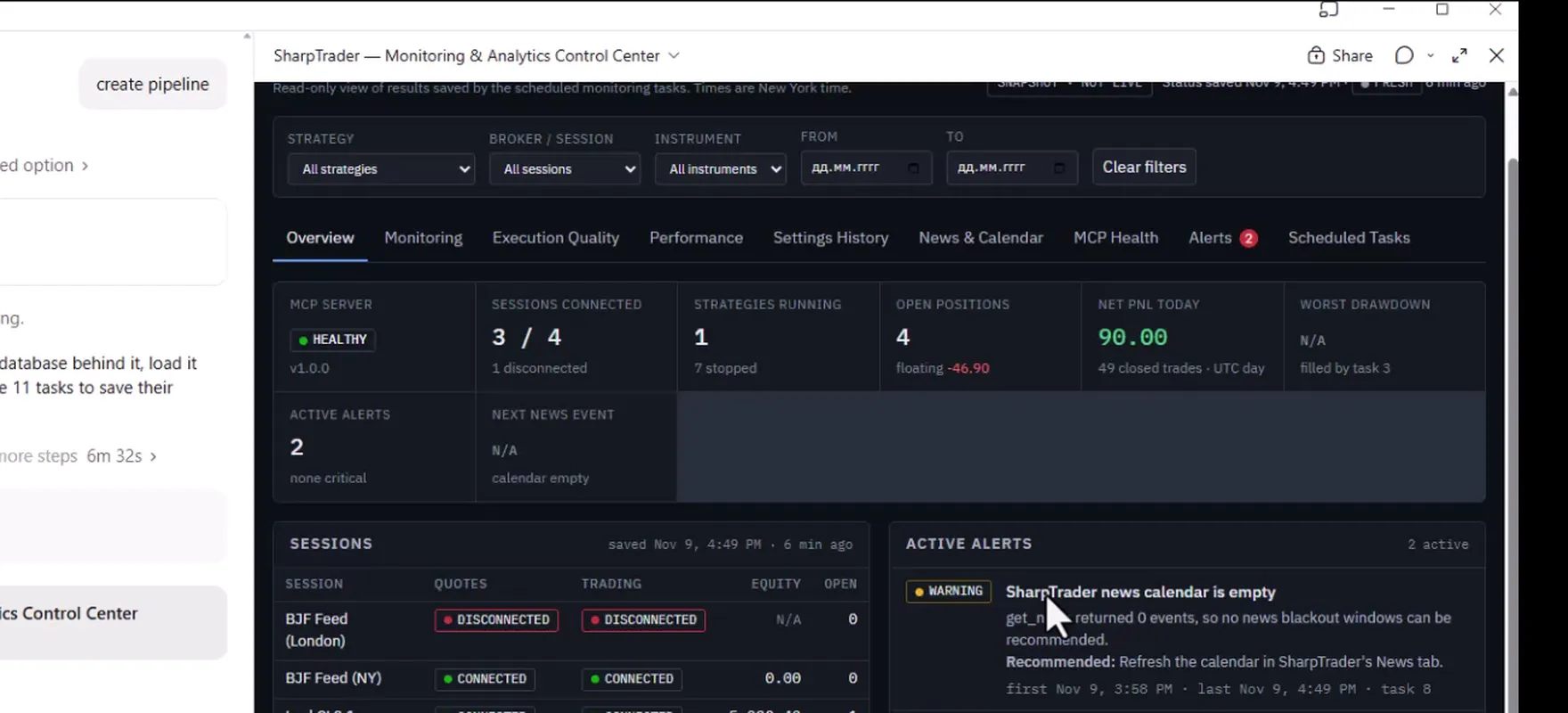
| 탭 | 표시 내용 |
|---|---|
| 개요 | MCP 서버 상태, 연결된 세션, 실행 중인 전략과 중지된 전략, 열린 포지션, 활성 알림, 다음 뉴스 이벤트. |
| 모니터링 | 핑과 마지막 틱이 표시된 시세 및 거래 세션, 모든 전략의 상태, 고아 포지션, 드로다운. |
| 체결 품질 및 성과 | 예약 작업이 수집한 지연 시간, 슬리피지, 가장 불리한 체결, 트레이딩 사이클, 일일 결과. |
| 설정 이력 | 전략 설정의 야간 스냅샷과 스냅샷 간 변경 사항. |
| 뉴스 및 캘린더 | 예정된 고영향 이벤트, 금요일 및 일요일 검토, 다음 예약 검토. |
| MCP 상태, 알림, 예약 작업 | 서버 상태, 권장 조치가 포함된 경고, 11개 작업 전체의 상태. |
대시보드에는 마지막 저장 시각과 함께 SNAPSHOT · NOT LIVE라는 표시가 붙어 있으며, 이는 프롬프트가 요구한 그대로입니다. 대시보드는 결코 실시간으로 계속 갱신되는 것처럼 보이게 하지 않습니다. 첫날부터 이미 실제 경고 두 건을 보여 주었습니다. SharpTrader의 뉴스 캘린더가 비어 있다는 경고와 피드 세션 연결이 끊겼다는 경고였으며, 각각 권장 조치가 함께 표시되었습니다.
전체 프롬프트
영상에서 사용한 프롬프트 그대로입니다. Claude에 그대로 복사하거나, 파일로 다운로드하여 채팅에 첨부하십시오. 보내기 전에 일정과 임계값을 본인의 거래 시간과 리스크 한도에 맞게 조정하십시오.
# SharpTrader MCP — Automated Monitoring & Interactive Reporting Center

You are already connected to my SharpTrader trading platform running on a VPS through the SharpTrader MCP Server.

I want you to create a comprehensive automated monitoring, risk control, execution analysis, and reporting system using **Claude, the existing MCP connection, and Claude Artifacts**.

## IMPORTANT — Implementation Restrictions

For this initial version:

- Do NOT install any software on the VPS.
- Do NOT create Python monitoring services.
- Do NOT deploy a web dashboard to the VPS.
- Do NOT configure cron, systemd, Windows Task Scheduler, or VPS background processes.
- Do NOT modify the SharpTrader MCP Server.
- Do NOT create additional infrastructure.
- Do NOT open or close trading positions automatically.

Use the existing SharpTrader MCP tools and Claude's native scheduling capabilities, if available.

Your responsibility is to create working recurring tasks wherever supported and organize all results into a single interactive Claude Artifact.

If native scheduling is unavailable, do not claim the tasks are active. Instead, implement the monitoring and reporting workflows that can be run on demand and clearly identify the scheduling limitation.

# 1. Discover SharpTrader MCP Capabilities

First, inspect all available SharpTrader MCP tools.

Identify which tools support:

- Listing strategies and their running/stopped status
- Retrieving strategy settings
- Quote and Trade session monitoring
- Reading active positions and pending orders
- Retrieving historical trades and trading cycles
- Reading strategy logs
- Checking execution latency and slippage
- Retrieving account equity and PnL
- Accessing economic news events
- Starting and stopping strategies
- Retrieving MCP server status and error information

Map each required monitoring function to the actual available MCP tool.

Do not invent MCP commands or unsupported features.

# 2. Recurring Monitoring Tasks

Create the following recurring tasks using Claude's available scheduling functionality.

Use the America/New_York timezone and account for daylight saving time.

## Task 1 — Hourly Health Monitoring

**Schedule:** Every hour during Forex market hours.

Check:

1. SharpTrader MCP connectivity.
2. Quote session connectivity.
3. Trade session connectivity.
4. Running and stopped strategies.
5. Error counters and new errors.
6. Unexpected strategy stops.
7. Stale market data, where detectable.
8. Current open positions.

Assign HEALTHY, WARNING, CRITICAL, or UNKNOWN status.

Record the timestamp and results.

## Task 2 — Orphaned Position Detection

**Schedule:** Every hour during trading hours.

Identify positions or pending orders belonging to stopped strategies.

Display:

- Strategy
- Broker/session
- Instrument
- Order ID
- Direction
- Volume
- Floating PnL
- Protective orders
- Strategy status

Immediately flag detected orphaned positions as CRITICAL.

Never automatically close positions.

## Task 3 — Drawdown Monitoring

**Schedule:** Every 15 minutes during trading hours, if supported.

Default thresholds:

- Warning: 3%
- Critical: 5%

Calculate drawdown using reliable strategy-level equity or an explicitly documented alternative.

Use a consistent baseline and clearly state the calculation method.

At the critical threshold:

- Generate a CRITICAL alert.
- Identify the affected strategy.
- Explain the current risk.
- Recommend suspending new entries.

Do not automatically stop a strategy in this initial version.

## Task 4 — Execution Quality Watchdog

**Schedule:** Every 15 minutes during trading hours.

Analyze new execution logs.

Default thresholds:

- Adverse slippage: more than 50 points
- Execution latency: more than 120 milliseconds
- Repeated bad executions: 3 within 60 minutes

Detect abnormal executions.

For each event, record:

- Strategy
- Broker
- Instrument
- Order ID
- Timestamp
- Expected price
- Actual price
- Slippage
- Execution latency
- Entry or exit

Highlight repeated execution problems and identify brokers with deteriorating performance.

Do not automatically stop strategies.

# 3. Daily Performance Reports

## Task 5 — Daily Trading Digest

**Schedule:** Monday–Friday at 5:10 PM New York time.

Generate a report for every strategy containing:

- Strategy name
- Broker and session
- Instruments
- Trading cycles
- Winning and losing cycles
- Win rate
- Average win
- Average loss
- Gross profit and loss
- Net PnL
- Profit factor
- Maximum drawdown
- Average execution latency
- Worst adverse slippage
- Number of execution errors
- Session uptime
- Open positions and floating PnL

Include consolidated results for all strategies.

Calculate metrics from real MCP data.

Clearly distinguish trading cycles from individual trades and fills.

## Task 6 — Nightly Settings Snapshot

**Schedule:** Daily at 11:55 PM New York time.

Retrieve:

- All strategies
- Strategy parameters
- Instrument assignments
- Broker/session mappings
- Risk settings
- Lot sizes
- Execution parameters

Compare the current configuration with previous snapshots.

Highlight added, removed, and modified parameters.

Use the available Claude persistence features, where supported, to preserve history.

Never include passwords, API keys, or private credentials.

# 4. Weekly Execution Analysis

## Task 7 — Weekly Latency Report

**Schedule:** Monday at 8:00 AM New York time.

Generate:

- Average execution latency
- p95 execution latency
- Maximum execution latency
- Average adverse slippage
- Worst adverse slippage
- Broker-by-broker comparison
- Instrument-level analysis
- Strategy-level execution quality
- Weekly trends
- Execution failures
- Session disconnects

Include charts showing performance deterioration.

# 5. News Calendar Monitoring

## Task 8 — Daily News Calendar Review

**Schedule:** Every day at 7:00 AM New York time.

Use available SharpTrader MCP news calendar tools.

Identify:

- Upcoming high-impact events
- Affected currencies
- Relevant trading instruments
- Strategies potentially affected
- Event timestamps

Default protection recommendation:

- 15 minutes before the event
- 15 minutes after the event

Show which strategies should avoid new entries.

For this initial version, **do not automatically stop strategies or change their settings**.

Generate alerts and recommendations only.

# 6. Weekend Trading Monitoring

## Task 9 — Friday Weekend Review

**Schedule:** Friday at 4:45 PM New York time.

Check:

- Active strategies
- Open positions
- Pending orders
- Floating PnL
- Broker connectivity
- Strategies configured for weekend trading

Generate a weekend risk report.

Identify strategies that should potentially be stopped.

Do not automatically stop them.

## Task 10 — Sunday Market Reopening Review

**Schedule:** Sunday at 5:05 PM New York time.

Check:

- MCP connectivity
- Quote session connectivity
- Trade session connectivity
- Market data freshness
- Existing open positions
- Orphaned orders
- Strategy statuses

Identify which strategies are ready for trading.

Do not automatically start strategies.

# 7. MCP Server Weekly Audit

## Task 11 — MCP Server Health Report

**Schedule:** Monday at 8:15 AM New York time.

Use available MCP diagnostic tools to check:

- Server connectivity
- Response time
- Failed MCP calls
- Reported exceptions
- Available error logs
- TLS certificate expiry, if exposed
- Service restart information, if exposed

If infrastructure-level diagnostics are unavailable through MCP, clearly mark them as unavailable.

Do not attempt to access the VPS operating system through unapproved methods.

# 8. Create One Unified Claude Artifact

Create an interactive Claude Artifact named:

**SharpTrader — Monitoring & Analytics Control Center**

The Artifact must contain the following tabs.

## Tab 1 — Overview

Display the current overall state:

- MCP server status
- Connected sessions
- Active strategies
- Stopped strategies
- Open positions
- Net PnL
- Drawdown
- Active alerts
- Upcoming news

Use color-coded indicators.

## Tab 2 — Monitoring

Display:

- Quote and Trade session statuses
- Strategy health
- Error counters
- Orphaned positions
- Drawdown monitoring
- Historical monitoring results

## Tab 3 — Execution Quality

Display:

- Execution latency
- Slippage analysis
- Worst fills
- Bad execution events
- Broker comparisons
- Historical execution trends

Use interactive charts.

## Tab 4 — Performance

Display:

- Daily strategy reports
- Portfolio-level performance
- Win rates
- Trading cycles
- Profit factor
- Daily PnL charts
- Historical performance comparisons

## Tab 5 — Settings History

Display:

- Current strategy settings
- Previous settings snapshots
- Configuration changes
- Instrument changes
- Broker/session changes

Show old versus new parameter values.

## Tab 6 — News & Calendar

Display:

- Upcoming high-impact events
- Affected instruments
- Affected strategies
- Recommended trading blackout periods
- Weekend monitoring results
- Next scheduled reviews

## Tab 7 — MCP Health

Display:

- MCP connection status
- Response time
- Error history
- Available infrastructure diagnostics
- Certificate expiration information when available

## Tab 8 — Alerts

Display:

- Active critical alerts
- Warning alerts
- Historical incidents
- Affected strategies
- Alert timestamps
- Alert descriptions
- Recommended actions

## Tab 9 — Scheduled Tasks

Display a complete automation control panel containing:

- Task name
- Schedule
- Status
- Last execution
- Next scheduled execution
- Last result
- Error information
- Whether the task is actually registered with a scheduler

Clearly distinguish ACTIVE, MANUAL ONLY, FAILED, and UNSUPPORTED tasks.

# 9. Artifact UI Requirements

Create a professional dark-themed trading dashboard.

Requirements:

- Responsive layout
- Interactive navigation tabs
- Sortable tables
- Strategy filters
- Broker filters
- Instrument filters
- Date-range selection
- Interactive charts
- Historical comparisons
- Clear alert severity indicators
- Last updated timestamps
- Data freshness indicators

Use real SharpTrader MCP data only.

Do not generate fictional performance metrics or sample trading results.

If a required metric is unavailable, display N/A and explain why.

The Artifact must never falsely indicate that monitoring is live or continuously updating when it is only displaying the latest available snapshot.

# 10. Scheduling and Persistence

Use Claude's native recurring task functionality if it is available in this environment.

Verify:

1. Whether scheduled tasks can call SharpTrader MCP tools.
2. Whether they can execute when the Claude chat is closed.
3. Whether task execution history persists.
4. Whether monitoring results can be saved between executions.
5. Whether scheduled task outputs can be used to refresh the Artifact.

If any of these capabilities are unavailable, clearly explain the limitation.

Do not substitute temporary chat reminders for actual recurring monitoring.

Do not claim that an Artifact itself performs background monitoring.

# 11. Initial Execution

After discovering the MCP tools:

1. Retrieve all SharpTrader strategies.
2. Retrieve all current trading sessions.
3. Check current connectivity.
4. Retrieve open positions.
5. Analyze available execution logs.
6. Identify current warnings.
7. Generate the first performance summary using available data.
8. Build the interactive Artifact.
9. Create and register recurring tasks wherever supported.
10. Verify actual scheduling status.

# 12. Final Result

At completion, provide:

**A. SharpTrader Monitoring & Analytics Artifact**

A complete interactive dashboard with all nine tabs.

**B. Recurring Tasks Status**

A table showing which tasks are successfully scheduled, which can only run manually, and which are unsupported.

**C. Current SharpTrader Status**

A summary based on actual MCP data.

**D. Limitations**

Explain which functions require capabilities that Claude or the existing SharpTrader MCP connection does not currently provide.

**Important: Do not stop after writing an implementation plan. Perform all supported actions now. Build the Artifact, retrieve real SharpTrader data, and register the available recurring tasks. Do not make any trading changes or deploy anything to the VPS.**
내 환경에서 따라 하는 방법
알아 두어야 할 제한 사항
- 예약 작업은 Claude Desktop이 실행되는 컴퓨터를 통해 SharpTrader에 접속합니다. 따라서 해당 컴퓨터가 절전 상태가 아니고 앱이 열려 있어야 하며, 그렇지 않으면 실행 결과가 상태 대신 UNKNOWN으로 보고됩니다.
- Claude 스케줄러의 최소 간격은 1시간이므로, “15분마다” 점검은 매시간 점검이 됩니다.
- 작업은 실행될 때마다 새로 시작되며, 실행 간의 이력은 저장된 곳, 여기서는 컨트롤 센터의 데이터베이스에만 남습니다.
- 대시보드는 실시간 스트림이 아니라 마지막으로 저장된 스냅샷을 보여 줍니다. 실시간 모니터링은 여전히 SharpTrader 자체에서 하실 수 있습니다.
- AI 어시스턴트는 요청을 잘못 이해할 수 있습니다. 권한 스위치는 사용 목적이 허용하는 범위에서 최소한으로 유지하고, 승인하기 전에 Claude가 무엇을 하려는지 읽어 보십시오.
MCP 서버는 SharpTrader Pro 및 Lite용 SharpTrader 모듈입니다. Claude 및 ChatGPT 계정은 포함되어 있지 않습니다.
무료 차익거래 스캐너 + 짧은 이메일 강좌
무료 스캐너 링크와 Boris의 짧고 실용적인 이메일을 받아 보세요. 비용을 뺀 뒤 가격 차이가 실제로 의미하는 것, 실제 자금을 투입하기 전에 전략을 테스트하는 방법, 그리고 어떤 도구가 여러분의 시장에 맞는지 알려 드립니다. 과장은 없습니다. 이메일은 영어로 발송됩니다.
자주 묻는 질문
Claude가 SharpTrader에서 거래를 열 수 있습니까?
아니요. 29개 MCP 도구 중 어느 것도 신규 주문을 보낼 수 없습니다. 에이전트가 할 수 있는 최대한의 일은 전략의 포지션을 청산하는 것이며, 이것도 사용자가 포지션 그룹을 켠 경우에만 가능합니다.
Claude뿐 아니라 ChatGPT에서도 작동합니까?
예. ChatGPT 데스크톱 앱은 Node.js가 필요한 mcp-remote 브리지를 통해 같은 MCP 서버에 연결됩니다. 이 글의 음성 및 예약 작업 예시는 Claude로 만들었습니다.
VPS에 무언가를 설치해야 합니까?
아니요. MCP 서버는 SharpTrader에 내장되어 있습니다. Settings에서 활성화하면 되며, VPS의 경우 같은 페이지에서 인증서와 집 IP용 방화벽 규칙을 만듭니다.
휴대폰으로 SharpTrader를 제어할 수 있습니까?
예. 휴대폰의 Claude 앱은 Claude Desktop에서 설정한 연결을 사용하므로, 텍스트나 음성으로 질문하고 명령을 내릴 수 있습니다.
컴퓨터가 꺼져 있어도 예약 작업이 실행됩니까?
아니요. 이 구성에서는 작업이 Claude Desktop이 실행되는 컴퓨터를 통해 SharpTrader에 접속하므로, 컴퓨터가 켜져 있고 앱이 열려 있어야 합니다. 그렇지 않으면 실행 결과가 상태를 알 수 없음으로 보고됩니다.
프롬프트를 변경할 수 있습니까?
예, 그렇게 하시는 것이 좋습니다. 보내기 전에 일정, 드로다운 및 슬리피지 임계값, 보고서 목록을 본인의 전략과 거래 시간에 맞게 조정하십시오.
