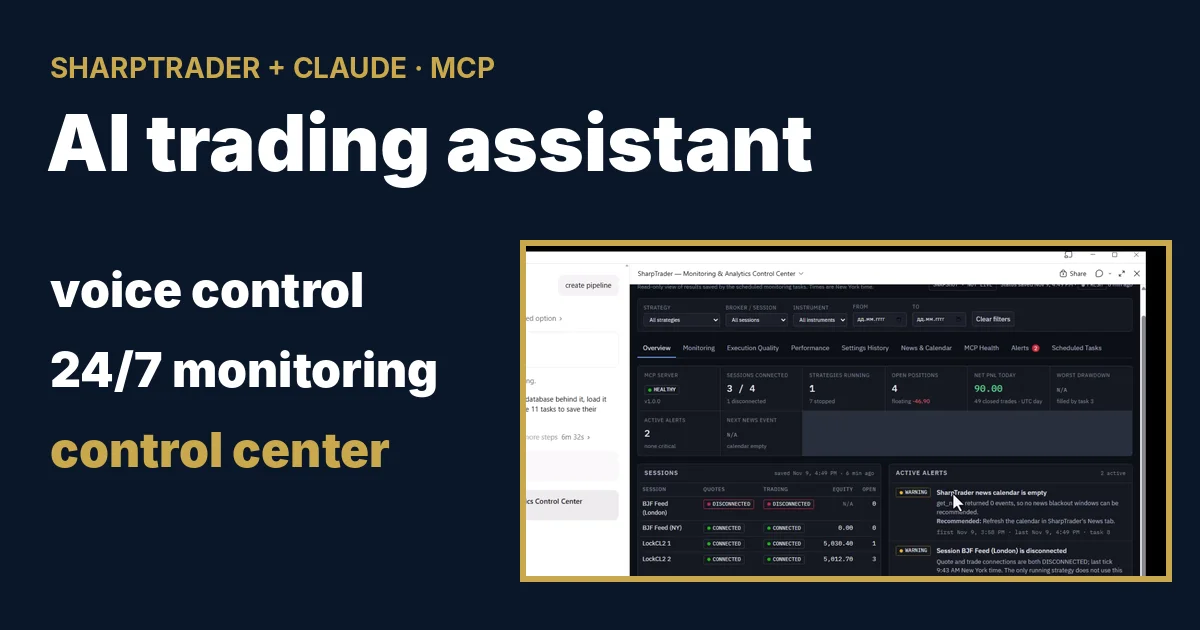
Claude كمساعد تداول بالذكاء الاصطناعي: التحكم الصوتي والمراقبة على مدار الساعة ومركز تحكم لـ SharpTrader 09/11/2026 – Posted in: Arbitrage Software, Forex trading
Claude كمساعد تداول بالذكاء الاصطناعي: التحكم الصوتي والمراقبة على مدار الساعة ومركز تحكم لـ SharpTrader
في يوم واحد ربطنا SharpTrader بـ Claude عبر خادم MCP المدمج فيه، وتحكمنا في استراتيجية قيد التشغيل بالصوت من الهاتف، وأعطينا Claude موجّهًا واحدًا تحوّل إلى إحدى عشرة مهمة مراقبة مجدولة، وتركناه يبني مركز تحكم للتداول من بيانات SharpTrader الحية. يعرض هذا المقال كل خطوة بالفيديو، ويوضح ما يُسمح لوكيل الذكاء الاصطناعي بفعله وما لا يُسمح له به، ويقدّم لك الموجّه الكامل لتتمكن من تكرار التجربة.
- ما الذي يفعله مساعد التداول بالذكاء الاصطناعي مع SharpTrader
- الخطوة 1: ربط SharpTrader بـ Claude أو ChatGPT
- الخطوة 2: إدارة SharpTrader بالصوت من هاتفك
- ما يستطيع وكيل الذكاء الاصطناعي فعله وما لا يستطيع
- الخطوة 3: موجّه واحد وإحدى عشرة مهمة مراقبة
- الخطوة 4: مركز المراقبة والتحليلات
- الموجّه الكامل
- كيف تكرر التجربة على إعدادك الخاص
- قيود ينبغي أن تعرفها
- الأسئلة الشائعة
ما الذي يفعله مساعد التداول بالذكاء الاصطناعي مع SharpTrader
الإجابة المختصرة: يحتوي SharpTrader على خادم MCP مدمج (Model Context Protocol). يمنح هذا الخادم مساعدك الخاص بالذكاء الاصطناعي، Claude أو ChatGPT، عدد 29 أداة تقرأ بيانات SharpTrader، ولا تتحكم فيه إلا إذا فعّلتها بنفسك. يجيب المساعد عن الأسئلة المتعلقة بالجلسات والاستراتيجيات والأوامر والسجلات، ويشغّل الاستراتيجيات ويوقفها، ويغيّر الإعدادات، ويمكنه تنفيذ فحوصات مجدولة على مدار الساعة. لا توجد أي أداة قادرة على فتح أمر جديد، وكل إجراء يغيّر شيئًا ينتظر إذنك.
عمليًا، يعني ذلك أنك لم تعد بحاجة إلى جلسة سطح مكتب بعيد إلى خادم VPS لمعرفة ما إذا كان كل شيء يعمل. تسأل بلغة طبيعية، كتابةً أو صوتًا، فيستدعي المساعد أداة SharpTrader المناسبة ويجيب من البيانات الحية. فيما يلي مقاطع الفيديو الأربعة التي سجلناها في 9 نوفمبر 2026، بالترتيب الذي ستتبعه عند الإعداد بنفسك.
الخطوة 1: ربط SharpTrader بـ Claude أو ChatGPT
في إعدادنا يعمل SharpTrader على خادم VPS، بينما يعمل مساعد الذكاء الاصطناعي على حاسوب منزلي. على خادم VPS تفتح Settings › AI agents (MCP)، وتختار عنوان الخادم في Listen on، وتسمح بعنوان IP المنزلي في جدار الحماية، وتنشئ شهادة موقّعة ذاتيًا، وتنسخ ملف .cer ورمز الوصول إلى الحاسوب المنزلي، وتختار العمليات التي يُسمح للوكيل بتنفيذها، ثم تضغط Apply changes. على الحاسوب المنزلي تثبّت Node.js ثم تربط المساعد.
- Claude Desktop: نزّل SharpTrader.mcpb، واسحبه إلى Settings › Extensions، واضغط Install، ثم استخدم Configure لإدخال العنوان ورمز الوصول وملف الشهادة.
- تطبيق ChatGPT لسطح المكتب: أضف خادم MCP باستخدام الأمر
npxوجسرmcp-remoteوثلاثة متغيرات بيئة لرمز الوصول والشهادة. - يلزم تثبيت Node.js من nodejs.org/en/download (Windows Installer) على الحاسوب الذي يعمل عليه المساعد.
تجد كل حقل وكل زر وجدولًا لاستكشاف الأخطاء وإصلاحها في دليلنا MCP للتداول مع Claude وChatGPT. بعد ربط المساعد يكون سؤال الاختبار بسيطًا: «اعرض لي استراتيجيات SharpTrader الخاصة بي».
الخطوة 2: إدارة SharpTrader بالصوت من هاتفك
يستخدم تطبيق Claude على الهاتف الاتصال نفسه الذي يستخدمه Claude Desktop. في الفيديو الثاني يعمل SharpTrader على خادم VPS، وكل أمر يُنطق في الهاتف. لا تُكتب أي كلمة.
| ما قلته | ما فعله Claude |
|---|---|
| «ما الاستراتيجية التي تعمل الآن؟» | عرض استراتيجية LockCL2 واحدة قيد التشغيل مع اتصال الجلستين، وأمرين مفتوحين، ودون أخطاء؛ أما الاستراتيجيات السبع الأخرى فكانت متوقفة. |
| «غيّر حجم اللوت لـ XAUUSD من 0.1 إلى 1» | تحقق أولًا ولم يطبّق التغيير، لأن نافذة الاستراتيجية كانت مفتوحة في SharpTrader وكان من الممكن أن يُستبدل التعديل. وأوضح ما ينبغي فعله بدلًا من ذلك. |
| «أغلق الأوامر المفتوحة» | طلب الإذن بقراءة الأوامر، وعرض بالضبط المراكز التي سيغلقها، ثم انتظر. وبعد «نعم، أؤكد» أغلق المركزين وأبلغ عن النتيجة لكل طرف. |
| «حلّل ملف السجل وأخبرني إن كان هناك أي خطأ» | قرأ سجل الاستراتيجية وقدّم ملخصًا: لا أخطاء، ولا أوامر مرفوضة، ولا مشكلات اتصال، وأزمنة تنفيذ من 89 إلى 96 ms، ونقاط الضعف، وما يجب التحقق منه قبل زيادة حجم اللوت. |
| «أوقف الاستراتيجية» / «شغّل هذه الاستراتيجية مرة أخرى» | أوقف الاستراتيجية دون أوامر مفتوحة، ثم شغّلها مجددًا بالإعدادات نفسها. |
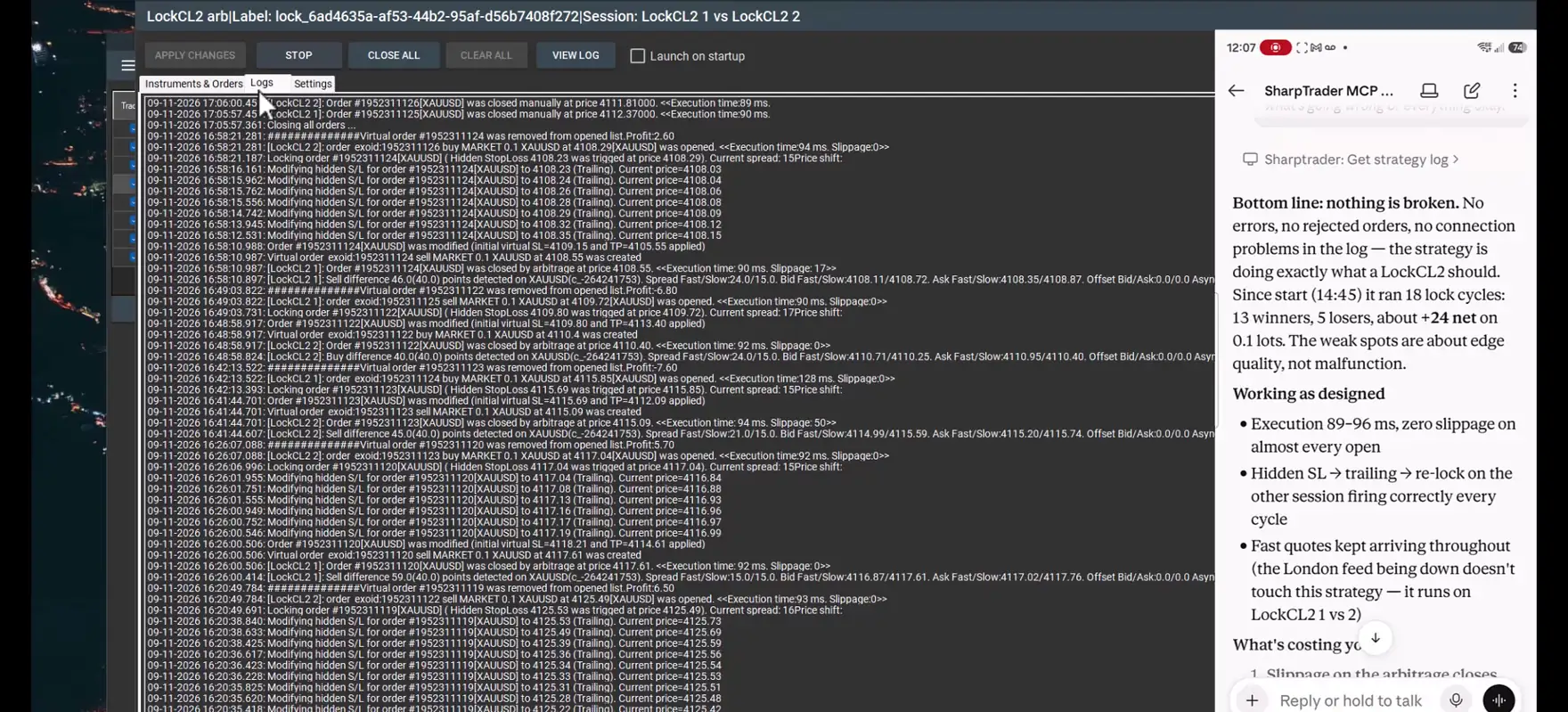
اللحظة الأكثر فائدة ليست تلك التي ينفّذ فيها الوكيل شيئًا، بل تلك التي يرفض فيها. فتغيير حجم اللوت أثناء فتح نافذة الاستراتيجية قد يُستبدل بصمت عند حفظ النافذة، لذلك يتبع الوكيل القاعدة نفسها التي يتبعها البرنامج ويصرّح بذلك.
ما يستطيع وكيل الذكاء الاصطناعي فعله وما لا يستطيع
يعمل الوكيل فقط من خلال الأدوات التي يتيحها SharpTrader. القراءة وحدها مفعّلة افتراضيًا؛ وكل مجموعة أخرى لها مفتاح مستقل في SharpTrader تفعّله بنفسك.
| مجموعة الصلاحيات | الأدوات | ما يُسمح للذكاء الاصطناعي بفعله |
|---|---|---|
| القراءة | 12 | الجلسات والاستراتيجيات والإعدادات والأوامر والأداء والسجلات والدفتر اليومي والأخبار. مفعّلة دائمًا ولا تغيّر شيئًا. |
| التحكم | 9 | تشغيل الاستراتيجيات وإيقافها، وتفعيل التداول أو تعطيله، وربط الجلسات وفصلها. معطّلة حتى تحدد خانتها. |
| الإعدادات | 7 | تغيير إعدادات الاستراتيجية والأداة المالية ومرشح الأخبار، وإنشاء الاستراتيجيات واستنساخها. معطّلة حتى تحدد خانتها. |
| المراكز | 1 | إغلاق جميع مراكز الاستراتيجية. معطّلة حتى تحدد خانتها. |
- لا توجد أداة ترسل أمرًا جديدًا، أو تحذف استراتيجية أو تعيد تسميتها، أو تضيف جلسات، أو تمسّ الملفات وعناوين الشبكة.
- يتطلب كل طلب رمز الوصول؛ وأي عنوان غير 127.0.0.1 يتطلب HTTPS.
- يُسجَّل كل استدعاء في سجل على حاسوب SharpTrader، كما تُسجَّل الإجراءات في دفتر SharpTrader اليومي.
- يطلب Claude إذنك قبل استخدام أي أداة، ويطلب التأكيد قبل أي إجراء لا يمكن التراجع عنه، مثل إغلاق المراكز.
الخطوة 3: موجّه واحد وإحدى عشرة مهمة مراقبة
يحوّل الفيديو الثالث Claude إلى مساعد يواصل العمل حين لا تكون متابعًا. كتبتُ موجّهًا واحدًا يصف المراقبة وإدارة المخاطر والتقارير التي أريدها، مع قواعد صارمة: لا تثبيت لأي شيء على خادم VPS، ولا تغيير لأي شيء في SharpTrader، ولا فتح أو إغلاق للمراكز من تلقاء نفسه، واستخدام أدوات MCP الخاصة بـ SharpTrader والمهام المجدولة الخاصة بـ Claude فقط. الموجّه الكامل أدناه.
أرفقتُ ملف الموجّه في Claude Desktop وكتبت «اقرأ وأنشئ كل الجداول الزمنية». قرأه Claude، وخطط للمهام، وطلب الموافقة قبل إنشاء كل واحدة منها. هذا هو الجدول الذي سجّله (بتوقيت نيويورك):
| # | المهمة | المطلوب | المجدول فعليًا |
|---|---|---|---|
| 1 | مراقبة الحالة كل ساعة | كل ساعة، خلال ساعات سوق الفوركس | كل ساعة عند الدقيقة :59، من الأحد إلى الجمعة |
| 2 | اكتشاف المراكز اليتيمة | كل ساعة، خلال ساعات التداول | كل ساعة عند الدقيقة :03 تقريبًا، من الأحد إلى الجمعة |
| 3 | مراقبة التراجع | كل 15 دقيقة، خلال ساعات التداول | كل ساعة عند الدقيقة :01، من الأحد إلى الجمعة |
| 4 | رقيب جودة التنفيذ | كل 15 دقيقة، خلال ساعات التداول | كل ساعة عند الدقيقة :01، من الأحد إلى الجمعة |
| 5 | ملخص التداول اليومي | من الاثنين إلى الجمعة 5:10 PM | من الاثنين إلى الجمعة 5:10 PM |
| 6 | لقطة الإعدادات الليلية | يوميًا 11:55 PM | يوميًا 11:55 PM |
| 7 | تقرير زمن الاستجابة الأسبوعي | الاثنين 8:00 AM | الاثنين 7:47 AM |
| 8 | مراجعة يومية للتقويم الإخباري | يوميًا 7:00 AM | يوميًا 6:52 AM |
| 9 | مراجعة عطلة نهاية الأسبوع يوم الجمعة | الجمعة 4:45 PM | الجمعة 4:45 PM |
| 10 | مراجعة إعادة افتتاح السوق يوم الأحد | الأحد 5:05 PM | الأحد 5:05 PM |
| 11 | تقرير حالة خادم MCP | الاثنين 8:15 AM | الاثنين 8:15 AM |
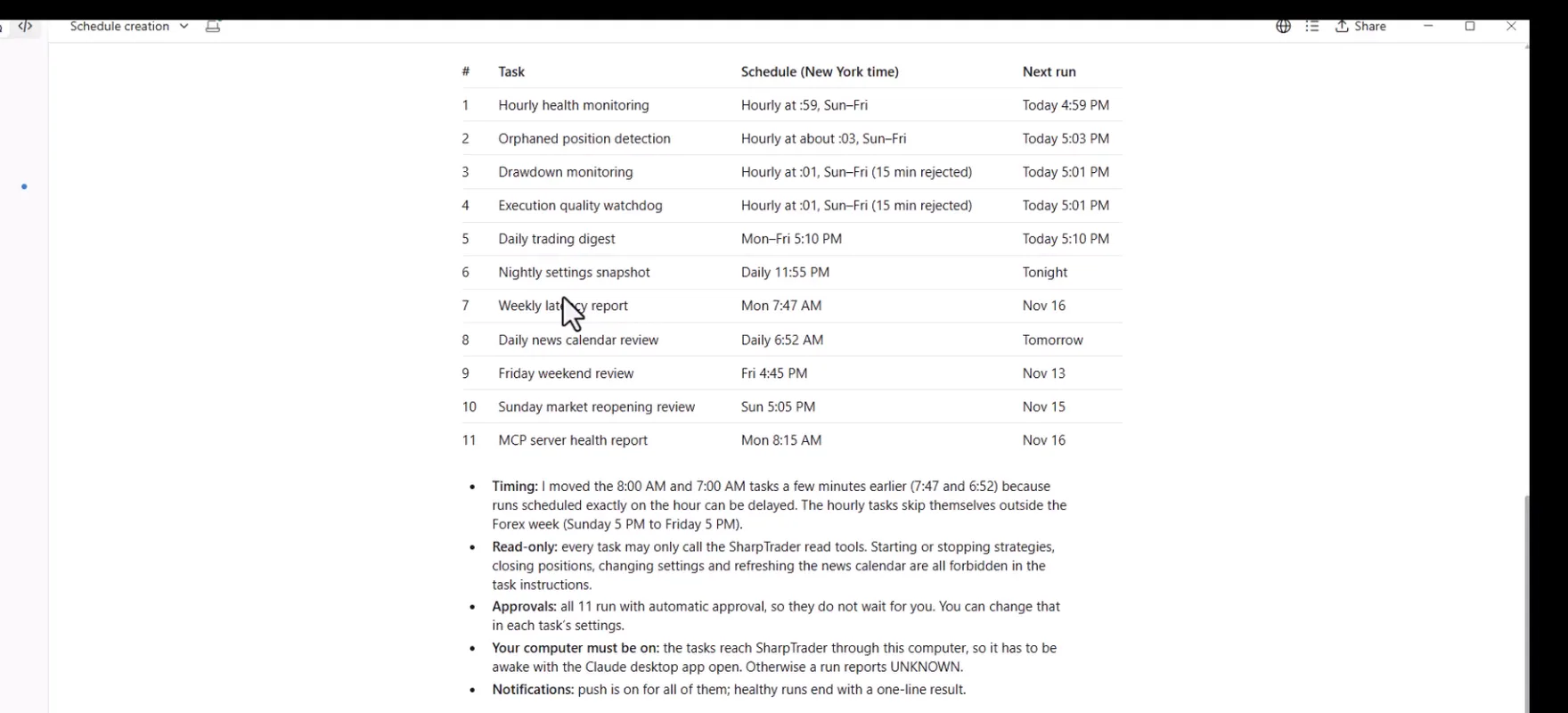
كان Claude صريحًا بشأن ما غيّره. الحد الأدنى للفاصل الزمني في المُجدوِل هو ساعة واحدة، لذلك تعمل المهمتان اللتان طلبتُ تشغيلهما كل خمس عشرة دقيقة كل ساعة. كما قُدّم تقريرا 8:00 AM و7:00 AM بضع دقائق لأن عمليات التشغيل المجدولة على رأس الساعة تمامًا قد تتأخر. جميع المهام للقراءة فقط.
ثم طلبتُ جدول بيانات بكل ما أُنشئ. أنشأه Claude فورًا بثلاث علامات تبويب: المهام المجدولة مع الجدول المطلوب والجدول الفعلي والحالة والتشغيل التالي ومعرّف المهمة؛ والملاحظات والقيود؛ وورقة حالة بالجلسات والاستراتيجيات في تلك اللحظة. بعد ذلك كتبتُ «شغّل الاختبارات الآن». بدأ Claude المهام الإحدى عشرة كلها كتشغيلات تجريبية، كل منها بموافقتي، وأبلغ بالنتيجة: نجحت المهام الإحدى عشرة كلها، أقصرها في 14 ثانية وأطولها في نحو ثلاث دقائق. وذكر بصراحة أيضًا أن نجاح التشغيل يثبت فقط أن التشغيل اكتمل، وأنه لم يتمكن من قراءة كل تقرير من المحادثة. وأُدرجت النتائج في جدول بيانات ثانٍ.
الخطوة 4: مركز المراقبة والتحليلات
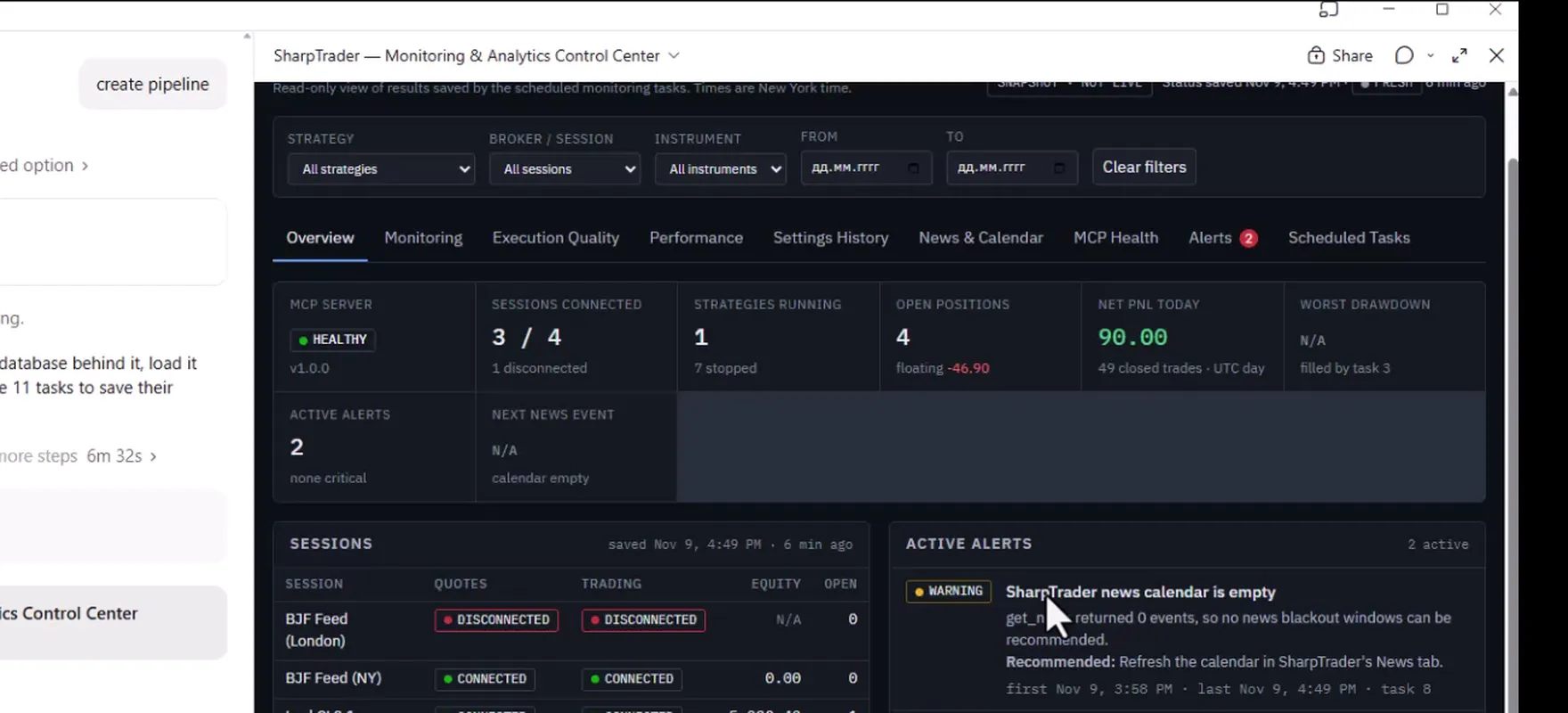
كانت الخطوة الأخيرة مكانًا واحدًا للمتابعة. بنى Claude لوحة معلومات تفاعلية، SharpTrader — Monitoring & Analytics Control Center، تدعمها قاعدة بيانات صغيرة، وملأها ببيانات SharpTrader الحالية، ثم حدّث المهام الإحدى عشرة بحيث يحفظ كل تشغيل نتائجه فيها.
| علامة التبويب | ما تعرضه |
|---|---|
| نظرة عامة | حالة خادم MCP، والجلسات المتصلة، والاستراتيجيات العاملة والمتوقفة، والمراكز المفتوحة، والتنبيهات النشطة، والحدث الإخباري التالي. |
| المراقبة | جلسات الأسعار والتداول مع زمن ping وآخر تحديث سعري، وحالة كل استراتيجية، والمراكز اليتيمة، والتراجع. |
| جودة التنفيذ والأداء | زمن الاستجابة، والانزلاق السعري، وأسوأ عمليات التنفيذ، ودورات التداول، والنتائج اليومية، كما تجمعها المهام المجدولة. |
| سجل الإعدادات | لقطات ليلية لإعدادات الاستراتيجيات وما تغيّر بينها. |
| الأخبار والتقويم | الأحداث المرتقبة عالية التأثير، ومراجعتا الجمعة والأحد، والمراجعات المجدولة التالية. |
| حالة MCP والتنبيهات والمهام المجدولة | حالة الخادم، والتحذيرات مع الإجراءات الموصى بها، وحالة المهام الإحدى عشرة كلها. |
تحمل لوحة المعلومات الوسم SNAPSHOT · NOT LIVE مع وقت آخر حفظ، تمامًا كما اشترط الموجّه: فهي لا تدّعي أبدًا أنها تتحدث باستمرار. وفي اليوم الأول أظهرت بالفعل تحذيرين حقيقيين، هما تقويم أخبار فارغ في SharpTrader وجلسة تغذية أسعار منفصلة، ومع كل منهما إجراء موصى به.
الموجّه الكامل
هذا هو الموجّه نفسه المستخدم في الفيديو. انسخه إلى Claude كما هو، أو نزّله كملف وأرفقه بالمحادثة. عدّل الجداول الزمنية والحدود بما يناسب ساعات تداولك وحدود المخاطر لديك قبل إرساله.
# SharpTrader MCP — Automated Monitoring & Interactive Reporting Center

You are already connected to my SharpTrader trading platform running on a VPS through the SharpTrader MCP Server.

I want you to create a comprehensive automated monitoring, risk control, execution analysis, and reporting system using **Claude, the existing MCP connection, and Claude Artifacts**.

## IMPORTANT — Implementation Restrictions

For this initial version:

- Do NOT install any software on the VPS.
- Do NOT create Python monitoring services.
- Do NOT deploy a web dashboard to the VPS.
- Do NOT configure cron, systemd, Windows Task Scheduler, or VPS background processes.
- Do NOT modify the SharpTrader MCP Server.
- Do NOT create additional infrastructure.
- Do NOT open or close trading positions automatically.

Use the existing SharpTrader MCP tools and Claude's native scheduling capabilities, if available.

Your responsibility is to create working recurring tasks wherever supported and organize all results into a single interactive Claude Artifact.

If native scheduling is unavailable, do not claim the tasks are active. Instead, implement the monitoring and reporting workflows that can be run on demand and clearly identify the scheduling limitation.

# 1. Discover SharpTrader MCP Capabilities

First, inspect all available SharpTrader MCP tools.

Identify which tools support:

- Listing strategies and their running/stopped status
- Retrieving strategy settings
- Quote and Trade session monitoring
- Reading active positions and pending orders
- Retrieving historical trades and trading cycles
- Reading strategy logs
- Checking execution latency and slippage
- Retrieving account equity and PnL
- Accessing economic news events
- Starting and stopping strategies
- Retrieving MCP server status and error information

Map each required monitoring function to the actual available MCP tool.

Do not invent MCP commands or unsupported features.

# 2. Recurring Monitoring Tasks

Create the following recurring tasks using Claude's available scheduling functionality.

Use the America/New_York timezone and account for daylight saving time.

## Task 1 — Hourly Health Monitoring

**Schedule:** Every hour during Forex market hours.

Check:

1. SharpTrader MCP connectivity.
2. Quote session connectivity.
3. Trade session connectivity.
4. Running and stopped strategies.
5. Error counters and new errors.
6. Unexpected strategy stops.
7. Stale market data, where detectable.
8. Current open positions.

Assign HEALTHY, WARNING, CRITICAL, or UNKNOWN status.

Record the timestamp and results.

## Task 2 — Orphaned Position Detection

**Schedule:** Every hour during trading hours.

Identify positions or pending orders belonging to stopped strategies.

Display:

- Strategy
- Broker/session
- Instrument
- Order ID
- Direction
- Volume
- Floating PnL
- Protective orders
- Strategy status

Immediately flag detected orphaned positions as CRITICAL.

Never automatically close positions.

## Task 3 — Drawdown Monitoring

**Schedule:** Every 15 minutes during trading hours, if supported.

Default thresholds:

- Warning: 3%
- Critical: 5%

Calculate drawdown using reliable strategy-level equity or an explicitly documented alternative.

Use a consistent baseline and clearly state the calculation method.

At the critical threshold:

- Generate a CRITICAL alert.
- Identify the affected strategy.
- Explain the current risk.
- Recommend suspending new entries.

Do not automatically stop a strategy in this initial version.

## Task 4 — Execution Quality Watchdog

**Schedule:** Every 15 minutes during trading hours.

Analyze new execution logs.

Default thresholds:

- Adverse slippage: more than 50 points
- Execution latency: more than 120 milliseconds
- Repeated bad executions: 3 within 60 minutes

Detect abnormal executions.

For each event, record:

- Strategy
- Broker
- Instrument
- Order ID
- Timestamp
- Expected price
- Actual price
- Slippage
- Execution latency
- Entry or exit

Highlight repeated execution problems and identify brokers with deteriorating performance.

Do not automatically stop strategies.

# 3. Daily Performance Reports

## Task 5 — Daily Trading Digest

**Schedule:** Monday–Friday at 5:10 PM New York time.

Generate a report for every strategy containing:

- Strategy name
- Broker and session
- Instruments
- Trading cycles
- Winning and losing cycles
- Win rate
- Average win
- Average loss
- Gross profit and loss
- Net PnL
- Profit factor
- Maximum drawdown
- Average execution latency
- Worst adverse slippage
- Number of execution errors
- Session uptime
- Open positions and floating PnL

Include consolidated results for all strategies.

Calculate metrics from real MCP data.

Clearly distinguish trading cycles from individual trades and fills.

## Task 6 — Nightly Settings Snapshot

**Schedule:** Daily at 11:55 PM New York time.

Retrieve:

- All strategies
- Strategy parameters
- Instrument assignments
- Broker/session mappings
- Risk settings
- Lot sizes
- Execution parameters

Compare the current configuration with previous snapshots.

Highlight added, removed, and modified parameters.

Use the available Claude persistence features, where supported, to preserve history.

Never include passwords, API keys, or private credentials.

# 4. Weekly Execution Analysis

## Task 7 — Weekly Latency Report

**Schedule:** Monday at 8:00 AM New York time.

Generate:

- Average execution latency
- p95 execution latency
- Maximum execution latency
- Average adverse slippage
- Worst adverse slippage
- Broker-by-broker comparison
- Instrument-level analysis
- Strategy-level execution quality
- Weekly trends
- Execution failures
- Session disconnects

Include charts showing performance deterioration.

# 5. News Calendar Monitoring

## Task 8 — Daily News Calendar Review

**Schedule:** Every day at 7:00 AM New York time.

Use available SharpTrader MCP news calendar tools.

Identify:

- Upcoming high-impact events
- Affected currencies
- Relevant trading instruments
- Strategies potentially affected
- Event timestamps

Default protection recommendation:

- 15 minutes before the event
- 15 minutes after the event

Show which strategies should avoid new entries.

For this initial version, **do not automatically stop strategies or change their settings**.

Generate alerts and recommendations only.

# 6. Weekend Trading Monitoring

## Task 9 — Friday Weekend Review

**Schedule:** Friday at 4:45 PM New York time.

Check:

- Active strategies
- Open positions
- Pending orders
- Floating PnL
- Broker connectivity
- Strategies configured for weekend trading

Generate a weekend risk report.

Identify strategies that should potentially be stopped.

Do not automatically stop them.

## Task 10 — Sunday Market Reopening Review

**Schedule:** Sunday at 5:05 PM New York time.

Check:

- MCP connectivity
- Quote session connectivity
- Trade session connectivity
- Market data freshness
- Existing open positions
- Orphaned orders
- Strategy statuses

Identify which strategies are ready for trading.

Do not automatically start strategies.

# 7. MCP Server Weekly Audit

## Task 11 — MCP Server Health Report

**Schedule:** Monday at 8:15 AM New York time.

Use available MCP diagnostic tools to check:

- Server connectivity
- Response time
- Failed MCP calls
- Reported exceptions
- Available error logs
- TLS certificate expiry, if exposed
- Service restart information, if exposed

If infrastructure-level diagnostics are unavailable through MCP, clearly mark them as unavailable.

Do not attempt to access the VPS operating system through unapproved methods.

# 8. Create One Unified Claude Artifact

Create an interactive Claude Artifact named:

**SharpTrader — Monitoring & Analytics Control Center**

The Artifact must contain the following tabs.

## Tab 1 — Overview

Display the current overall state:

- MCP server status
- Connected sessions
- Active strategies
- Stopped strategies
- Open positions
- Net PnL
- Drawdown
- Active alerts
- Upcoming news

Use color-coded indicators.

## Tab 2 — Monitoring

Display:

- Quote and Trade session statuses
- Strategy health
- Error counters
- Orphaned positions
- Drawdown monitoring
- Historical monitoring results

## Tab 3 — Execution Quality

Display:

- Execution latency
- Slippage analysis
- Worst fills
- Bad execution events
- Broker comparisons
- Historical execution trends

Use interactive charts.

## Tab 4 — Performance

Display:

- Daily strategy reports
- Portfolio-level performance
- Win rates
- Trading cycles
- Profit factor
- Daily PnL charts
- Historical performance comparisons

## Tab 5 — Settings History

Display:

- Current strategy settings
- Previous settings snapshots
- Configuration changes
- Instrument changes
- Broker/session changes

Show old versus new parameter values.

## Tab 6 — News & Calendar

Display:

- Upcoming high-impact events
- Affected instruments
- Affected strategies
- Recommended trading blackout periods
- Weekend monitoring results
- Next scheduled reviews

## Tab 7 — MCP Health

Display:

- MCP connection status
- Response time
- Error history
- Available infrastructure diagnostics
- Certificate expiration information when available

## Tab 8 — Alerts

Display:

- Active critical alerts
- Warning alerts
- Historical incidents
- Affected strategies
- Alert timestamps
- Alert descriptions
- Recommended actions

## Tab 9 — Scheduled Tasks

Display a complete automation control panel containing:

- Task name
- Schedule
- Status
- Last execution
- Next scheduled execution
- Last result
- Error information
- Whether the task is actually registered with a scheduler

Clearly distinguish ACTIVE, MANUAL ONLY, FAILED, and UNSUPPORTED tasks.

# 9. Artifact UI Requirements

Create a professional dark-themed trading dashboard.

Requirements:

- Responsive layout
- Interactive navigation tabs
- Sortable tables
- Strategy filters
- Broker filters
- Instrument filters
- Date-range selection
- Interactive charts
- Historical comparisons
- Clear alert severity indicators
- Last updated timestamps
- Data freshness indicators

Use real SharpTrader MCP data only.

Do not generate fictional performance metrics or sample trading results.

If a required metric is unavailable, display N/A and explain why.

The Artifact must never falsely indicate that monitoring is live or continuously updating when it is only displaying the latest available snapshot.

# 10. Scheduling and Persistence

Use Claude's native recurring task functionality if it is available in this environment.

Verify:

1. Whether scheduled tasks can call SharpTrader MCP tools.
2. Whether they can execute when the Claude chat is closed.
3. Whether task execution history persists.
4. Whether monitoring results can be saved between executions.
5. Whether scheduled task outputs can be used to refresh the Artifact.

If any of these capabilities are unavailable, clearly explain the limitation.

Do not substitute temporary chat reminders for actual recurring monitoring.

Do not claim that an Artifact itself performs background monitoring.

# 11. Initial Execution

After discovering the MCP tools:

1. Retrieve all SharpTrader strategies.
2. Retrieve all current trading sessions.
3. Check current connectivity.
4. Retrieve open positions.
5. Analyze available execution logs.
6. Identify current warnings.
7. Generate the first performance summary using available data.
8. Build the interactive Artifact.
9. Create and register recurring tasks wherever supported.
10. Verify actual scheduling status.

# 12. Final Result

At completion, provide:

**A. SharpTrader Monitoring & Analytics Artifact**

A complete interactive dashboard with all nine tabs.

**B. Recurring Tasks Status**

A table showing which tasks are successfully scheduled, which can only run manually, and which are unsupported.

**C. Current SharpTrader Status**

A summary based on actual MCP data.

**D. Limitations**

Explain which functions require capabilities that Claude or the existing SharpTrader MCP connection does not currently provide.

**Important: Do not stop after writing an implementation plan. Perform all supported actions now. Build the Artifact, retrieve real SharpTrader data, and register the available recurring tasks. Do not make any trading changes or deploy anything to the VPS.**
كيف تكرر التجربة على إعدادك الخاص
قيود ينبغي أن تعرفها
- تصل المهام المجدولة إلى SharpTrader عبر الحاسوب الذي يعمل عليه Claude Desktop. يجب أن يكون هذا الحاسوب في وضع التشغيل والتطبيق مفتوحًا؛ وإلا فسيُبلغ التشغيل عن UNKNOWN بدلًا من الحالة.
- أقصر فاصل زمني في مُجدوِل Claude هو ساعة واحدة، لذلك يصبح الفحص «كل 15 دقيقة» فحصًا كل ساعة.
- يبدأ تشغيل المهمة من جديد في كل مرة؛ ولا يوجد سجل بين عمليات التشغيل إلا حيث يُحفظ، وهنا في قاعدة بيانات مركز التحكم.
- تعرض لوحة المعلومات آخر لقطة محفوظة، وليست بثًا حيًا. وللمراقبة الحية يبقى لديك SharpTrader نفسه.
- قد تسيء مساعدات الذكاء الاصطناعي فهم الطلب. اجعل مفاتيح الصلاحيات ضيقة بقدر ما تسمح به حالة استخدامك، واقرأ ما يوشك Claude على فعله قبل أن توافق عليه.
خادم MCP وحدة من وحدات SharpTrader لإصداري SharpTrader Pro وLite. حسابات Claude وChatGPT غير مشمولة.
ماسح مراجحة مجاني + دورة قصيرة عبر البريد الإلكتروني
احصل على رابط الماسح المجاني وبضع رسائل قصيرة وعملية من Boris: ماذا يعني فرق السعر فعلاً بعد التكاليف، وكيف تختبر استراتيجية قبل المخاطرة بأموال حقيقية، وما الأدوات المناسبة لسوقك. بلا مبالغة. تُرسل الرسائل باللغة الإنجليزية.
الأسئلة الشائعة
هل يستطيع Claude فتح صفقات في SharpTrader؟
لا. لا تستطيع أي من أدوات MCP الـ 29 إرسال أمر جديد. أقصى ما يمكن للوكيل فعله هو إغلاق مراكز استراتيجية ما، وذلك فقط إذا فعّلت مجموعة المراكز.
هل يعمل مع ChatGPT كما يعمل مع Claude؟
نعم. يتصل تطبيق ChatGPT لسطح المكتب بخادم MCP نفسه عبر جسر mcp-remote الذي يحتاج إلى Node.js. أما أمثلة الصوت والمهام المجدولة في هذا المقال فقد أُعدّت باستخدام Claude.
هل يجب أن أثبّت أي شيء على خادم VPS؟
لا. خادم MCP مدمج في SharpTrader. تفعّله من الإعدادات، وعلى خادم VPS تنشئ شهادة وقاعدة جدار حماية لعنوان IP المنزلي من الصفحة نفسها.
هل يمكنني التحكم في SharpTrader من هاتفي؟
نعم. يستخدم تطبيق Claude على الهاتف الاتصال الذي أعددته في Claude Desktop، لذلك يمكنك طرح الأسئلة وإعطاء الأوامر كتابةً أو صوتًا.
هل تعمل المهام المجدولة عندما يكون حاسوبي مطفأً؟
لا. في هذا الإعداد تصل المهام إلى SharpTrader عبر الحاسوب الذي يعمل عليه Claude Desktop، لذا يجب أن يكون قيد التشغيل والتطبيق مفتوحًا. وإلا فسيُبلغ التشغيل بأن الحالة غير معروفة.
هل يمكنني تغيير الموجّه؟
نعم، وينبغي لك ذلك. عدّل الجداول الزمنية وحدود التراجع والانزلاق السعري وقائمة التقارير بما يناسب استراتيجياتك وساعات تداولك قبل إرساله.
