GUIDE · AI AGENTS FOR TRADERS
MCP for Trading: control your trading software with Claude and ChatGPT
How the Model Context Protocol lets an AI assistant read and manage a trading platform, what it should and should not be allowed to do, how to connect it safely to software running on a VPS, and a step-by-step setup for Claude and ChatGPT.
Contents
- What MCP is, in one paragraph
- Why traders want an AI agent connected to their platform
- How the connection works: local and VPS
- What an AI agent should be allowed to do
- Security checklist
- Step by step: the server side
- Connecting Claude
- Connecting ChatGPT
- Useful requests to try
- Troubleshooting
- Limits and honest caveats
- FAQ
What MCP is, in one paragraph
Short answer: the Model Context Protocol (MCP) is an open standard that lets an AI assistant call functions in another program. The program runs a small MCP server that publishes a list of tools, each with a name, a description and typed arguments. The assistant reads that list, decides which tool answers your request, calls it and turns the result into an answer. For a trading platform, the tools are things like “list strategies”, “get performance” or “stop strategy”.
The important part for traders: the assistant does not get a screen or a mouse, and it does not guess. It can only call the tools the server publishes, with the arguments the server accepts, and the server decides what each tool is allowed to change. That makes MCP very different from “giving an AI remote access to your VPS”.
Why traders want an AI agent connected to their platform
Algorithmic and arbitrage traders run their software around the clock, usually on a VPS close to the broker or exchange. Most of the day-to-day work is checking, not trading: is every session connected, is every strategy running, what does the log say after a disconnect, how did a strategy do this week, what was the slippage. Each check means a remote desktop session, several windows and some scrolling.
- Status in one question. “Which sessions are disconnected and which strategies are stopped?” replaces a tour of four windows.
- From anywhere. Claude and ChatGPT have mobile apps with voice, so you can check or stop a strategy from your phone without a remote desktop client.
- Analysis, not just data. The assistant reads closed orders, performance and logs and can summarise them: “compare the slippage of my two LockCL2 strategies this week”.
- Routine changes with checks. “Clone strategy 18 and set MaxOrdersTotal to 5” is validated by the server before anything is saved.
- News handling. Refresh the economic calendar, switch events on or off, or stop strategies before a release.
How the connection works: local and VPS
There are two typical layouts. Which one you use decides whether you need a certificate and firewall rules.
| Layout | Where things run | Address | What you need |
|---|---|---|---|
| Local | The trading software and the AI assistant on the same computer | http://127.0.0.1:47350/mcp |
Access token only. Nothing is reachable from the network. |
| VPS | Trading software on a VPS, the assistant on your home or office computer | https://<VPS address>:47350/mcp |
Access token, HTTPS certificate, firewall rule for your home IP, port open at the VPS provider. |
| Hosted agents | Trading software on a VPS, the agent on OpenAI’s servers | https://<public name or IP>:47350/mcp |
A publicly trusted certificate (Let’s Encrypt), public address, open port. |
The VPS layout is the most common for SharpTrader users: the platform keeps its low-latency location, and the assistant runs where you are. Your phone then talks to the assistant, and the assistant’s desktop app talks to the VPS.
What an AI agent should be allowed to do
Language models are good at reading and summarising and sometimes wrong about what you meant. A sensible design gives an agent wide read access and narrow, explicit write access. In SharpTrader the tools are split into four permission groups:
| Group | Tools | Allows | Default |
|---|---|---|---|
| Read | 12 | Overview, sessions, strategies, settings, instruments, open and closed orders, performance, session and strategy logs, journal, news | Always on while the server runs |
| Control | 9 | Start and stop strategies (one or all), trading on/off, connect and disconnect sessions | Off |
| Settings | 7 | Change strategy and instrument settings, the news filter and events, create and clone strategies | Off |
| Positions | 1 | Close all positions of a strategy at market | Off |
Just as important is what is not available to any agent: sending a new order (including manual orders), deleting or renaming strategies, adding or removing instruments, session properties and symbol mapping, backtests and optimisation, and anything about paths, files, DLLs or network addresses. Those stay in the program’s own windows.
Security checklist
An MCP server on a trading VPS is a door into your trading. These are the protections to look for, in SharpTrader or in any platform you connect:
| Check | Why it matters | In SharpTrader |
|---|---|---|
| Token on every request | Without it anyone who finds the port can call tools | 32-byte random token, stored encrypted, “401” without it |
| HTTPS off the local computer | A token sent in plain text can be captured | The server refuses to listen on a network address without a certificate |
| IP allow-list | Limits who can even try a token | “Allowed external IPs” plus one-button Windows Firewall rules |
| Brute-force block | Stops token guessing | 10 wrong tokens in 10 minutes block that address for 15 minutes |
| No browser access | A malicious web page could call a local server | Requests from web pages are refused |
| Least privilege | Limits the damage of a misunderstood request | Read-only by default, three separate write switches, no order sending |
| Audit trail | You can see what the agent did and when | Daily call log plus journal entries for every action and failure |
| Token rotation | Revokes a leaked token at once | “New token” cuts off every client using the old one |
Step by step: the server side
In SharpTrader open Settings › AI agents (MCP). For the local layout, tick “Allow AI agents to connect”, keep “This computer only” and press Apply changes. For the VPS layout:
1
2
3
C:\SharpTrader.4
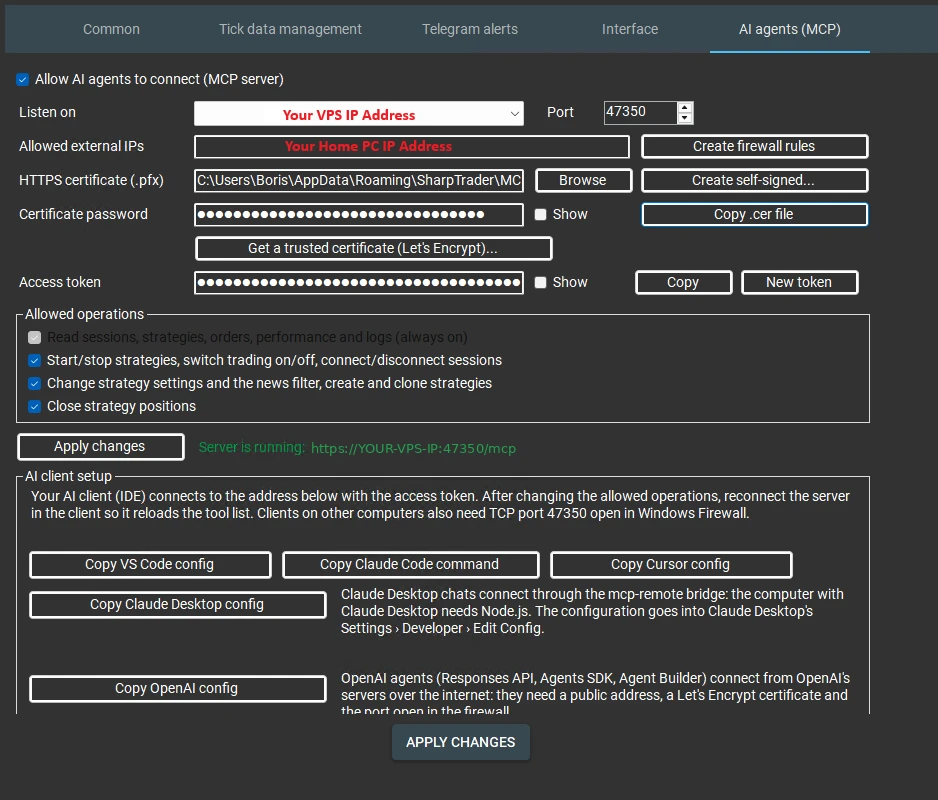
If your VPS provider has its own firewall in its control panel, open TCP port 47350 there too; SharpTrader can only change Windows Firewall.
Connecting Claude
Claude Desktop is the easiest client because SharpTrader ships a ready extension file, SharpTrader.mcpb. It uses Claude Desktop’s own runtime, so nothing else has to be installed.
1
2
SharpTrader.mcpb into the window and press Install.3
http://127.0.0.1:47350/mcp on the same computer, or the https address shown next to “Server is running” for a VPS. Paste the access token, choose the .cer file, press Save.4
Given a certificate file, the extension connects only to a server that presents that certificate, so the token never goes anywhere else. If SharpTrader starts after Claude, the extension retries every 15 seconds and loads the tools once it connects. Claude Code, VS Code and Cursor users can instead press the matching Copy … config button in SharpTrader.
Connecting ChatGPT
The ChatGPT desktop app starts local MCP servers as programs, so it reaches SharpTrader through the small mcp-remote bridge. Install Node.js on your computer first (the Windows installer, default options).
Then open ChatGPT › Settings › Plugins, add an MCP server and fill in:
| Field | Value |
|---|---|
| Command to launch | npx |
| Arguments (one per line) | -y · mcp-remote@latest · https://YOUR-VPS-IP:47350/mcp · --header · Authorization:${AUTH_HEADER} |
| AUTH_HEADER | Bearer, a space, then your access token |
| NODE_EXTRA_CA_CERTS | Path to the certificate, for example C:\SharpTrader\mcp-server.cer |
| NODE_OPTIONS | --use-system-ca |
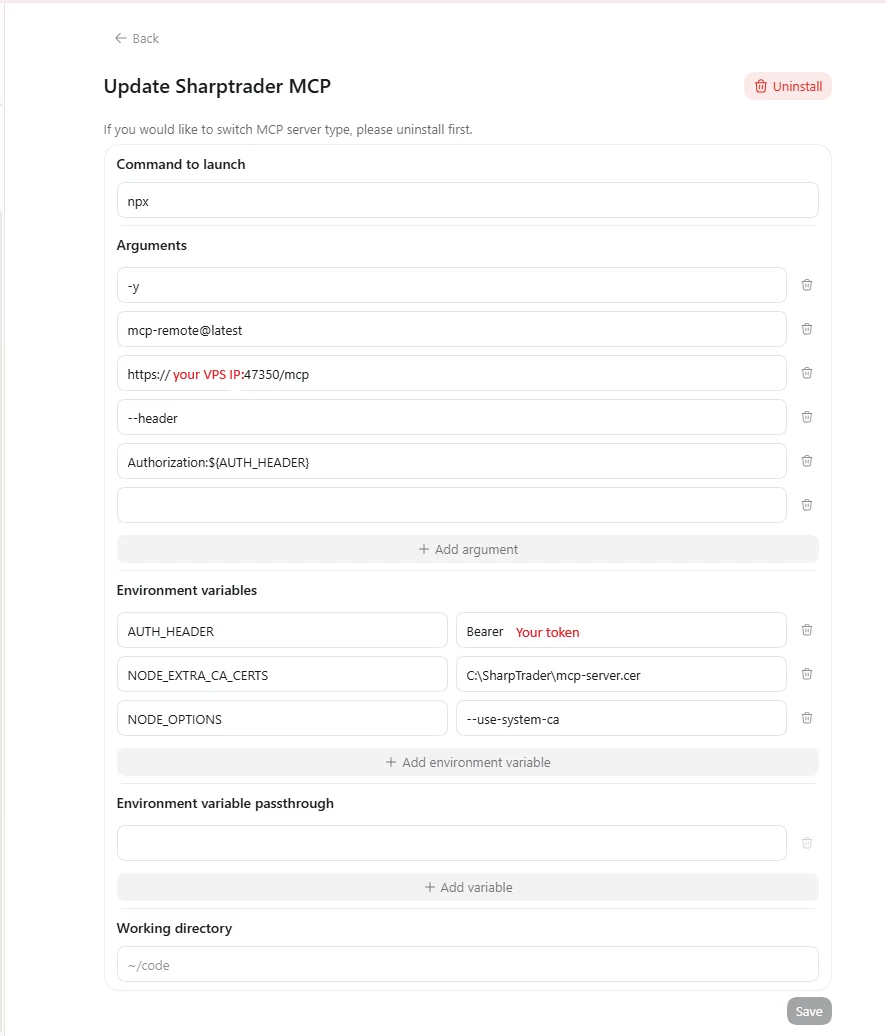
Save, start a new chat and ask “show me my SharpTrader strategies”. If ChatGPT asks whether to trust the folder, confirm. For OpenAI’s hosted agents (Responses API, Agents SDK, Agent Builder) use Copy OpenAI config in SharpTrader instead; they need a Let’s Encrypt certificate and a public address.
Useful requests to try
| Request | Permission group |
|---|---|
| “Give me an overview: which sessions are connected and which strategies are running?” | Read |
| “Show the last errors in the log of strategy 21.” | Read |
| “What were the net profit, profit factor and average slippage of strategy 23 this week?” | Read |
| “Which high-impact USD events are on the calendar today?” | Read |
| “Connect all sessions, then start strategy 19.” | Control |
| “Stop all strategies until the release is over.” | Control |
| “Clone strategy 18 and set MaxOrdersTotal to 5 on the copy.” | Settings |
| “Turn on the news filter for strategy 21 and refresh the calendar.” | Settings |
| “Close all positions of strategy 23.” | Positions |
Good habits: name strategies by ID, ask the agent to read the state again after an action (connecting, closing positions and order updates continue in the background), and keep write requests short and explicit.
Troubleshooting
| Symptom | What to do |
|---|---|
| The client shows no tools, or old tools | After changing allowed operations, reconnect the server in the client (or restart it) so it reloads the list. |
| “Server could not start” | The reason follows: usually the port is taken, the certificate or its password is wrong, or a network address has no certificate. |
| 401 Unauthorized | Wrong token, or New token was pressed. Copy the configuration again. |
| 429 Too many requests | That address sent 10 wrong tokens in 10 minutes. Fix the token; the block ends after 15 minutes. |
| Other computers cannot connect | Check that Listen on is not “This computer only”, the VPS provider’s firewall, and the message of Create firewall rules. |
| Claude shows the server but no SharpTrader tools | Quit Claude Desktop fully from the tray icon and start it again. |
| A settings change is refused | Stop the strategy for general settings, close its window in SharpTrader, or close its open orders before changing a symbol. |
| A call times out after 30 seconds | A message box or dialog is open in SharpTrader. Close it, then let the agent read the state. |
Add AI agents to your SharpTrader
29 tools, read-only by default, no order sending, HTTPS and token protection. Works with Claude, ChatGPT and other MCP clients.
Limits and honest caveats
- The AI can misunderstand. Keep write permissions off until you need them, and check the journal after actions.
- It is not a trading advisor. An assistant summarising your performance is not a forecast, and it cannot make a strategy profitable.
- Actions are asynchronous. “Started” means the command was accepted; the agent should read the state again to confirm.
- Your assistant’s account is a key. Anyone who can use your Claude or ChatGPT account with the connector installed can use the permissions you granted. Protect it with two-factor authentication.
- Some things stay manual by design: new orders, deleting strategies, sessions and symbol mapping, backtests and optimisation.
FAQ
What does MCP stand for?
Model Context Protocol, an open standard for connecting AI assistants to programs and data. A program runs an MCP server that publishes tools; an assistant such as Claude or ChatGPT calls them.
Can an AI agent trade for me through MCP?
In SharpTrader, no tool sends a new order. An agent can start or stop the strategies you configured and, if you allow it, close a strategy’s positions. The trading decisions stay with your strategies.
Do I need a VPS?
No. If the assistant runs on the same computer as SharpTrader, the server listens only on 127.0.0.1 and needs no certificate. A VPS is only needed if your trading already runs there.
Is Claude or ChatGPT better for this?
Both work with the same tools. Claude Desktop is quicker to set up thanks to the ready extension file; ChatGPT needs Node.js and a few more fields. Use the assistant you already pay for.
Can I control SharpTrader by voice from my phone?
Yes. Connect the assistant on your computer, then use its mobile app; the connector is available there too, and you can ask by text or voice.
What happens if my token leaks?
Press New token in SharpTrader and apply the changes: every client using the old token is cut off at once. Then paste the new token into your own clients.
Trading involves risk. This guide is educational and not financial advice. AI assistants can make mistakes; always review what you allow an agent to do.